Using 3D Secure with Paygent
Overview
This tutorial explains how to use 3D Secure for payments integrated with Paygent.
Paygent settings
Apply for 3D Secure (EMV 3D Secure)
First, apply for 3D Secure (EMV 3D Secure). Note: 3D Secure 1.0 is not supported.
Issue the "3D Secure result acceptance hash key"
Next, issue the "3D Secure result acceptance hash key" according to the procedure described in the setup completion email you receive after applying.
If you use EMV 3D Secure (3D Secure 2.0) with the link type
Merchants using the link type or link + module type system who use EMV 3D Secure (3D Secure 2.0) need to generate a "3D Secure result acceptance hash key" from Paygent Online.
(A payment error occurs if the hash key has not been generated.)To generate the 3D Secure result acceptance hash key:
- Log in to Paygent Online as an admin user.
- Go to Maintenance > System management information.
- Click "Create key" for the 3D Secure result acceptance hash key.
- The 3D Secure result acceptance hash key is displayed.
For details, see "5-c. 3D Secure result acceptance hash key" in the Paygent Online manual (p. 218).
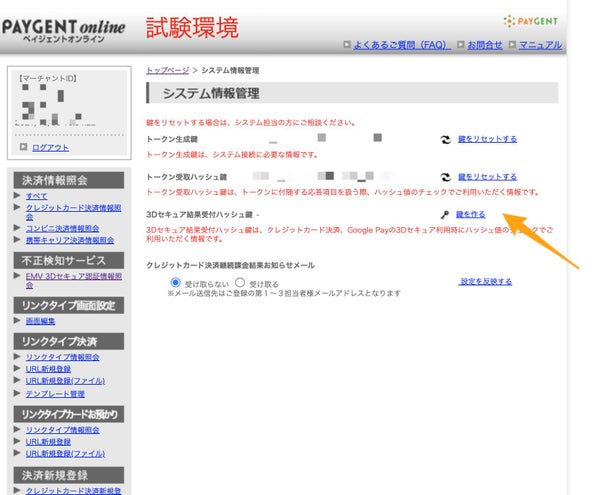
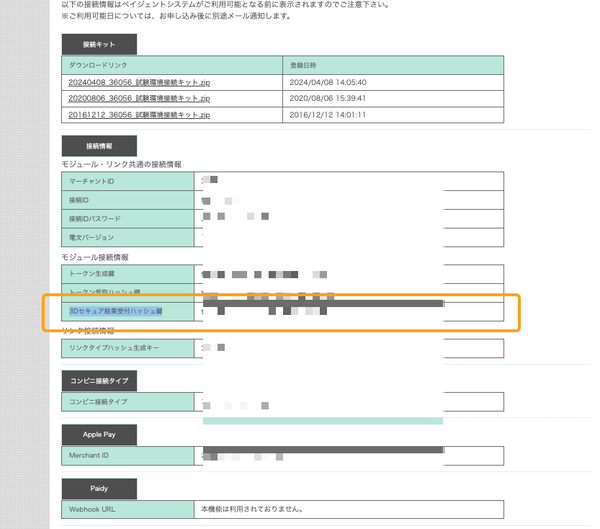
The key can be issued from Paygent Online. For details, see the merchant support site.
Kuroco settings
Configure 3D Secure
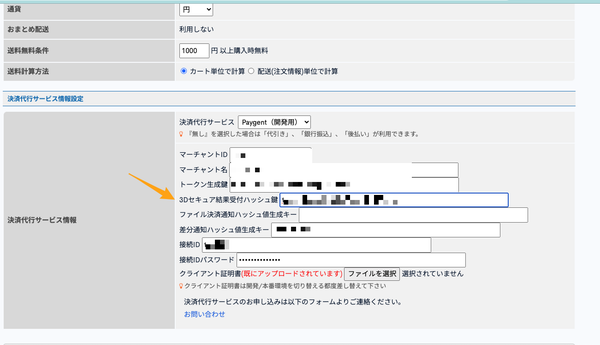
Set the "3D Secure Result Acceptance Hash Key" in the e-commerce Shop information settings.
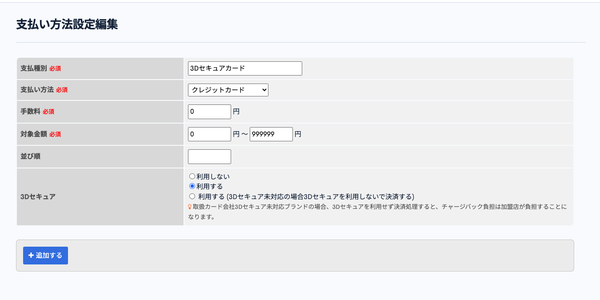
In Payment method settings, set the credit card payment option to use 3D Secure.
Send a request to the API
After creating SKUs and other settings, send the following request to the ECOrder::purchase endpoint.
JSON
{
  "product_id": 41201,
  "quantity": 1,
  "ec_payment_id": 58,
  "card_token": "tok_CY9YQzCwS8Efm1ngz6jM7cKr4a",
  "card_options": {
    "card_3dsec_return_url": "/order/3dsec/"
  }
}
Curl
curl -X 'POST' \
  'https://shibazaki-kuroco-dev.g.kuroco.app/rcms-api/1/ec/ordre' \
  -H 'accept: */*' \
  -H 'X-RCMS-API-ACCESS-TOKEN: d97aaaad1c068d596bd8d3dd37a75343d5d135827c89a434ac5b9c704a9305ab' \
  -H 'Content-Type: application/json' \
  -d '{
  "product_id": 41201,
  "quantity": 1,
  "ec_payment_id": 58,
  "card_token": "tok_CY9YQzCwS8Efm1ngz6jM7cKr4a",
  "card_options": {
    "card_3dsec_return_url": "/order/3dsec/"
  }
}'
In card_3dsec_return_url, specify the front-end URL to redirect to after 3D Secure authentication.
Sample response
{
  "errors": [],
  "messages": [
    "注文が完了しました。"
  ],
  "ids": [
    1
  ],
  "ext_data": {
    "credit_card_3dsec_resp": {
      "out_acs_html": "<form name=\"submitForm\" action=\"https://・・・
    }
  }
}
Due to system constraints, purchasing the following combinations, which result in separate orders, causes an error. Implement the front end so that these items are purchased separately.
- Regular products and download products
- Released products and pre-order products
- Purchases with and without coupons
{
  "errors": [
    {
      "code": "unprocessable_entity",
      "message": "3Dセキュアを利用している場合は配送・DLを1つにまとめる必要があります、予約商品や配送・DL商品が混ざっている場合は個別に注文してください。"
    }
  ],
  "x-rcms-request-id": "a32b81da-a923-410b-af1e-f1853343aca8"
}
The out_acs_html in the response contains the required HTML. Display it on the front end.
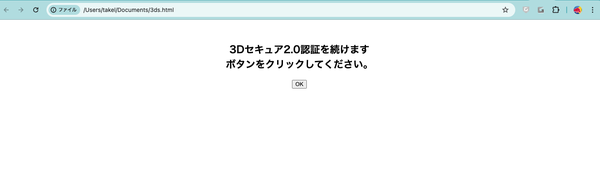
You can also submit this form automatically in your front-end processing.
The HTML may change due to specification changes on the Paygent side.
In that case, changes on the Kuroco side may also be required.
Check the status
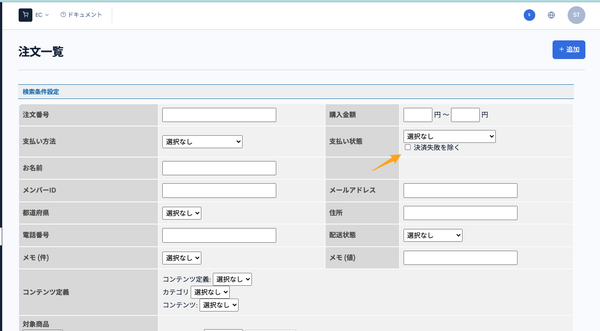
At this point, the order in Kuroco is treated as a payment failure for convenience. When checking it in the admin panel, uncheck "Except settlement failure" before searching.
If the authentication on the 3D Secure authentication screen succeeds after clicking "OK", the order status changes to payment completed.
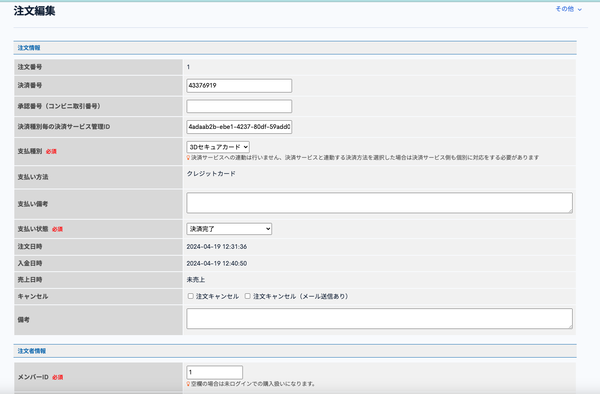
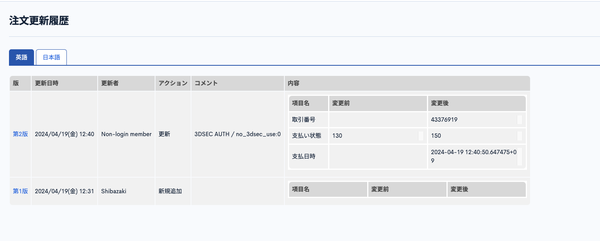
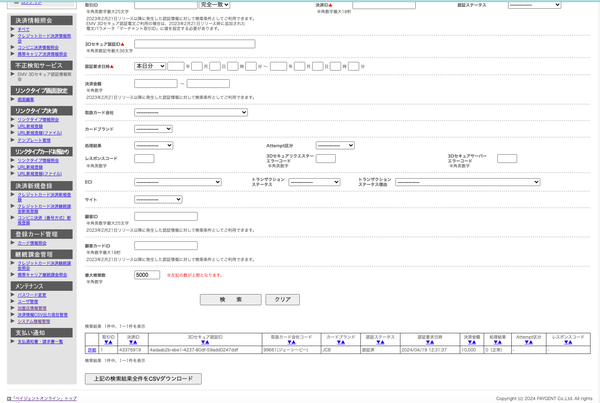
You can also check the authentication status from the Paygent admin panel.
Process sales
Process sales from the "Sales/delivery management" screen when you ship the product.
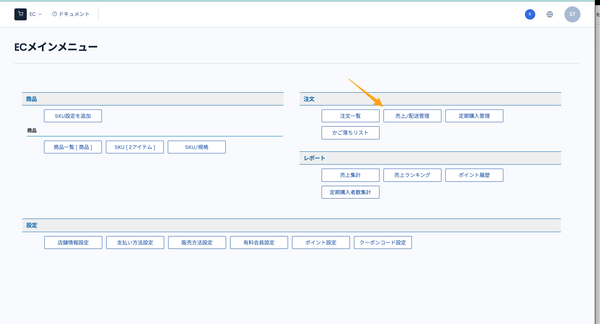
For products that do not require shipping, sales may not be processed from this screen.
This is a common e-commerce process unrelated to 3D Secure, so details are omitted here.
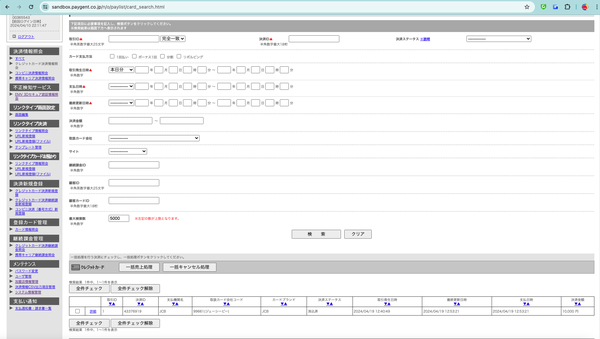
Check in the Paygent admin panel that the payment is marked as cleared.
Handling errors
- 3D Secure authorization errors and timeouts on the authorization screen
- You can check the error details in the order information or the Paygent admin panel.
- The user is redirected to the front-end return URL with the query parameter
dsec_error=1added. - If credit card authorization fails after 3D Secure authentication succeeds, an email is sent to the administrator. (Depending on your front-end implementation, handle this case individually.)
Related documents
Support
If you have any other questions, please contact us or check out Our Slack Community.