API security
The API "Security" screen allows you to edit the security settings.
Accessing the screen
In the left sidebar menu, click [API] and select the API you want to look at. Then, click [Security] on the API endpoint screen.
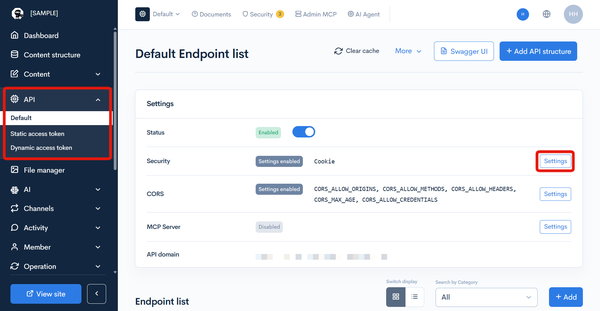 This displays the "Security" pop-up screen.
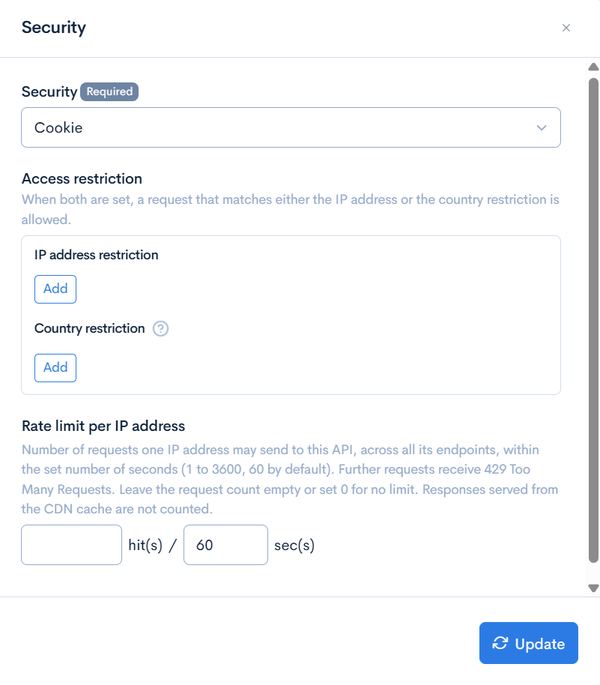
Security options
Choose among one of the five options below.
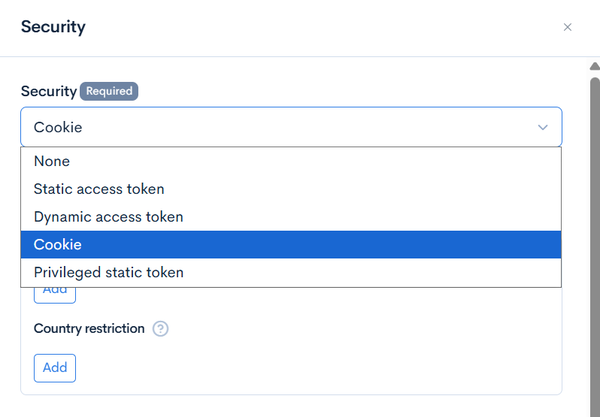
| Item | Description |
|---|---|
| None | No access restrictions. |
| Static Access Token | Statically generated authentication token. |
| Dynamic Access Token | Dynamically generated authentication token. |
| Cookie | Cookie-based authentication. |
| Privileged Static Token | Statically generated token associated with a specific member. |
Overview of the security options
None
No security settings. Select this option when creating and testing temporary development APIs or using completely open data.
Since it is possible to directly access the endpoint without a token, it is recommended to select/configure other security.
Static Access Token
Configures the authentication method using statically generated tokens. Used for inter-server communication and public information provision APIs. Specify the static token in the request header to allow access to secure endpoints.
Since statically generated tokens may unintentionally leak or be embedded in the frontend, please design your system to accommodate token updates.
Dynamic Access Token
Configures the authentication method using dynamically generated tokens. Used for sites that require login. This option dynamically generates a one-time token for each login authentication request and specifies its value in the request header to allow access to secure endpoints.
To use a dynamic access token, you need to ensure the following:
- At least one user must be registered.
- The required endpoint must be created.
- Token management control must be implemented in the front-end.
| Required endpoint | Category | Model | Operation |
|---|---|---|---|
| Login | Authentication | Login(v1) | login_challenge |
| Token | Authentication | Login(v1) | token |
Like in the static access token option, the authentication status is not shared among multiple APIs (i.e., per api_id), and authentication is required for each API.
Cookie
Configures the authentication method using cookies. Used for sites that require login.
Dynamically generating a cookie for each login authentication request and specifying its value in the request header allows access to secure endpoints.
To use cookies, you need to ensure the following:
- At least one user must be registered.
- The required endpoint must be created.
| Required endpoint | Category | Model | Operation |
|---|---|---|---|
| Login | Authentication | Login(v1) | login_challenge |
In the case of multiple cookie authentication APIs, the authentication status is shared among all of them (even across different api_ids).
To avoid third-party cookie restrictions, match the front-end and Kuroco domains to generate first-party cookies.
Privileged Static Token
Configures the authentication method using statically generated tokens that are associated with a specific member. Used for server-to-server communication where API access needs to be performed with the permissions of a specific member.
Like the static access token, the token is specified in the request header, but the request is authenticated as the member specified during token generation.
This allows access to endpoints with API request restrictions based on member permissions, without going through the login or dynamic token generation flow.
Since the token executes requests with the permissions of the associated member, please generate the token by specifying a member with the appropriate permissions.
As with the static access token, be cautious about token leakage and design your system to accommodate token updates.
IP address restriction
Access is allowed only from the specified IP address.
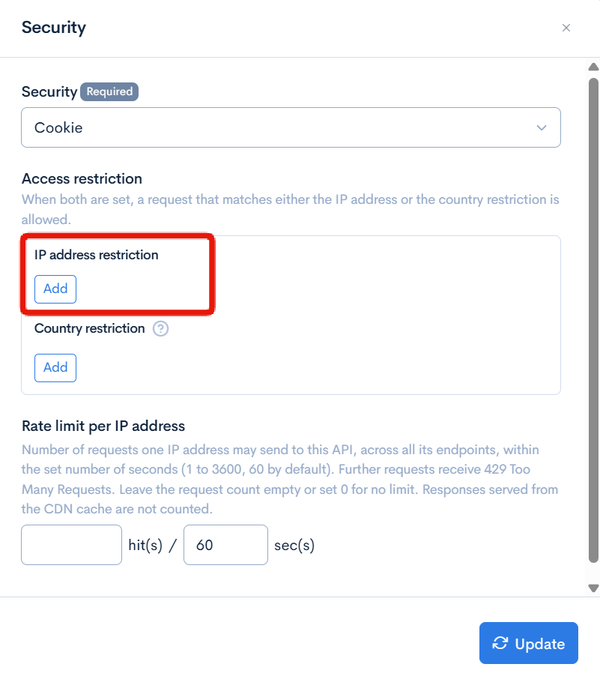
Use one of the following formats:
- IP Address (e.g., 192.0.2.1)
- CIDR (e.g., 192.0.2.0/24)
- IP range with "-" (e.g., 192.0.2.1-192.0.2.2)
Country restriction
Access is allowed only from the specified countries.
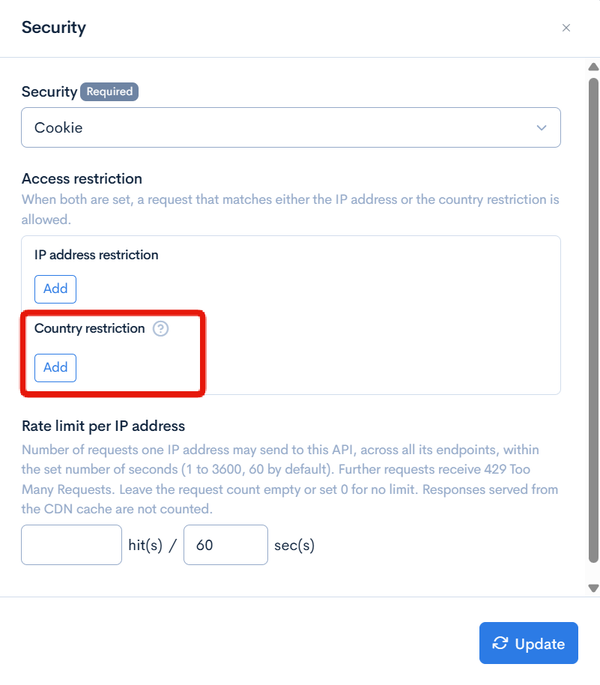
Under [Access restriction], select the countries allowed to access the API in [Country restriction]. You can specify multiple countries.
- When both [IP address restriction] and [Country restriction] are set, a request that matches either one is allowed. For example, you can allow specific locations such as partner companies with the IP address restriction, and allow general users with the country restriction.
- A request whose country cannot be determined is refused unless the IP address restriction allows it.
- A refused request receives the same error as the IP address restriction (
IP address is out of range.). The response does not indicate whether the request was refused by the country restriction or the IP address restriction.
The country is determined from the source IP address and is not always accurate. A request actually sent from within your country may be identified as coming from another country.
Before setting a country restriction, check which countries requests are coming from in the [Country code] column of the API log. Make sure there is no legitimate access from countries you do not plan to allow, and then decide which countries to allow.
Requests from users on business trips abroad and through VPNs or cloud services routed via overseas servers are also refused. Confirm every source that uses the API before configuring this setting.
Rate limit per IP address
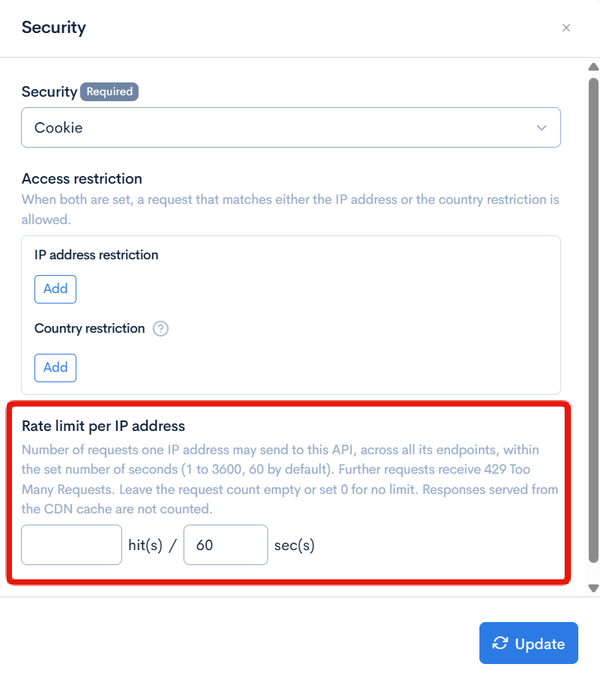
Limits the number of requests a single IP address can send to this API within the specified number of seconds.
| Item | Description |
|---|---|
| Requests (Hit) | Specify a value from 0 to 720000. Leave it empty or set 0 for no limit. |
| Seconds | The period over which requests are counted. Specify a value from 1 to 3600 seconds. The default is 60 seconds. |
- Requests are counted as the total across all endpoints in the API.
- Requests that exceed the limit receive 429 Too Many Requests with a
Retry-Afterheader (the number of seconds until the client can retry). - You can check the limit status in the following response headers.
- Limit:
x-rcms-ip-ratelimit-limit - Remaining requests:
x-rcms-ip-ratelimit-remaining - Time until reset:
x-rcms-ip-ratelimit-reset
- Limit:
- Responses served from the CDN cache are not counted.
- Requests refused by the IP address restriction are not counted. Requests from IP addresses allowed by the IP address restriction are counted.
- Requests to the MCP server (
/rcms-api/{api_id}/mcp) are not subject to this limit.
On corporate networks or mobile connections, multiple users may share the same IP address. Set the limit with enough headroom for the expected usage.
The [Rate limit] in the endpoint settings counts the total of all requests to the endpoint, not per source IP address or access token. To limit large volumes of requests from a specific IP address, use [Rate limit per IP address]. For details, see Endpoint settings.
Related documents
Support
If you have any other questions, please contact us or check out Our Slack Community.