Creating the front-end for an e-commerce site
This tutorial explains step by step how to build an e-commerce site with Kuroco. Building the site involves three main tasks:
- Configuring e-commerce settings from the admin panel
- Configuring the APIs required to build an e-commerce site
- Creating the front-end (this page)
Front-end pages to create
The files created in this tutorial are as follows.
| Item | File name | Description |
|---|---|---|
| Product list page | product_list.vue | Displays the product list Displays the cart contents Adds products to the cart |
| Purchase page | purchase.vue | Displays the cart contents Orderer information input Payment method selection Purchase |
This tutorial provides sample pages from the product list to the purchase. When you actually build a site, you also need pages such as a login page and a member registration page. Implementing login is not covered in this tutorial. For details, see Building a login page.
Front-end implementation
Create the files in your Nuxt installation directory with the following structure.
In this tutorial, an ec directory is created in the pages directory, and the files product_list.vue and purchase.vue are created in it.
pages
 - ec
   - product_list.vue
   - purchase.vue
Creating the product list page
First, create the product list page as follows.
<template>
    <div>
        <div>
        <h2 class="title">Cart items</h2>
        <div v-if="cartItems" class="box">
            <ul>
                <h3>Items</h3>
                <li class="cart-item" v-for="item in cartItems.items" :key="item.product_id">
                    <div class="product_id">ID: {{ item.product_id }}</div>
                    <div class="quantity">Quantity: {{ item.quantity }}</div>
                </li>
            </ul>
            <ul>
                <h3>Order summary</h3>
                <li>
                    <div>Delivery fee: {{ cartItems.deliv_fee }}</div>
                    <div>Subtotal: {{ cartItems.subtotal }}</div>
                    <div>Total: {{ cartItems.total }}</div>
                </li>
            </ul>
            <div>
                <NuxtLink to="/ec/purchase" class="btn">Proceed to cart</NuxtLink>
            </div>
        </div>
        <div v-else>There are no items in the cart yet.</div>
        </div>
        <div class="box">
            <h2 class="title">Product list</h2>
            <ul v-if="productList" class="ul">
                <li class="list-item" v-for="item in productList" :key="item.product_id">
                    <div class="title">Product name: {{ item.subject }}</div>
                    <div class="price">Price: {{ item.price_02 }} JPY</div>
                    <div class="cart btn" @click="addCart(item.product_id)">Buy</div>
                </li>
            </ul>
        </div>
    </div>
</template>

<script>
export default {
    auth: false,
    async asyncData ({ $axios, params }) {
        try {
            const profile = await $axios.$get(process.env.BASE_URL + '/rcms-api/1/profile')
            let cartItems = {
                details: null
            }
            if (profile.ec_cart_id) {
                cartItems = await $axios.$get(process.env.BASE_URL + '/rcms-api/1/cart-items/' + profile.ec_cart_id)
            }
            const productList = await $axios.$get(process.env.BASE_URL + '/rcms-api/1/product-list')

            return {
                'cartItems': cartItems.details,
                'productList': productList.list
            }
        }catch (e) {
            console.log(e.message)
        }
    },
    data() {
        return {
            paymentId: {}
        }
    },
    methods: {
        async addCart(product_id) {
            const profile = await this.$axios.$get(process.env.BASE_URL + '/rcms-api/1/profile')
            const addItem = {
                ec_cart_id: profile.ec_cart_id,
                item: {
                    product_id: product_id,
                    quantity: 1
                }
            }
            const addCartResp = await this.$axios.$post(process.env.BASE_URL + '/rcms-api/1/add-cart', addItem)
            if (addCartResp.errors.length == 0) {
                alert('Success add cart')
                const cartListResp = await this.$axios.$get(process.env.BASE_URL + '/rcms-api/1/cart-items/' + profile.ec_cart_id)
                this.cartItems = cartListResp.details
            } else {
                alert(addCartResp.errors[0].message)
            }
        }
    }
}
</script>
<style scoped>
div.box{
border: solid 1px #ddd;
border-radius :8px;
padding: 10px;
margin:10px;
}

li {
  border-radius :8px;
  box-shadow :0px 0px 5px silver;
  padding: 0.5em 0.5em 0.5em 2em;
  margin: 20px;
}

.btn,
a.btn {
  color: #fff;
  background-color: #fd9535;
}
.btn:hover,
a.btn:hover {
  color: #fff;
  background: #fd9535;
}

a.btn--radius {
   border-radius: 100vh;
}
</style>
In the sample code above, replace the "1" in "/rcms-api/1/..." with your own API ID.
Purchase page
Next, create the purchase page as follows.
<template>
    <div>
        <div class="box">
            <h2 class="title">Order summary</h2>
            <ul v-if="cartItems">
                <div>Delivery fee: {{ cartItems.deliv_fee }}</div>
                <div>Subtotal: {{ cartItems.subtotal }}</div>
                <div>Total: {{ cartItems.total }}</div>

                <li class="cart-item" v-for="item in cartItems.items" :key="item.product_id">
                    <div class="product_id">ID: {{ item.product_id }}</div>
                    <div class="quantity">Quantity: {{ item.quantity }}</div>
                </li>
            </ul>
        </div>
        <div class="box">
            <h2 class="title">Purchaser information</h2>
            <label for="cheese">Name</label>
            <input name="name1" v-model="orderer.name1" /> <input name="name2" v-model="orderer.name2" /><br/>
            <label for="cheese">Postal code</label>
            <input name="zip_code" v-model="orderer.zip_code" maxlength="7" minlength="7" /><br/>
            <label for="cheese">Address</label>
            <select name="tdfk_cd" v-model="orderer.tdfk_cd">
            <option value="">-- No selected --</option>
            <option value="01">Hokkaido</option>
            <!-- omitted -->
            <option value="13">Tokyo</option>
            <!-- omitted -->
            <option value="47">Okinawa</option>
            </select><br/>
            <input name="address1" v-model="orderer.address1" /><br/>
            <input name="address2" v-model="orderer.address2" /><br/>
            <input name="address3" v-model="orderer.address3" /><br/>
            <label for="cheese">Phone number</label>
            <input name="tel" v-model="orderer.tel" /><br/>
            <label for="cheese">Email address</label>
            <input name="email" v-model="orderer.email" /><br/>
        </div>
        <div class="box">
            <h2 class="title">Payment method</h2>
            <div class="payment" >
                <span>Select a payment method >> </span>
                <select v-model="paymentId">
                    <option value="0">-- Select --</option>
                    <option v-for="(paymment_info, payment_id) in paymentList" :key="payment_id"
                        :value="payment_id"
                    >{{ paymment_info.payment_type }}
                    </option>
                </select>
            </div>
            <!-- Add credit card information entry forms, etc. as needed. -->
            <div @click="normalBuy()" class="cart btn">
                Place order
            </div>
        </div>
    </div>
</template>

<script>
export default {
    auth: false,
    async asyncData ({ $axios, params }) {
        try {
            const profile = await $axios.$get(process.env.BASE_URL + '/rcms-api/1/profile')

            /*const profile = await $axios.$get('/profile')*/
            let cartItems = {
                details: null
            }
            let orderer = {}
            if (profile.ec_cart_id) {
                cartItems = await $axios.$get(process.env.BASE_URL + '/rcms-api/1/cart-items/' + profile.ec_cart_id)

                orderer.name1 = profile.name1
                orderer.name2 = profile.name2
                orderer.zip_code = profile.zip_code
                orderer.tdfk_cd = profile.tdfk_cd
                orderer.address1 = profile.address1
                orderer.address2 = profile.address2
                orderer.address3 = profile.address3
                orderer.tel = profile.tel
                orderer.email = profile.email
            }
            return {
                'cartItems': cartItems.details,
                'paymentList': cartItems.payment_list,
                'orderer': orderer
            }
        }catch (e) {
            console.log(e.message)
        }
    },
    data() {
        return {
            paymentId: 0
        }
    },
    methods: {
        async normalBuy() {
            if (!this.paymentId) {
                alert('Please select payment')
                return
            }
            const profile = await this.$axios.$get(process.env.BASE_URL + '/rcms-api/1/profile')
            if (!profile.ec_cart_id) {
                alert('No loggedin')
                return
            }
            const order = {
                ec_cart_id: profile.ec_cart_id,
                ec_payment_id: parseInt(this.paymentId),
                orderer: this.orderer
            }
            this.$axios.$post(process.env.BASE_URL + '/rcms-api/1/purchase ', order)
            .then((response) => {
                if (response.errors.length === 0) {
                    alert('Success purchase')
                    this.cartItems = null
                }
            })
            .catch((error) => {
                alert(error.response.data.errors[0].message)
            })
        }
    },
}
</script>
<style scoped>
In the sample code above, replace the "1" in "/rcms-api/1/..." with your own API ID.
Checking the screens
Save the files and access ec/product_list. The following screen appears.
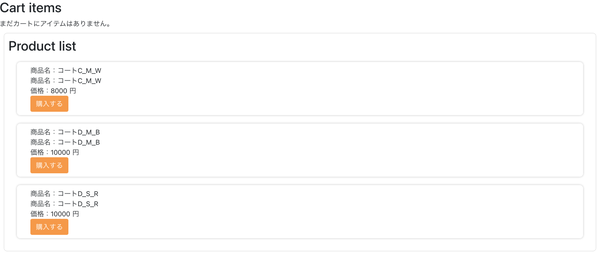
Click [購入する] (Buy) to save the item in the cart.
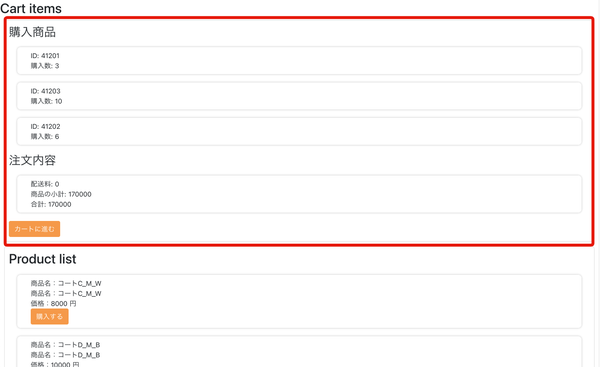
Click [カートに進む] (Proceed to cart) to display the screen for confirming the order and entering the purchaser information and payment method.
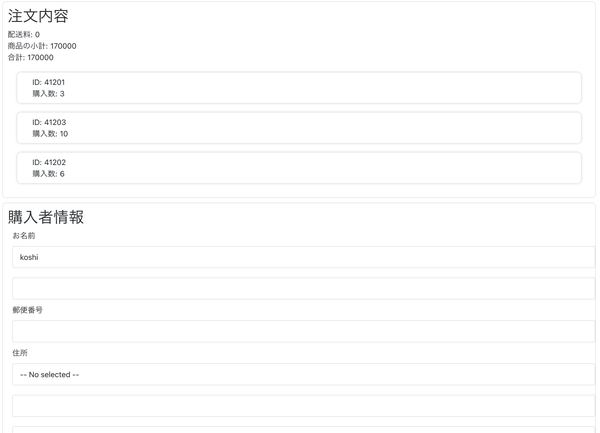
Click [注文を確定する] (Place order) to complete the purchase.
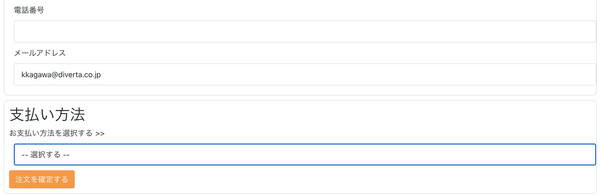
You can now handle everything from displaying products to purchasing them. This tutorial focuses on the overall structure of e-commerce, so details are omitted, but credit card payments and subscriptions are also possible.
Reference
Purchasing products without using the cart
This tutorial assumes bank transfer payments and shipping of products, so the flow is to add products to the cart and then purchase them. If you want to purchase a specified product without using the cart, such as for paid memberships, see How can I purchase a specific product directly without using the cart?.
Related documents
Support
If you have any other questions, please contact us or check out Our Slack Community.