How to link Google Analytics
You can link Kuroco with Google Analytics using Google OAuth2.0 authentication information.
This tutorial explains how to set up the connection from Kuroco's management screen, obtain GoogleClientID and GoogleClientSecret required for the connection, and set up the front-end.
Note: There may be some outdated details on this tutorial due to specification changes by Google. Kindly refer to Google for the latest information.
Create Google Analytics account
First, create your account and properties on Google Analytics.
The GA4 property ID or measurement ID is required to link Kuroco and Google Analytics.
How to check the measurement ID
Please click on [Admin] -> [Property] -> [Data Streams] from the Google Analytics management screen.
You will be able to see the detailed view of the data stream, so please copy the measurement ID (the ID starting with G-, also called the tracking ID).
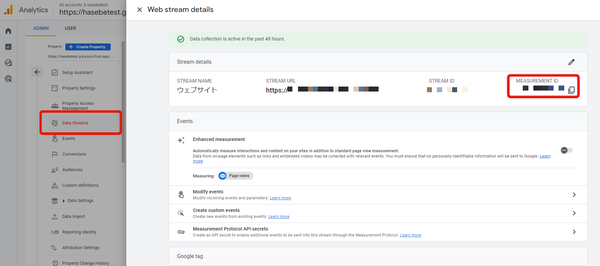
The measurement ID is also used in the tag you place on the front-end.
How to check the property ID
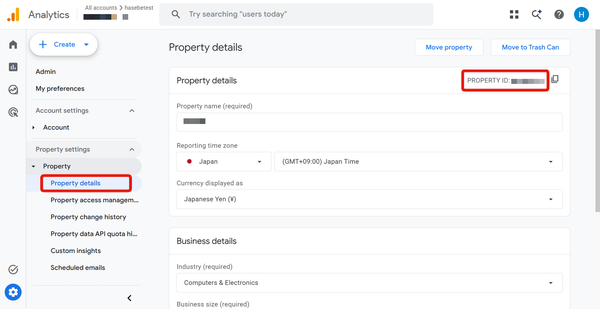
Please click on [Admin] -> [Property details] from the Google Analytics management screen, and copy the property ID (numeric).
Issue Google OAuth 2.0 Client ID
This section shows how to issue the Google OAuth 2.0 Client ID which is required to link Kuroco and Google account.
(If you already have client ID and client secret, skip this section and go to the next step Link Kuroco with Google Analytics to connect Kuroco and Google account.)
1. Create a project on Google Cloud Platform
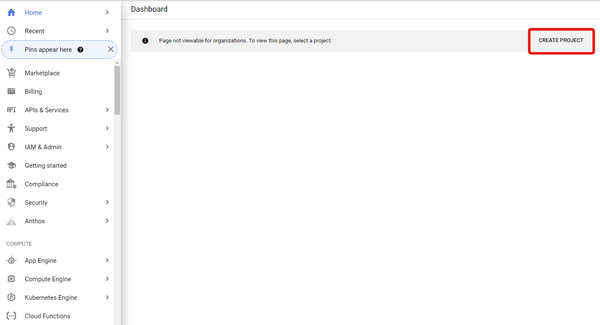
Access Google Cloud Platform and click [Create project].
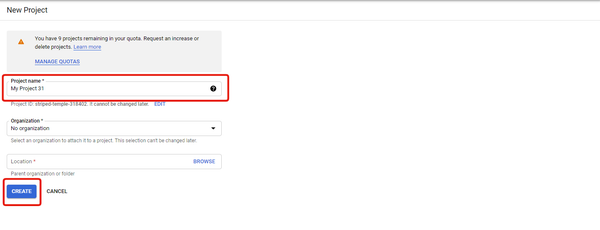
 Enter a project name and click [Create].
 2. Enable Analytics API
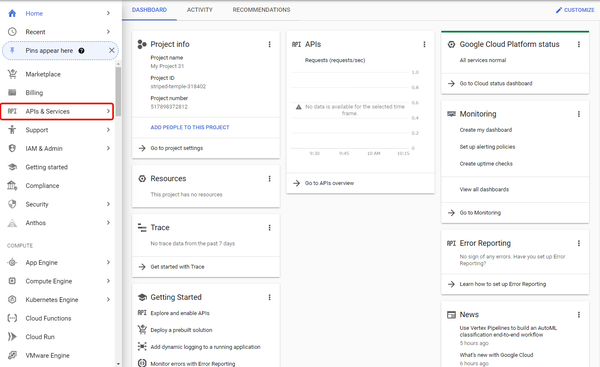
Click [APIs & Services] on the side menu.
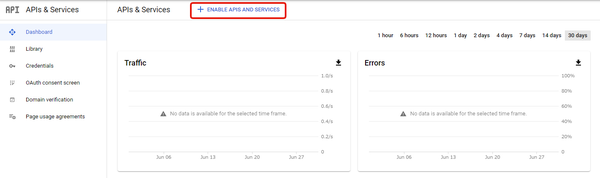
 Click [ENABLE APIS AND SERVICES].
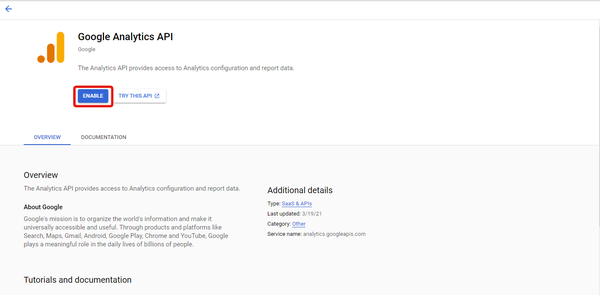
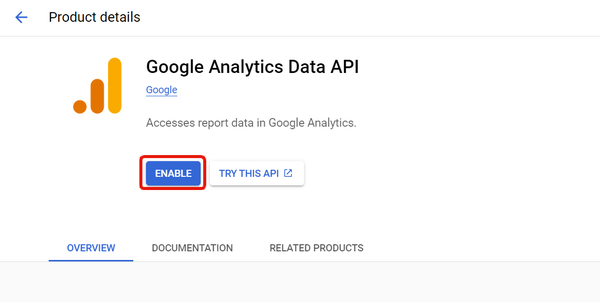
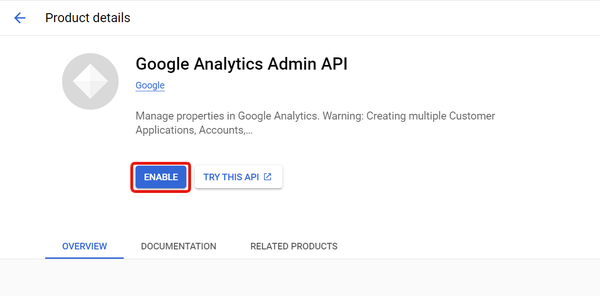
You will see the API library, so please find and enable "Google Analytics API", "Google Analytics Data API" and "Google Analytics Admin API".
If you are integrating with GA4, there is no need to enable "Google Analytics Reporting API."
3. Create OAuth consent screen
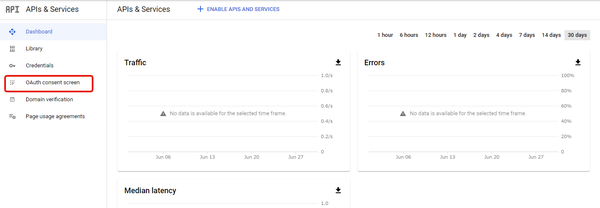
Go to "APIs & Services" page again and click [OAuth consent screen] on the side menu.
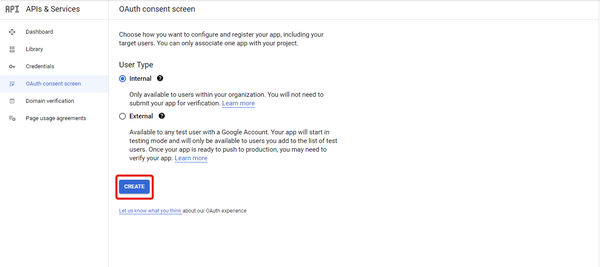
 Select User Type and click [Create].
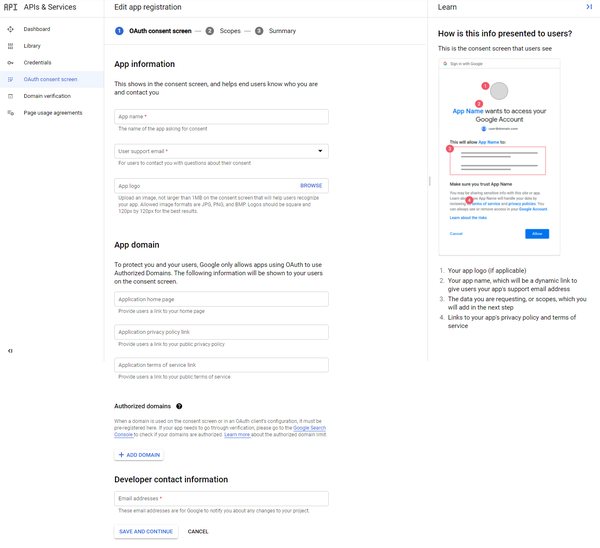
 Enter the required information and create an OAuth consent screen.
 4. Create OAuth client ID
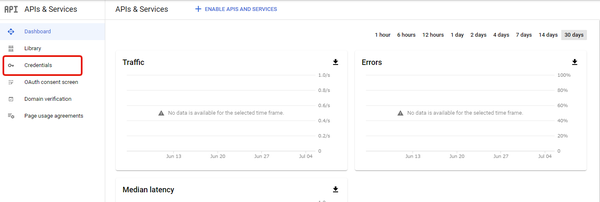
Click [Credentials] on the side menu of APIs & Services page.
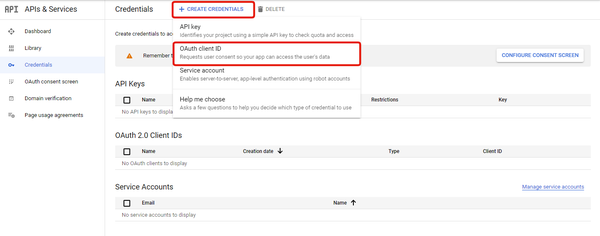
 Click [CREATE CREDENTIALS] -> [OAuth client ID].
 Enter the required information on the OAuth client ID creating page and click [CREATE].
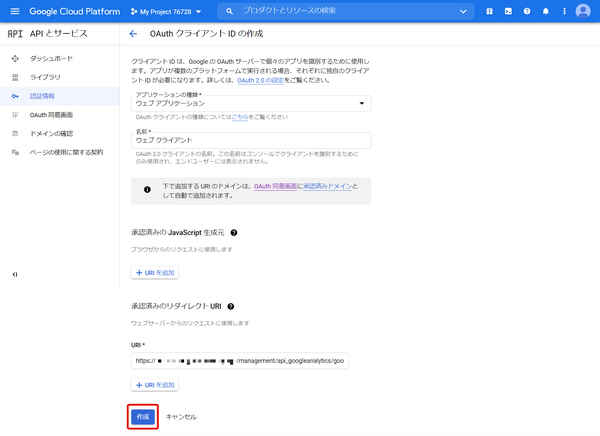
- Select "Web app" for the "Application type".
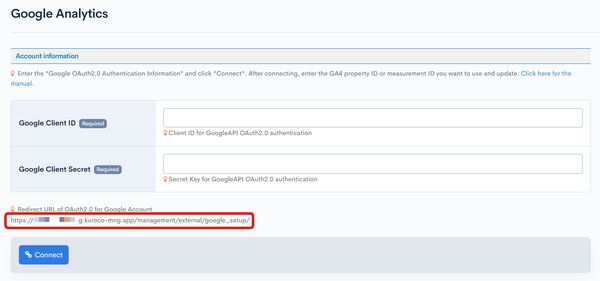
- For the "Authorized redirect URIs", enter the one which you can find on Kuroco's Google Analytics.
 5. Confirm GoogleClientID and GoogleClientSecret
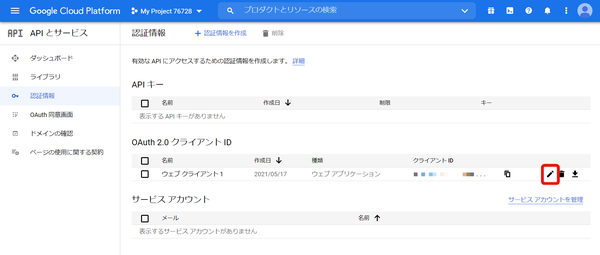
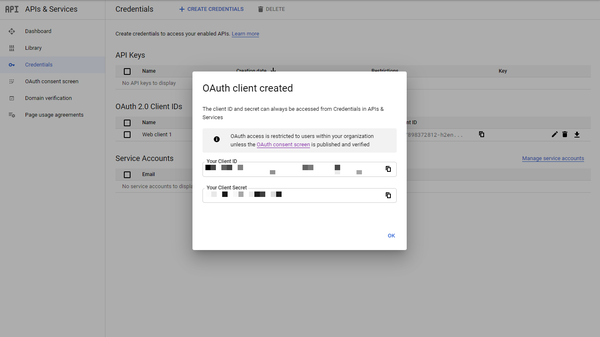
Click on the pencil icon to view the client ID created in the authentication credentials.
Confirm the client ID and Client Secret.
Link Kuroco with Google Analytics
1. Access Kuroco's Google Analytics setting page
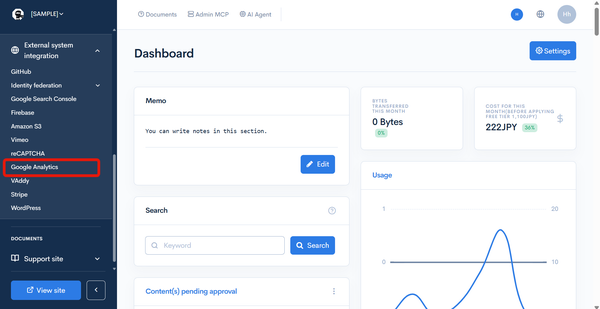
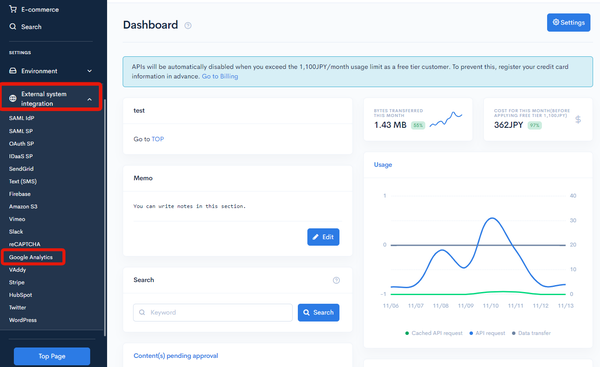
Access the Kuroco management page and click [External system cooperation] -> [Google Analytics] on the side menu.
2. Connect to Google account
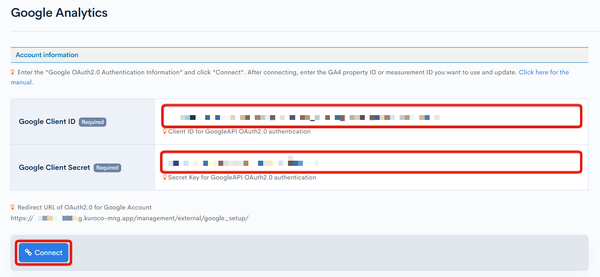
Enter the GoogleClientID and GoogleClientSecret and click [Connect].
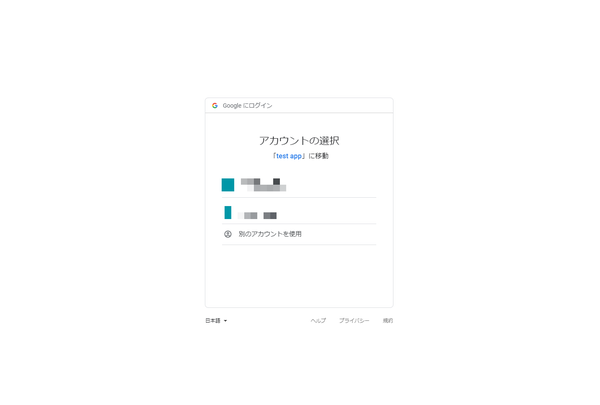
You'll be taken to Google's login screen, so log in with the same account previously used on Google Analytics.
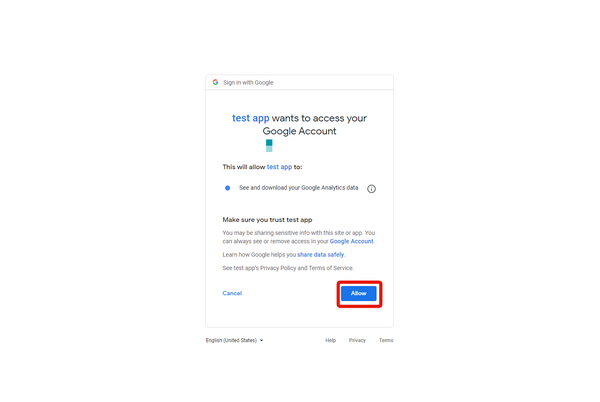
 Click [Allow] on the OAuth consent screen.
 Once successfully authenticated, you will be returned to the Kuroco screen and you can log in again.
 3. Property ID / Measurement ID setting
You can enter the [Property ID / Measurement ID] under [Profile information] after the Google account is authenticated successfully. Enter either the GA4 property ID (numeric) or the measurement ID (starting with G-) and click [Update].
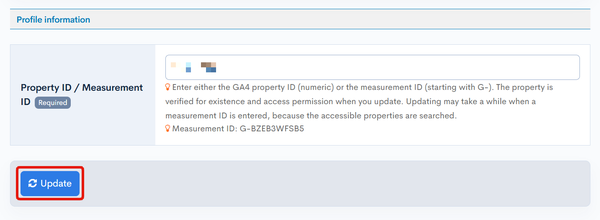
- The property ID can be entered as
123456789or asproperties/123456789. - The measurement ID is not case-sensitive.
- When you update, the existence of the property matching the entered value and your access permission are verified. Updating may take a while when a measurement ID is entered, because the accessible properties are searched.
If the specified property is not found or the connected Google account does not have access permission, the message "The specified property ID / measurement ID was not found, or the connected Google account does not have access to it. Please check the entered value and the account permissions." is displayed and the setting is not saved.
The integration with Google Analytics is now complete.
Set up Google Analytics on the front-end
At last, let's set up Google Analytics on the front-end.
In this tutorial, we use Nuxt 4 to set it up.
In this document, there is a sample of directly specifying the GA4 measurement ID and the GTM container ID in the nuxt.config.ts file. However, in practice, it is desirable to define them in environment-specific env files and load them from there.
not using GTM
Install nuxt-gtag
Install in your project nuxt-gtag which is the module for Google Analytics.
Execute the following:
npm install --save-dev nuxt-gtag
nuxt-gtag v5 and later target Nuxt 4 and later. If you are using Nuxt 3, run npm install --save-dev nuxt-gtag@4 to install v4.
Add module to nuxt.config.ts
Let's configure Google Analytics in nuxt.config.ts.
Open nuxt.config.ts and add the following:
export default defineNuxtConfig({
  modules: ['nuxt-gtag'],
  gtag: {
    id: 'G-XXXXXXX'
  }
})
Replace G-XXXXXXX with your own measurement ID.
To measure page_view events on page transitions, open the target web stream in Google Analytics under [Admin] -> [Data streams], and enable "Page changes based on browser history events" in Enhanced measurement.
Using GTM
Install @nuxt/scripts
Install @nuxt/scripts, the official Nuxt module for third-party scripts, in your project. Execute the following:
npm install @nuxt/scripts
Add the module to nuxt.config.ts
Configure Google Tag Manager settings in nuxt.config.ts by adding the following:
export default defineNuxtConfig({
  modules: ['@nuxt/scripts'],
  scripts: {
    registry: {
      googleTagManager: {
        id: 'GTM-XXXXXXXX',
        trigger: 'onNuxtReady'
      }
    }
  }
})
Replace GTM-XXXXXXXX with your own container ID.
When trigger is specified, the GTM script is loaded on all pages. If trigger is not specified, the settings in nuxt.config.ts alone do not load the GTM script.
Add a plugin that sends an event to the dataLayer on page transitions
@nuxt/scripts loads the GTM script, but it does not send events to the dataLayer on page transitions.
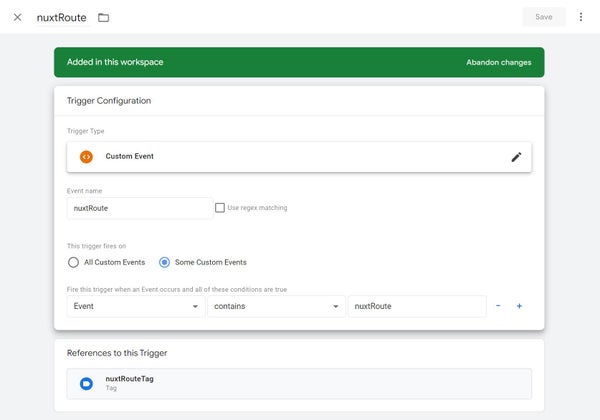
To send the nuxtRoute event used in the GTM settings below, create the following plugin in the app/plugins/ directory.
declare global {
  interface Window {
    dataLayer: Record<string, unknown>[]
  }
}

export default defineNuxtPlugin((nuxtApp) => {
  nuxtApp.hook('page:finish', () => {
    // Send after the page title has been updated
    setTimeout(() => {
      window.dataLayer = window.dataLayer || []
      window.dataLayer.push({ event: 'nuxtRoute' })
    }, 0)
  })
})
This plugin sends the nuxtRoute event to the dataLayer on the initial page load and on every page transition.
The setTimeout delays sending so that GTM tags fire after the title of the destination page has been applied.
Configuring GTM
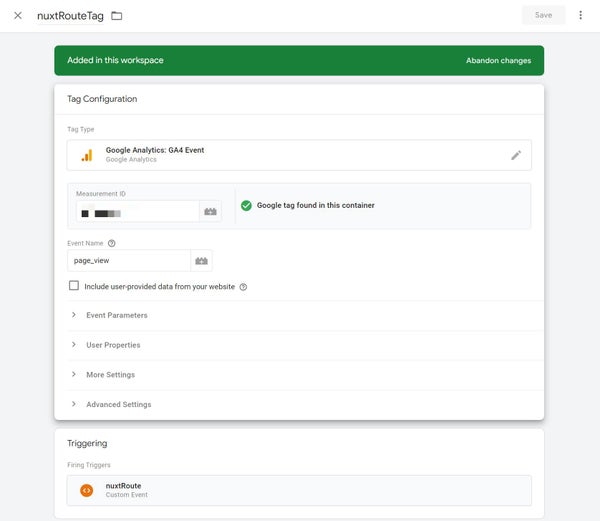
Set up "Google Analytics GA4 Settings" and "nuxtRoute Tag" in GTM to trigger the page_view event.
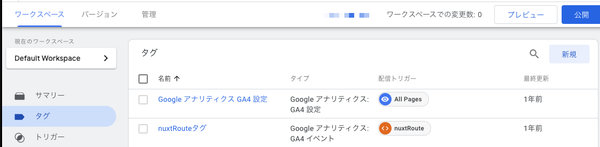
Google Analytics GA4 Settings
If you want to measure only the page_view event in Nuxt, do not check the box above, and instead configure the nuxtRoute event to trigger the "page_view" event.
Checking "Send a page view event when this configuration is loaded" will send the page_view event to GA when this configuration is loaded.
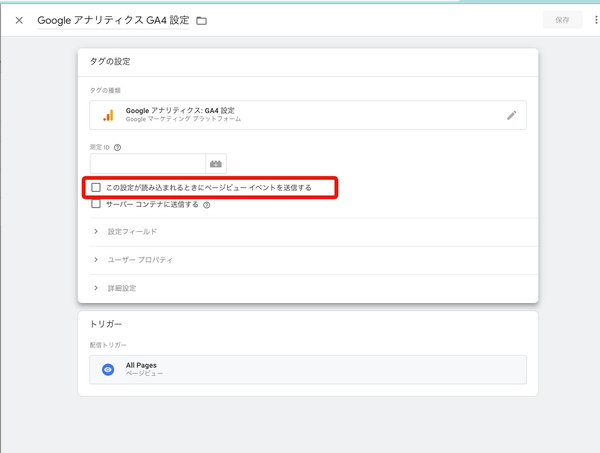
Configuring the nuxtRoute Event (Triggering the page_view event on the initial page load and on page transitions)
Trigger
Tag
Confirm the connection on Google Analytics
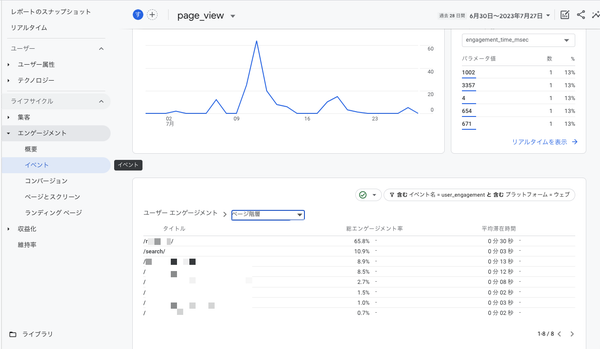
Access Google's admin page and confirm that the access information is fetched properly.
[Reports] -> [Realtime]
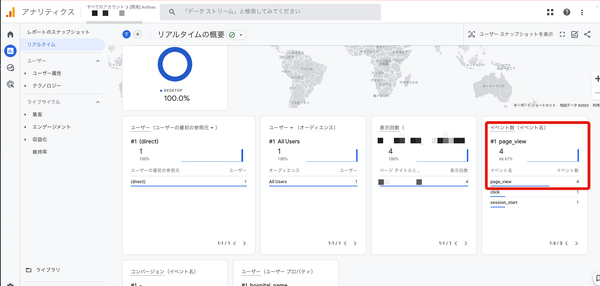
[Engagement] -> [Events]
Confirm the access information on Kuroco management page
Access Kuroco's management page and click [External system cooperation] -> [Google Analytics] on the side menu.
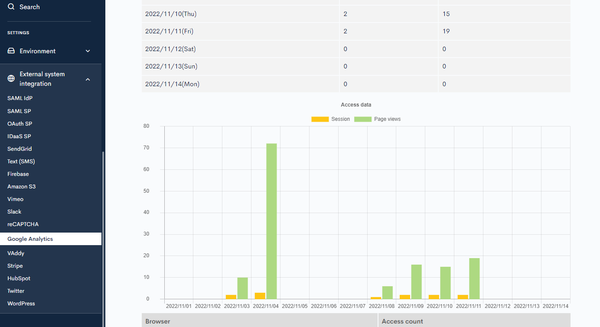
You can see that the access information is fetched properly.
Related documents
Support
If you have any other questions, please contact us or check out Our Slack Community.