Content upload/download
Content upload
Accessing the screen
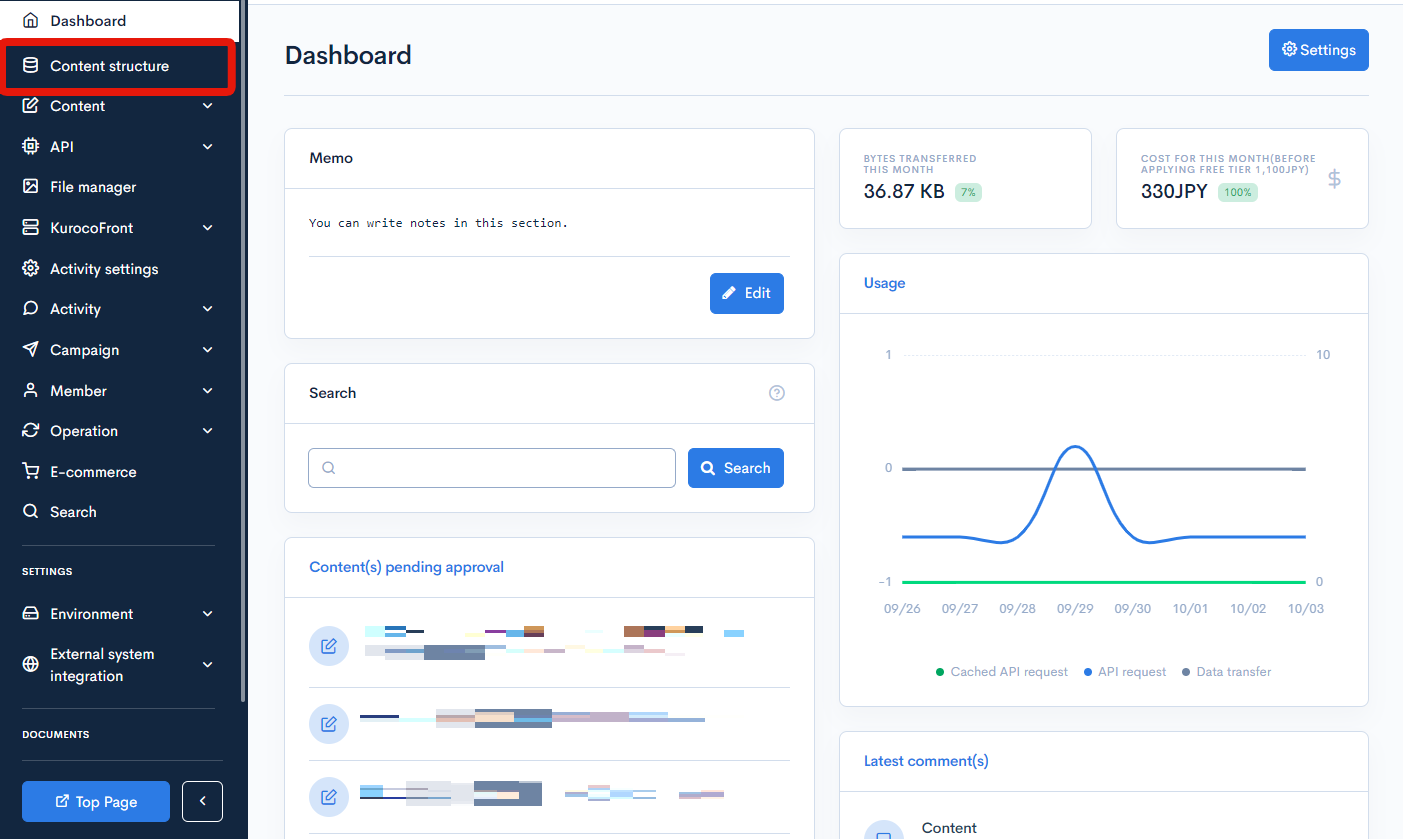
Click [Content structure] in the left sidebar menu.
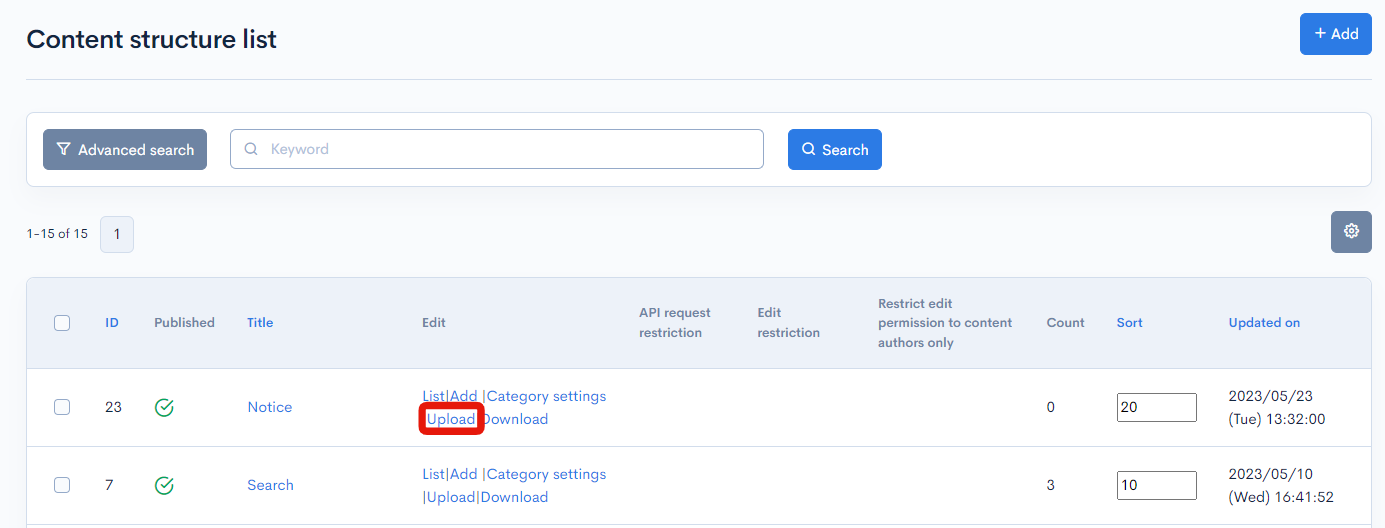
On the content structure screen, under the edit column, click [Upload] for the group you want to upload to.
Item descriptions
| Item | Description |
|---|---|
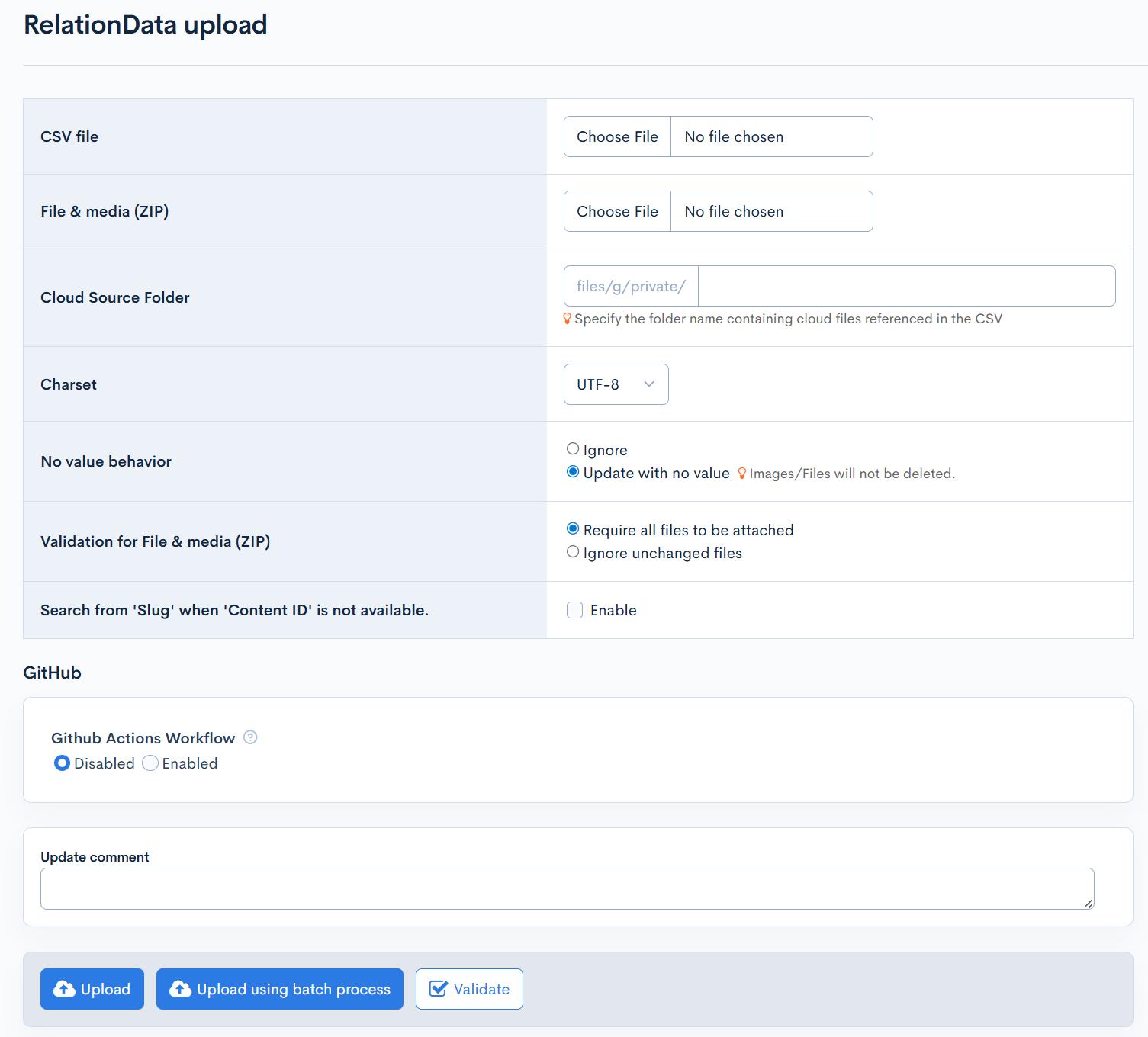
| CSV file | The CSV file you want to upload. You can obtain a sample CSV file by clicking [Download] for the group you want in the content structure list. |
| File & media(ZIP) | The ZIP file containing all the files including images to be used. The file names must be included in the CSV file. |
| Cloud source folderRelease version: βversion | Displayed when cloud storage (S3/GCS) is enabled. Specifies the folder path in cloud storage from which to retrieve files referenced in the CSV. Use this when you want to use existing files in cloud storage instead of uploading a ZIP file. The input field is automatically prefixed with files/a/private/ (for S3) or files/g/private/ (for GCS). |
| Charset | Selects the character encoding for the content category. |
| No value behavior | Selects action for missing values. |
| Validation for File & media (ZIP) | Select the file & media input checking method. |
| Search from 'Slug' when 'Content ID' is not available. | When enabled, if the Content ID column in the CSV is empty, the system searches for existing content using the Slug column value. If content with a matching Slug is found within the same content definition, the Content ID is automatically set and the content is updated. This is useful when managing content by Slug and bulk updating via CSV. |
| Workflow | Configures actions performed on the linked GitHub repository. Disabled: No actions. Enabled: GitHub Actions will be performed on the linked GitHub repository. |
| Upload | Uploads the selected file. |
| Upload using batch process | Batch processes the upload. Use this option if the uploaded file contains a large number of items. |
| Validate | Use this option to check for file errors before uploading. |
Image sizes
The number of attached images with the CSV upload conforms to S3 specifications for Amazon Web Services (AWS) and GCS specifications for Google Cloud Storage. For detailed information, please refer to the following links:
Topic download
The data for a topic group can be batch downloaded in CSV format.
Accessing the screen
Click [Content structure] in the left sidebar menu.
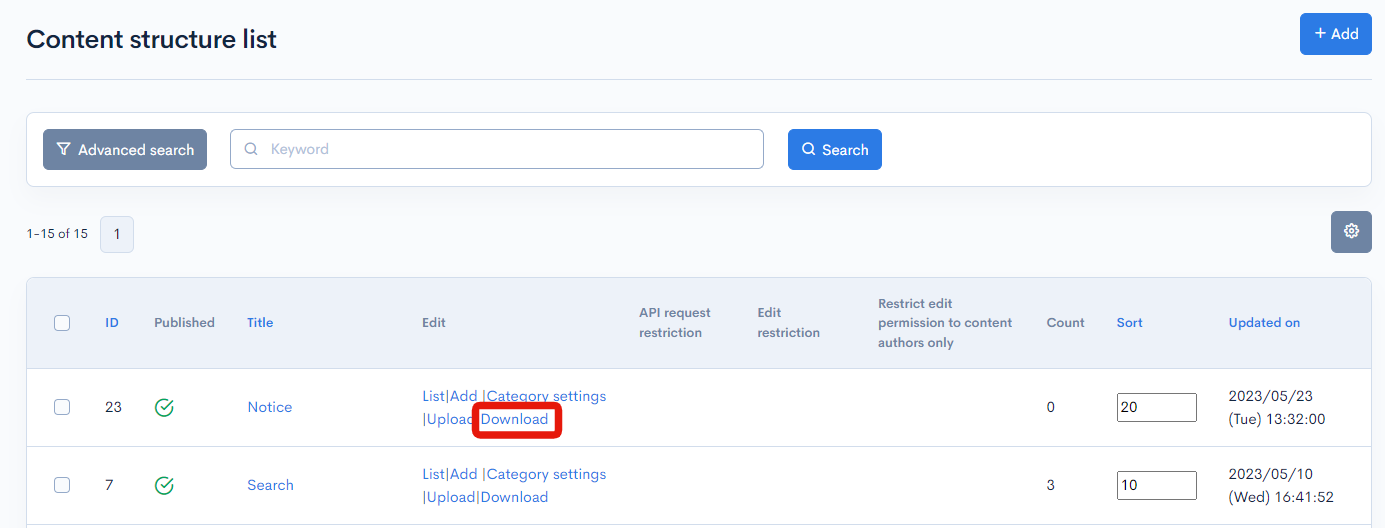
Under the edit column, click [Download] for the topic group you want to download the content from.
Item descriptions
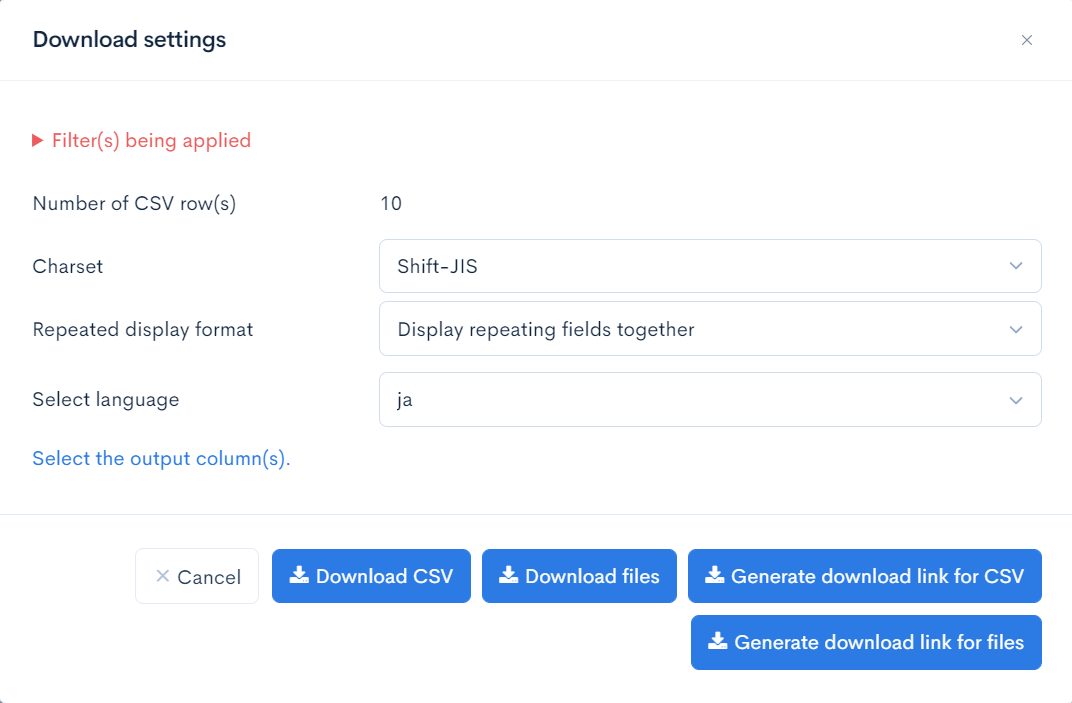
| Item | Description |
|---|---|
| Filter(s) being applied | If you have created a filter with the advanced search, the condition(s) used will be displayed here. |
| Number of CSV row(s) | The number of data to be downloaded. |
| Charset | Character encoding for the download. |
| Repeated display format | Configures the format for repeated displays.
|
| Select language | Select the language of the CSV file to output |
| Select the output column(s) | Click [Select the output column(s).] to select the columns to be displayed in the downloaded file. |
| Cancel | Closes the download settings modal. |
| Download CSV | Downloads all the data except for images in CSV format. |
| Download file | Downloads the images in a ZIP file. |
| Generate download link for CSV | Batch processes the download. Use this option for downloading a large number of items. When the batch processing is finished, click the generated download link to download all data other than images. |
| Generate download link for files | Batch processes the file download. When the batch processing is finished, click the generated download link to download images in a ZIP file. |
Content categories entered in CSV are usually displayed with category names, but when the following conditions are met, the display changes to content ID.
- If there are duplicate content category names
- If there is a content category name consisting of only numbers
Related documents
Support
If you have any other questions, please contact us or check out Our Slack Community.