Group
The group screens allow you to verify, add, and update the user groups registered on the site.
Group list
Accessing the screen
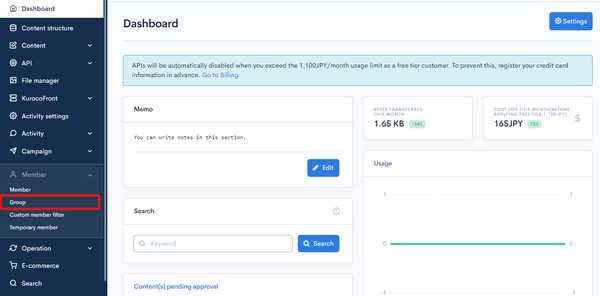
In the left sidebar menu, click [Memeber] -> [Group].
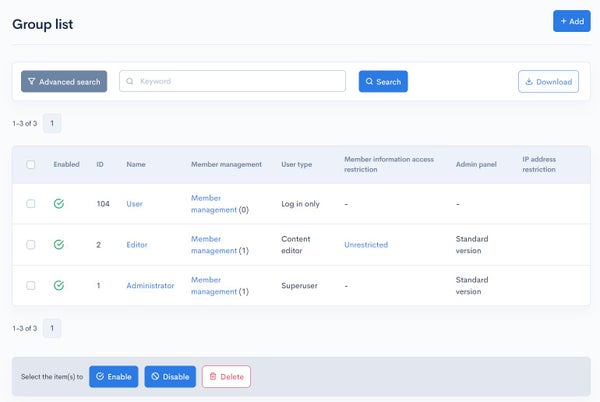
Column descriptions
| Column | Description |
|---|---|
| Search | Filters groups by keyword. Click [Advanced search] to specify more search criteria. |
| ID | Unique member ID (automatically assigned). |
| Enabled | Status of the group. : Enabled : Enabled : Disabled : Disabled |
| ID | Unique ID of the group (automatically assigned upon group creation). |
| Name | Name of the group. |
| Member management | Link to the member list screen, where you can view and edit the list of members belonging to the corresponding group. |
| User type | Group permissions (log in only, content editor, or superuser). |
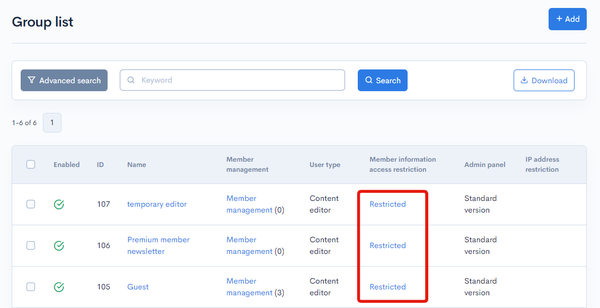
| Member information access restrictions | The corresponding group's viewing restrictions on member information. |
| Admin panel | Type of the admin panel(Standard version,Simplified version) |
| IP address restriction | Allowed IP Addresses. You can add notes in the form of #comments. |
Batch actions
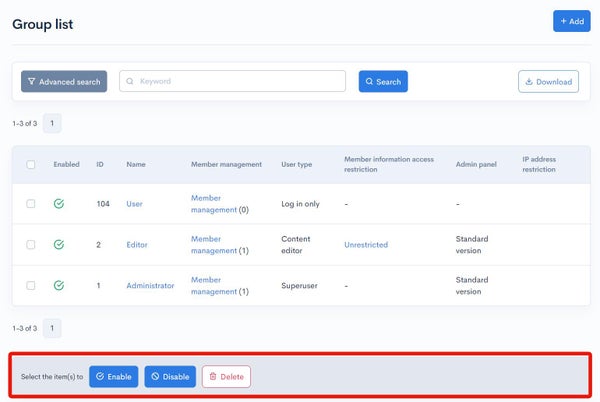
You can perform the following batch actions by selecting multiple groups using the checkboxes in the left-most column.
| Field | Description |
|---|---|
| Enable | Enable the selected groups. |
| Disable | Disable the selected groups. |
| Delete | Deletes the selected groups. |
Group editor - Basic settings
Accessing the screen
In the left sidebar menu, click [Memeber] -> [Group].
On the group list screen, click the name of the group you want to edit.
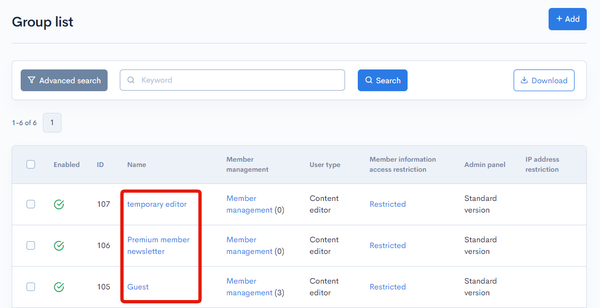
Basic settings
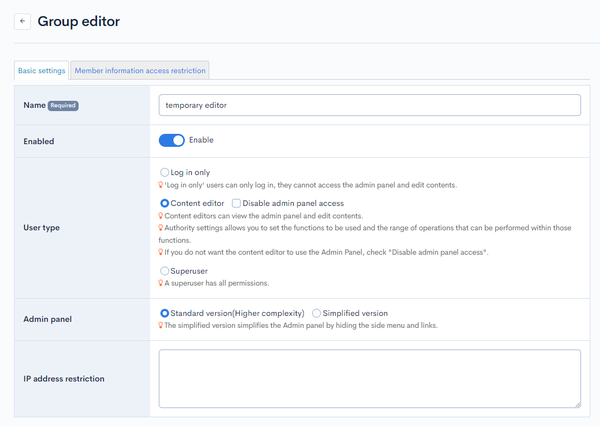
| Field | Description |
|---|---|
| Name | Name of the group. Checking the "Enable" box activates the group. |
| Enable | Set “Enable” to use the created group. |
| User type | Permissions allowed for members of the group.
|
| Admin panel | If you select the simplified version, simplifies the administration screen such as hiding the side menu. |
| IP address restriction | The above specified permissions are given to users who access the site from this IP address. |
Authorization settings
If you selected the "Content editor" option above as the user type, you need to configure authorization settings for each module.

| Option | Description |
|---|---|
| View | User can view all contents and settings for the module. |
| Insert | User can add new contents and settings to the module. |
| Update | User can update any contents and settings for the module. |
| Delete | User can delete any contents and settings for the module. |
| Approval required | Checking this box will require the use of an approval workflow for content and settings. |
The [Admin] category contains the permissions for [Content Admin], [EC (administrator)], [Group], [API], [Custom function], and [Batch processing].
- These permissions affect the whole site. A group granted them can effectively do anything a superuser can, so grant them only to trusted groups.
- If a non-superuser group is granted [Insert], [Update], or [Delete] for [Group], [API], [Custom function], or [Batch processing], a notice is displayed at the top of the group edit screen.
- Custom functions and batch processing that contain Smarty plugins handling credentials or secrets can be saved and tested only by superusers. See Smarty Plugin for the applicable plugins.
Bulk selection
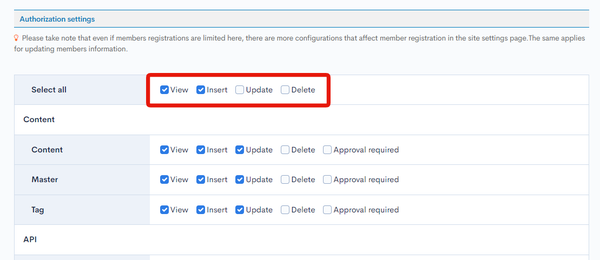
Click the box next to "Select all" to bulk select one or more permissions for all modules.
Actions

| Button | Description |
|---|---|
| Update | Apply the edits made on this screen. |
| Delete | Delete the current group. |
Group editor - Access restrictions
Accessing the screen
In the left sidebar menu, click [Memeber] -> [Group].
On the group list screen, click the member information access restriction for the group you want to edit.
Field descriptions
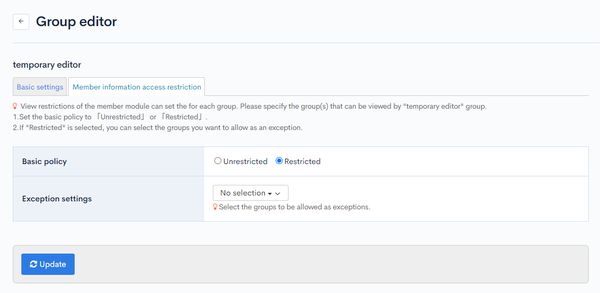
| Field | Description |
|---|---|
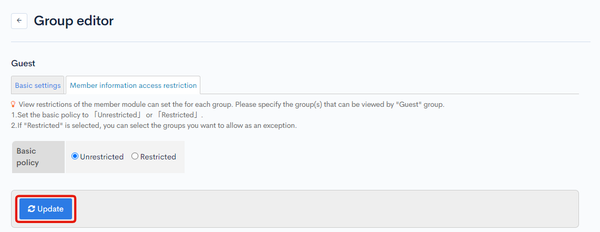
| Basic policy | Option to set view restrictions on member information. If you select "Restricted", you need to specify the allowed groups under exception settings. |
| Exception settings | User group(s) who are allowed access to member information. |
Actions
| Button | Description |
|---|---|
| Update | Apply the edits made on this screen. |
Related documents
Support
If you have any other questions, please contact us or check out Our Slack Community.