Amazon S3
The Amazon S3 screen enables you to configure settings for integrating Amazon S3 into your website.
Accessing the screen
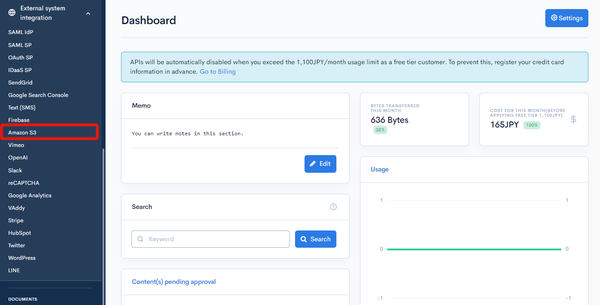
Under "SETTINGS", click [External system integration] -> [Amazon S3].
Field descriptions
| Field | Description |
|---|---|
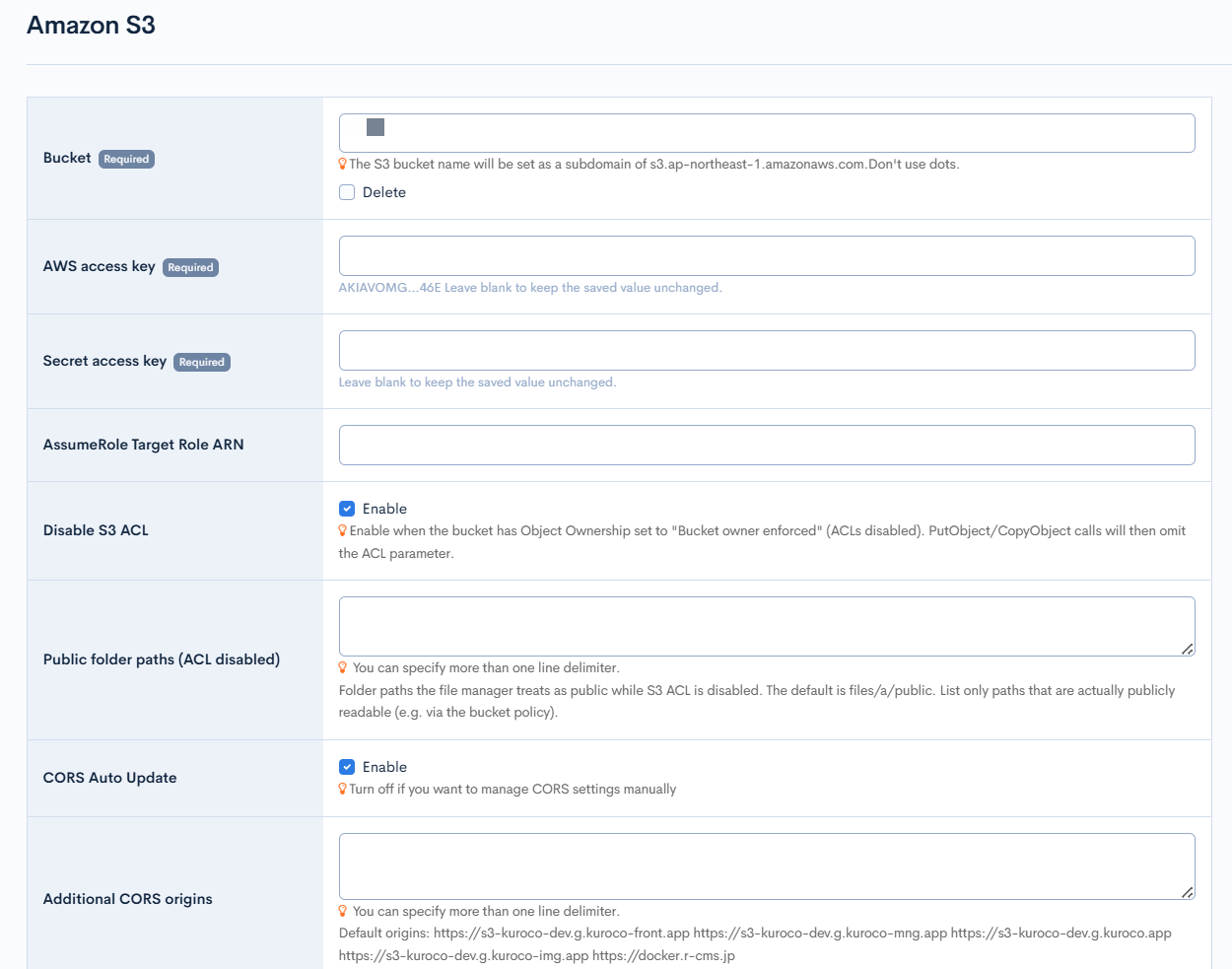
| Bucket | Enter the S3 bucket name. |
| AWS access key | Enter the Access key ID from AWS. |
| Secret access key | Enter the Secret access key from AWS. |
| IAM role ARN for AssumeRole | Enter the ARN of the AWS IAM role to assume. Configure this when using container credentials (e.g., ECS) instead of an access key and secret access key. |
| Disable S3 ACL | When enabled, the ACL parameter is omitted from S3 file upload and copy operations. Enable this when the S3 bucket has Object Ownership set to "Bucket owner enforced" (ACLs disabled). |
| Public folder paths (ACL disabled) | Displayed when [Disable S3 ACL] is enabled. Specify the folder paths (one per line) that the file manager treats as public while S3 ACL is disabled. The default is files/a/public. Only paths under files can be specified. List only paths that are actually publicly readable (e.g., via the bucket policy). |
| CORS auto-update | When disabled, Kuroco stops automatically updating the S3 CORS configuration, allowing you to manage CORS settings directly on the AWS side. Enabled by default. |
| Additional CORS origins | Enter a domain to allow viewing and retrieving files on S3 from that domain. |
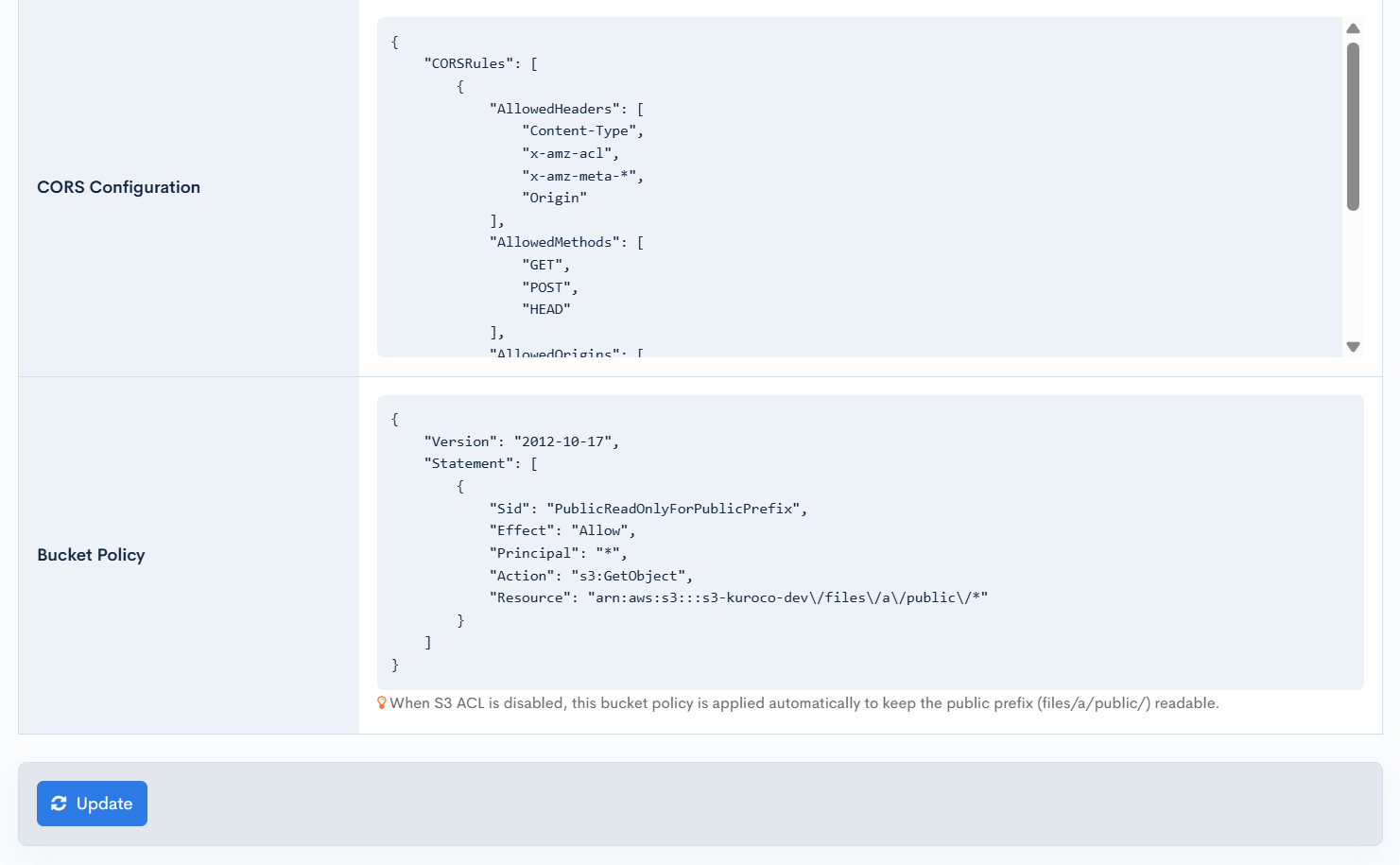
| Bucket Policy | Displayed when [Disable S3 ACL] is enabled and a bucket and public folder paths (under files/a/public) are configured. Shows the JSON of the recommended bucket policy for maintaining read access to the configured public folder paths. Kuroco does not apply this bucket policy to the S3 bucket automatically; review the displayed JSON and configure it manually on the AWS side. |
| Update | Click to apply the changes you made on this screen. |
Reference Tutorial
Refer to the following for instructions on how to use Amazon S3:
Related documents
Support
If you have any other questions, please contact us or check out Our Slack Community.