Batch process
In batch processing, you can view a list of registered batches.
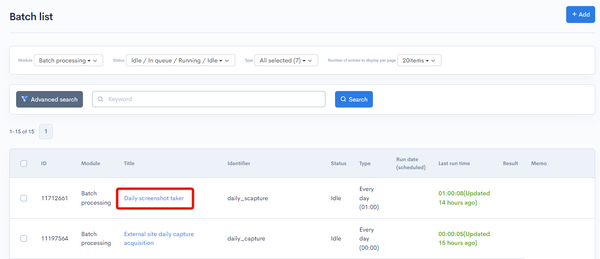
For batches registered from custom batch templates, you can navigate to the edit screen of the corresponding batch template by clicking on the title.
Batch list
Accessing the screen
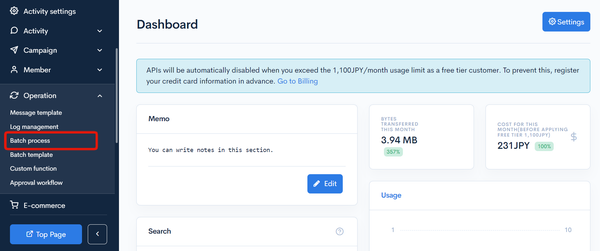
In the left sidebar menu, click [Operation] -> [Batch process].
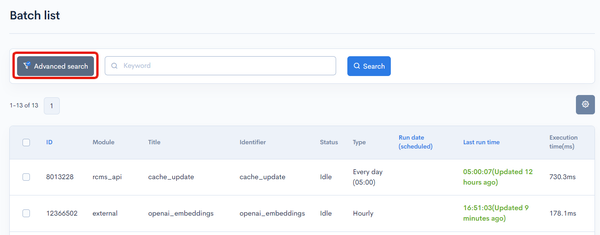
Advanced search
Click on the [Advanced search] button to open the advanced search panel.
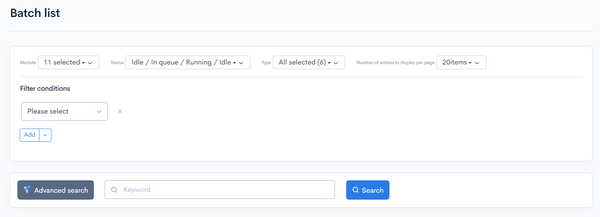
You can set up the filter conditions.
Item descriptions

| Item | Description |
|---|---|
| Search | Filter the batch processes by module, status, and batch frequency. |
| Display field settings (gear icon) | You can configure the fields to be displayed in the list. See Display field settings for details. |
| ID | ID of the batch process. |
| Module | Function used by the batch process. |
| Title | Title of the batch process. |
| Identifier | Identifier of the batch process. |
| Status | Status of the batch process. |
| Type | Frequency or type of the batch process. |
| Run date (scheduled) | Scheduled run date and time for the batch process. |
| Last run time | Date and time of the last run. |
| Execution time(ms) | Processing time of the previous run, in milliseconds. Batch processes that have not started yet also show the processing time of their previous run if they have been run before. The field is empty for batch processes that have never been run. |
Display field settings
Click the gear icon in the top right-hand corner of the list to open the display field settings dialog.
You can set the fields to be displayed in the batch list. The fields described in Item descriptions are always displayed and cannot be hidden.
| Item | Description |
|---|---|
| Display field | Drag and drop the fields to rearrange the display order. |
| Select | Select and add from a list of fields to be displayed in the list. |
| Cancel | Cancel any changes made to the settings. |
| Apply | Apply the configured settings. |
The following fields can be added in the display field settings.
| Item | Description |
|---|---|
| Insert date | Date and time the batch process was registered. |
| Updated on | Date and time the batch process was last updated. It is also updated when the batch process runs. |
| Executed On | Configured execution time. |
| Start Time(ms) | Start time of the previous run, as a number in milliseconds (UNIX time). |
| Module ID | ID of the data targeted by the batch process. |
| Extended data | Data passed to the batch process ($ext_data). |
| Language | Language set for the batch process. |
| Memo | Comment or memo entered for the batch process. |
| Result | Results of the last run. |
| Batch Smarty | Processing content of the batch process. |
| Run by Member ID | Member ID used to run the batch process. |
| Test Data | Test data set for the batch process. |
| Component(s) used | Custom functions and APIs used in the processing. |
| Template Batch ID | For batch processes registered from a batch template, ID of the source batch template. |
Bulk actions

You can perform the following bulk actions by selecting multiple batch processes using the checkboxes in the left-most column.
| Button | Description |
|---|---|
| Run now | Run the selected batch processes. |
| Enable | Enable the selected batch processes. |
| Disable | Disable the selected batch processes. |
| Delete | Delete the selected batch processes. |
Batch editor
Accessing the screen
In the left sidebar menu, click [Operation] -> [Batch process].
On the batch list screen, click the title of the batch process you want to edit.
Item descriptions
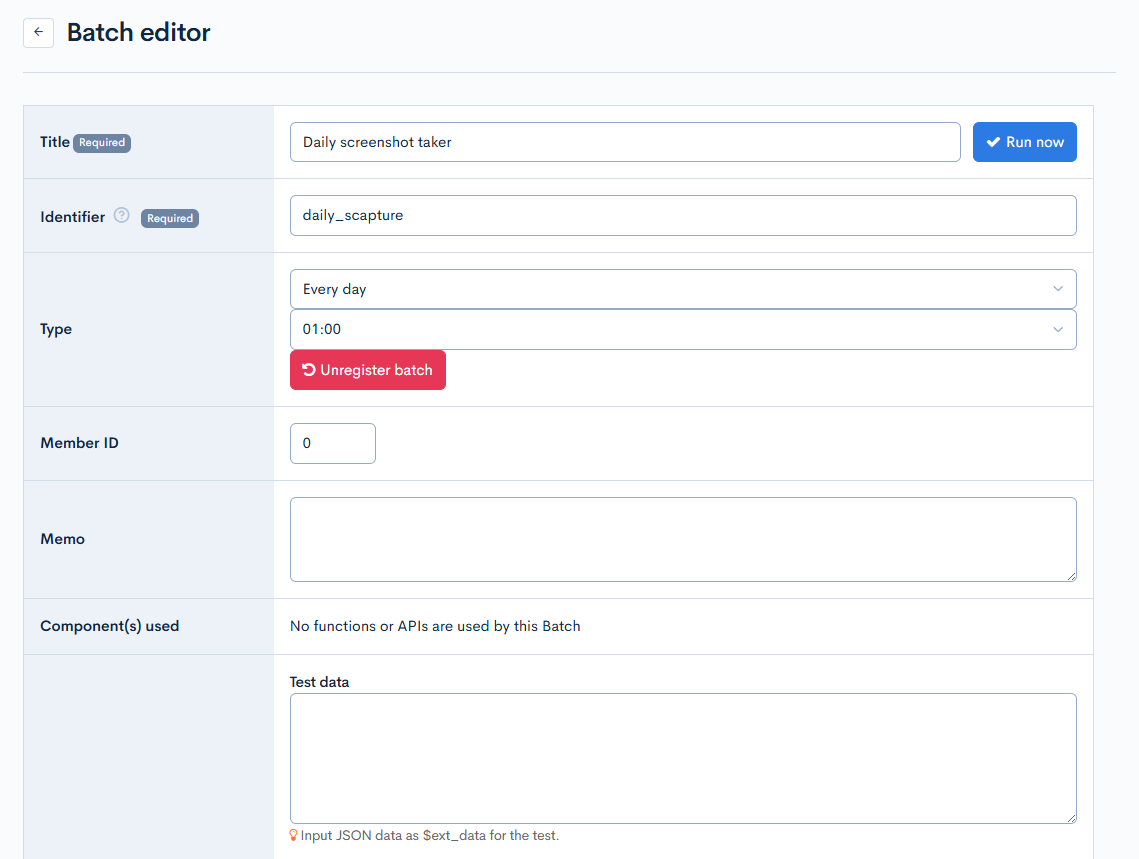
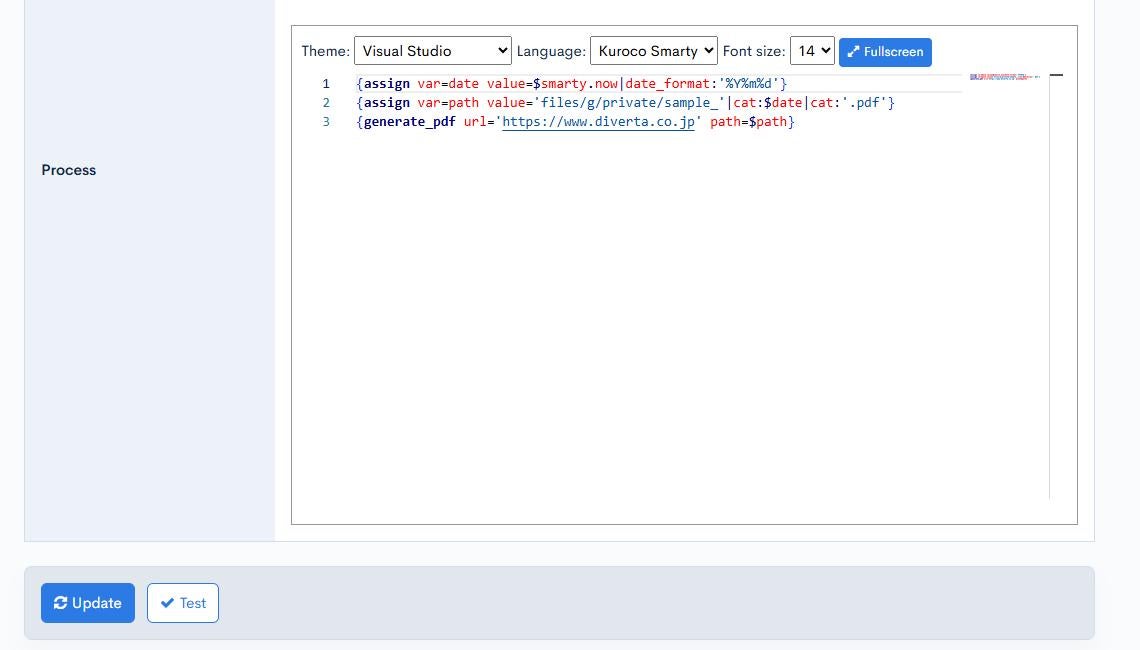
| Item | Description |
|---|---|
| Title | Enter a batch process title. |
| Identifier | Identifier of the batch process. |
| Type | Select the batch frequency or type. |
| Member ID | The batch will operate as if logged in with the entered member ID. This is equivalent to having {login member_id=x} written at the beginning of the process. |
| Memo | Enter any comments or memos about the batch process. |
| Component(s) used | Functions or APIs used by the batch process. |
| Test data | Enter the $ext_data JSON data for testing. |
| Process | Script for the batch process. |
Only super users can save or test content that contains the Smarty plugins handling credentials and secrets (login / api_mng / api_internal / assign_api_credential / api_token / secret / assign_rcms_conf / gcloud_functions_token). Content editors cannot save or test it even if they have the edit permission for batch processing. This also applies to edits that do not touch these plugins (for example, changing only the execution time). See Smarty Plugin for details.
Actions

| Button | Description |
|---|---|
| Update | Apply all changes made in this editor. |
| Test | Execute a test run of the current batch process. |
Related documents
- How to use batch process in Kuroco
- Scheduling screenshot PDFs of external sites
- Use batch process to Make the First Page of a PDF into a Thumbnail Image
- Saving Daily Data in CSV Using Batch Process
- Implementing Reminder and Automatic Withdrawal Features for Members with No Login for a Certain Period
- Adding Reminder Functionality to a Form
- Automatically Delete Files in File Manager
- Default batch process list
- Can I call Kuroco's API using custom function?
Support
If you have any other questions, please contact us or check out Our Slack Community.