AI Agent Assist
AI Agent Assist does not have its own screen in the left sidebar menu. Click [AI Agent] in the admin panel header (at the top of the screen) to open it as a sidebar on the right side of the screen. On the content edit screen and the custom function edit screen, you can also open it from the [AI Agent] button on the screen.
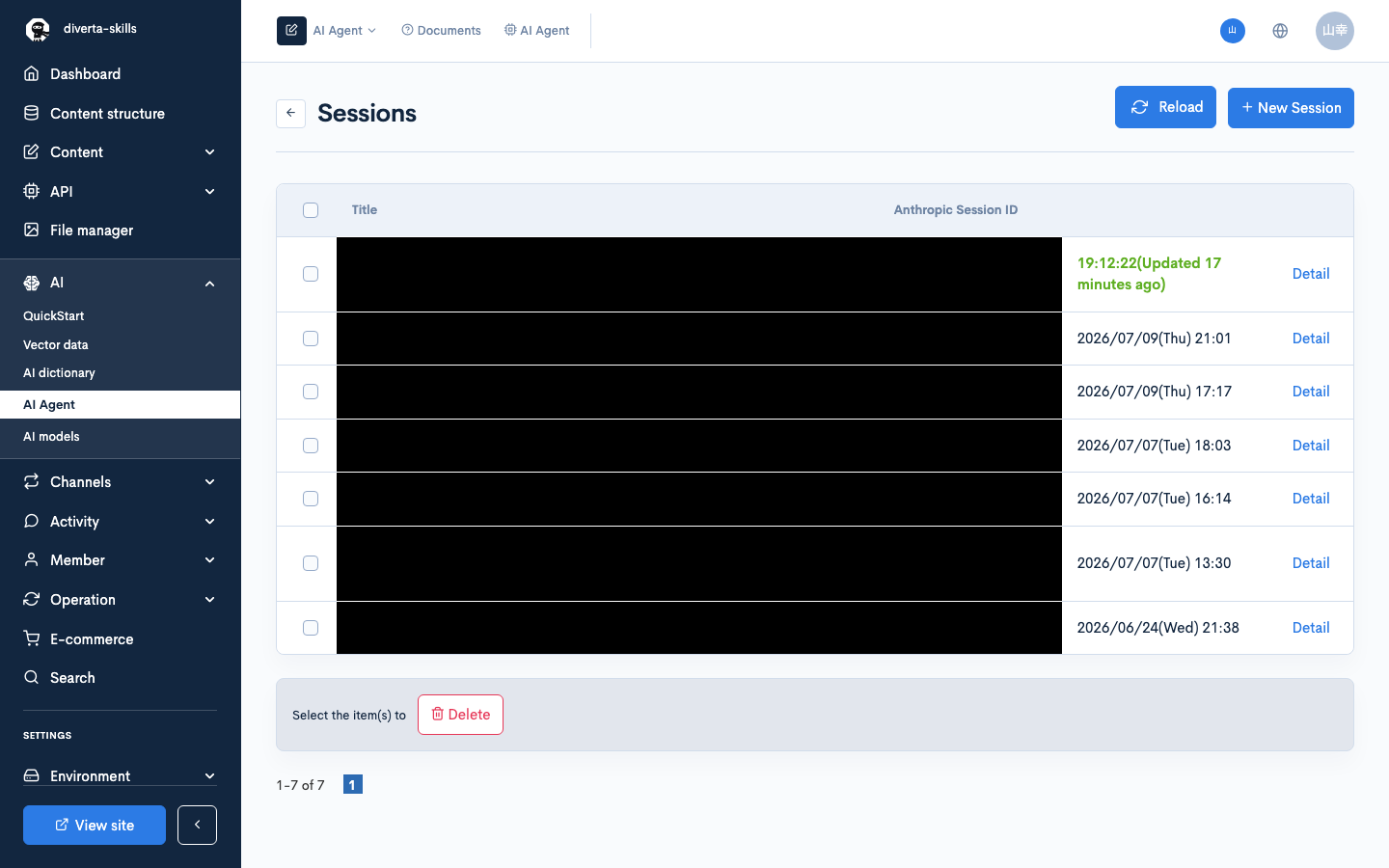
[AI] -> [AI Agent] in the left sidebar menu opens the Agent List screen for managing agents, not the AI Agent Assist sidebar.
AI Agent Assist is a feature that opens a sidebar on supported admin panel screens, letting you ask the AI agent questions or make requests about the current page. Conversations with the agent are saved as sessions and can be reviewed later in the admin panel.
Prerequisites
To use AI Agent Assist, the following must be configured.
- The login group must have the view permission for AI Agent. The sidebar is shown only to members with the view permission.
- An API key (Anthropic API key or OpenAI API key) must be set on the environment edit screen. If it is not set, the agent list screen shows "An environment has no API key configured. Please set it on the environment edit screen."
- An enabled, synced AI agent must exist. If no agent is available, the sidebar shows "No agents available." and you can move to the agent edit screen from [Create Agent].
How to open AI Agent Assist
Click [AI Agent] on a supported screen to open the sidebar on the right side of the screen.
Examples of supported screens:
- The content edit screen
- The custom function edit screen under [Operation] -> [Custom function]
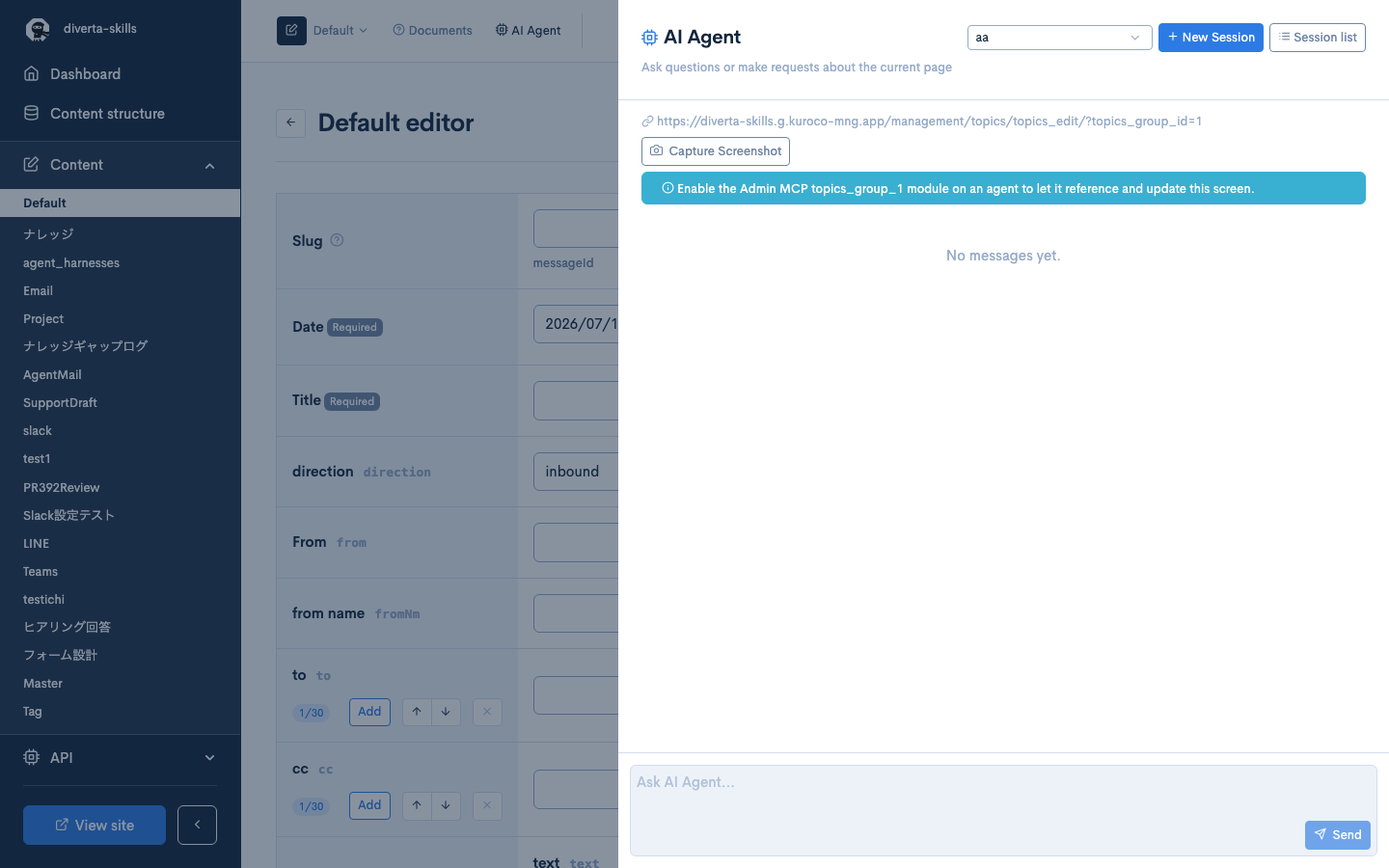
Screen items
| Item | Description |
|---|---|
| Agent selector | Select the AI agent to use. You can switch between agents when more than one exists. |
| [New Session] | Start a new session. |
| Session list link | Open the session list screen of the selected agent. |
| Message input | Enter a question or request in the input field labeled "Ask AI Agent..." and send it. You can also send with Ctrl+Enter (Cmd+Enter on Mac). |
| [Capture Screenshot] / [Recapture] | Take a screenshot of the current screen and attach it to your message to the agent. The captured image can be enlarged by clicking, and discarded before sending. OpenAI Agents API agents do not support sending images. If you send one, "Only text can be sent to OpenAI Agents API agents. Please remove the screenshot and send again." is displayed. |
| [Reference this screen] / [Update this screen] | Toggle whether the agent should reference or update the information of the current screen. Shown only on supported screens when the selected agent has Admin MCP enabled. |
UI operations proposed by the AI agent
In its replies, the agent may propose the following operations as confirmation buttons. Nothing is executed until you click the button.
| Button | Behavior |
|---|---|
| [Reload page] | Reload the current page. |
| [Go to {url}] | Navigate to the specified admin panel page. Destinations are limited to URLs inside the admin panel. |
| [Send screenshot] | Capture the current screen and send it to the agent. |
Even after a reload or navigation, the open/closed state of the sidebar and the session are carried over.
Tool execution confirmation
When the agent's [MCP Permission Policy] is [Always Ask] (the default), a panel asking for approval is shown before the agent executes a tool. Click [Allow] to permit the execution, or [Deny] to reject it (the panel is displayed in English).
When [MCP Permission Policy] is [Always Allow], tools are executed without confirmation.
Checking sessions
Conversations in the sidebar are saved as sessions. The session list and detail screens show the following.
- Session list: check session titles and creation dates, create a new session, and delete sessions (requires the delete permission for AI Agent)
- Session detail: the exchanged messages, tool executions, and token usage
A session can be viewed only by the administrator who created it.
Notes
- The [Reference this screen] / [Update this screen] toggles are sent to the agent as part of its instructions. The scope the agent can actually reference or update is determined by the Admin MCP settings on the agent edit screen ([Modules to Expose], [Read-only mode], and [MCP Permission Policy]). To restrict writes from the agent, enable [Read-only mode].
- On a supported screen, if the required module is not enabled in the selected agent's Admin MCP, a hint is shown: "Enable the Admin MCP {module} module so that the AI agent can reference and update the information of this screen."
- When [Admin MCP access restriction (IP address)] under [Environment] -> [Admin panel] -> [Admin panel] is enabled, AI agent assist used from the admin panel is also subject to it. This feature cannot be used from an IP address that is not on the list. For details, see the MCP server reference.
The AI agent is currently provided in beta. Note the following during the beta period (also displayed on the agent edit screen).
- Usage is free of charge during the beta period.
- Each agent session runs in an isolated environment — your data is not used for training and is not exposed externally. However, the agent execution location is in the US. Data is stored in the Tokyo region.
- During the beta period, Diverta Inc. system administrators may review session content for service and performance improvements.
Related documents
Support
If you have any other questions, please contact us or check out Our Slack Community.