Environments
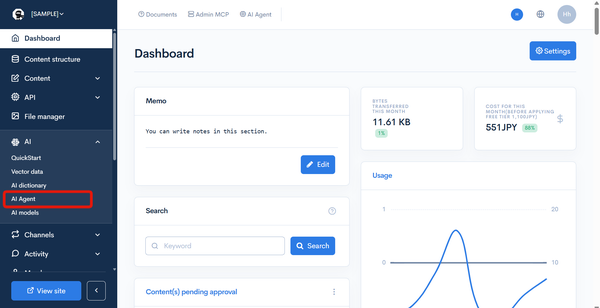
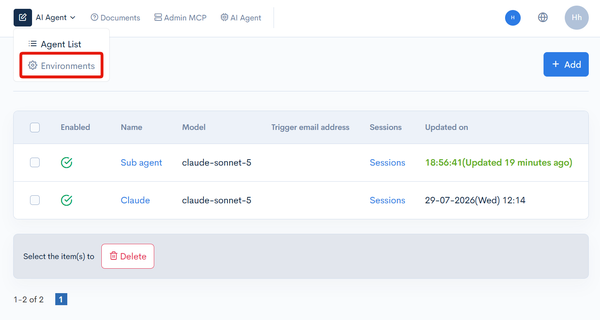
Click [AI] -> [AI Agent] in the left sidebar menu, then click [AI Agent] (dropdown menu) at the top left of the screen and select [Environments]. The URL is /management/ai/ai_env_list/. You can also open it from [Settings] next to [Environment] on the agent edit screen.
The [AI Agent] button to the right of the dropdown menu at the top of the screen opens the AI Agent Assist sidebar.
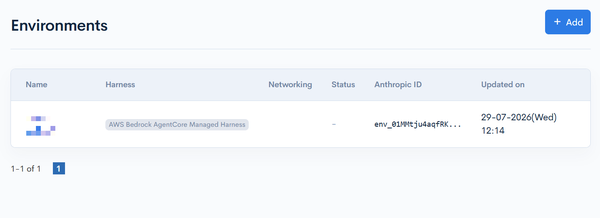
On the Environments screens, you can view, add, and update the environments in which AI agents run. You configure the harness type (connection target), networking, and packages.
Environments
How to access
Click [AI] -> [AI Agent].
Click [AI Agent] (dropdown menu) at the top left of the screen, then select [Environments].
Field descriptions
| Field | Description |
|---|---|
| Name | Displays the environment name. Click it to open the environment editor. |
| Harness | Displays the harness type of the environment. |
| Networking | Displays the networking setting. |
| Status | Displays the status of the environment. |
| Anthropic ID | Displays the environment ID. |
| Updated on | Displays the date and time the environment was last updated. |
If an environment has no API key configured, "An environment has no API key configured. Please set it on the environment edit screen." is displayed.
Click [Add] to create a new environment.
Environment Editor
How to access
Click [AI] -> [AI Agent].
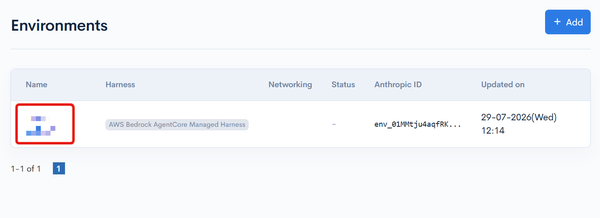
Click the name of the target environment in the environment list.
Basic fields
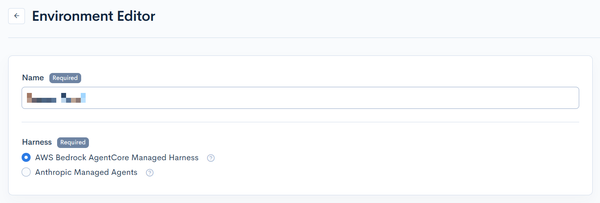
| Field | Description |
|---|---|
| Name | Set the environment name. (Required) |
| Harness | Select the connection target for agents. (Required) |
| Memo | Enter a memo for management purposes. |
Select the harness type from the following:
| Harness | Description |
|---|---|
| AWS Bedrock AgentCore Managed Harness | Connects to the AWS Bedrock AgentCore Managed Harness. Select an AWS region, and Kuroco automatically creates a Managed Harness per agent. Conversation history is kept on the AWS side, and MCP connects via AgentCore Gateway OAuth. |
| Anthropic Managed Agents | Connects to the Anthropic Managed Agents API (api.anthropic.com). Agents, sessions, vaults, and MCP credentials are kept on the Anthropic side. |
| OpenAI Agents API | Runs agents in an environment managed by OpenAI. |
The harness type cannot be changed while agents are linked to the environment. To use a different service, create a new environment.
AWS Bedrock AgentCore Managed Harness settings
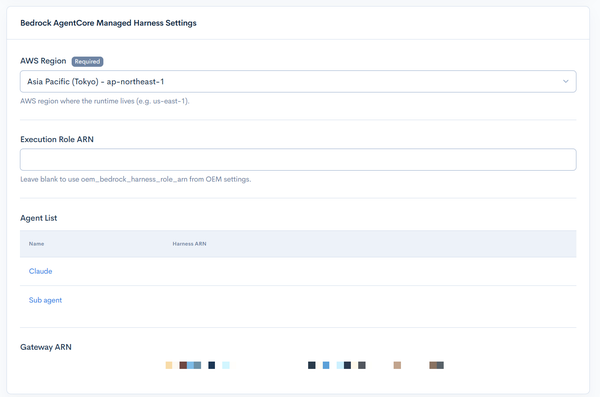
Displayed when [AWS Bedrock AgentCore Managed Harness] is selected as the harness type.
| Field | Description |
|---|---|
| AWS Region | Select the AWS region where the Runtime resides. (Required) Choose from Asia Pacific (Tokyo) - ap-northeast-1 / US East (N. Virginia) - us-east-1 / US West (Oregon) - us-west-2 / Europe (Frankfurt) - eu-central-1 / Asia Pacific (Sydney) - ap-southeast-2. |
| Execution Role ARN | If left empty, the execution role from the OEM settings is used. |
The AWS region cannot be changed after the harness is created.
Anthropic Managed Agents settings
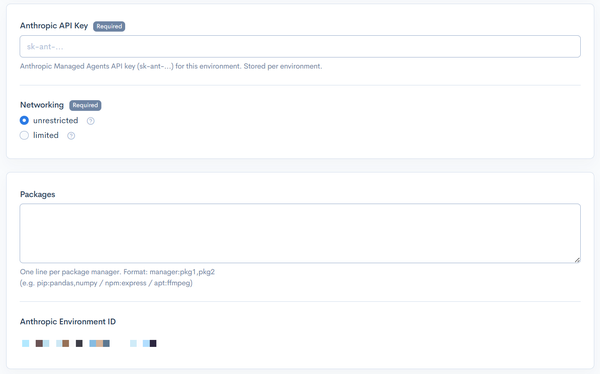
Displayed when [Anthropic Managed Agents] is selected as the harness type.
| Field | Description |
|---|---|
| Anthropic API Key | Set the Anthropic Managed Agents API key (sk-ant-...) for this environment. (Required) It is stored per environment. Leave the field empty to keep an already-saved key. |
| Networking | Select either "unrestricted" (full outbound network access, except safety blocklist) or "limited" (restrict access to allowed hosts only). (Required) |
| Packages | Enter the packages to install in the agent environment, one line per package manager. Format: manager:pkg1,pkg2 (e.g. pip:pandas,numpy / npm:express / apt:ffmpeg) |
If "limited" is selected for Networking, configure the Limited Networking Settings.
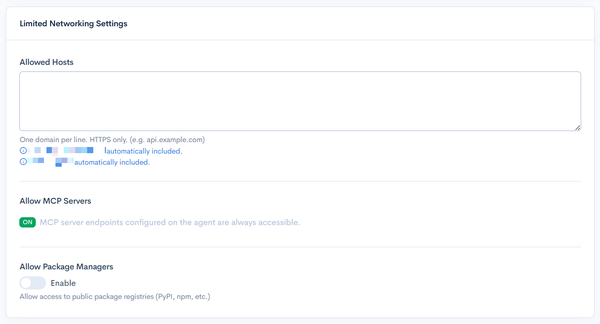
| Field | Description |
|---|---|
| Allowed Hosts | Enter the domains to allow, one per line. HTTPS only. (e.g. api.example.com) |
| Allow MCP Servers | The MCP server endpoints configured on agents are always accessible (always ON). |
| Allow Package Managers | Allows access to public package registries (PyPI, npm, etc.). |
OpenAI Agents API settings

Displayed when [OpenAI Agents API] is selected as the harness type.
| Field | Description |
|---|---|
| OpenAI API key | Set an OpenAI API key with access to the Agents API. (Required) It is used only for this environment. A saved key is displayed masked. Leave the field empty to keep an already-saved key. |
- When you change the API key and save, Kuroco checks whether the saved agents of this environment (up to 3) can be retrieved with the new key. If none of them can be retrieved, the change is not saved. To use an API key from a different project, create a new environment.
- The same check is performed with the saved API key when the environment editor is opened. If an existing agent cannot be accessed, a message is displayed. Check the key's project and permissions, and whether the agent was deleted on the OpenAI side.
After configuring, click [Update] to save.
Related documents
Support
If you have any other questions, please contact us or check out Our Slack Community.