Web Spiders
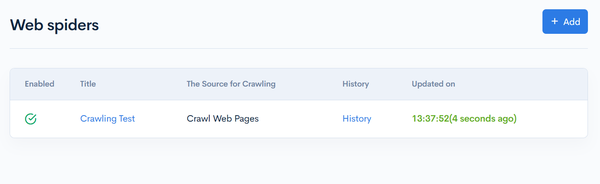
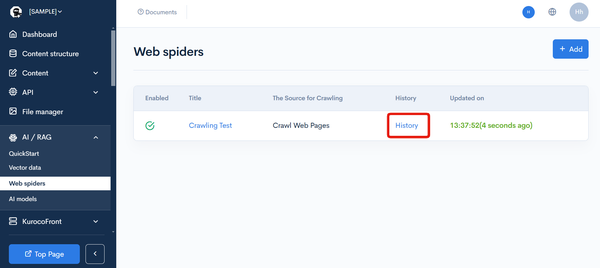
In the Web Spiders, you can confirm, add, and update a list of created web spiders.
Web Spiders List
Accessing the screen
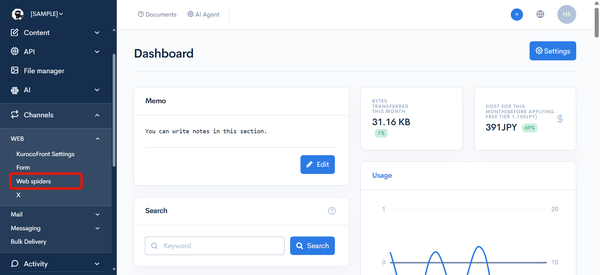
Click on [Channels] -> [WEB] -> [Web Spiders].
Item Description
| Item | Description |
|---|---|
| Enabled | Indicates whether the web spider is enabled. |
| Title | Displays the title of the web spider. |
| The Source for Crawling | Displays the target to crawl. |
| History | Click to view the crawl history. |
| Updated on | Displays the date and time when the web spider was last updated. |
Web spider editor
Accessing the screen
Click on [Channels] -> [WEB] -> [Web Spiders].
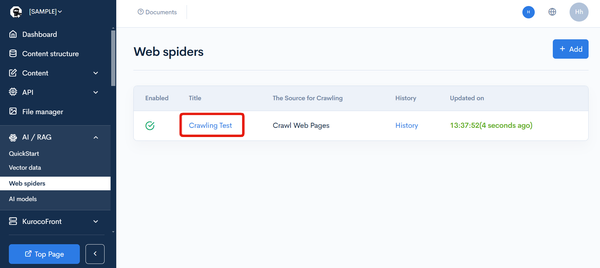
From the Web Spiders list page, click on the [Title] of the web spider you want to edit.
Basic Settings
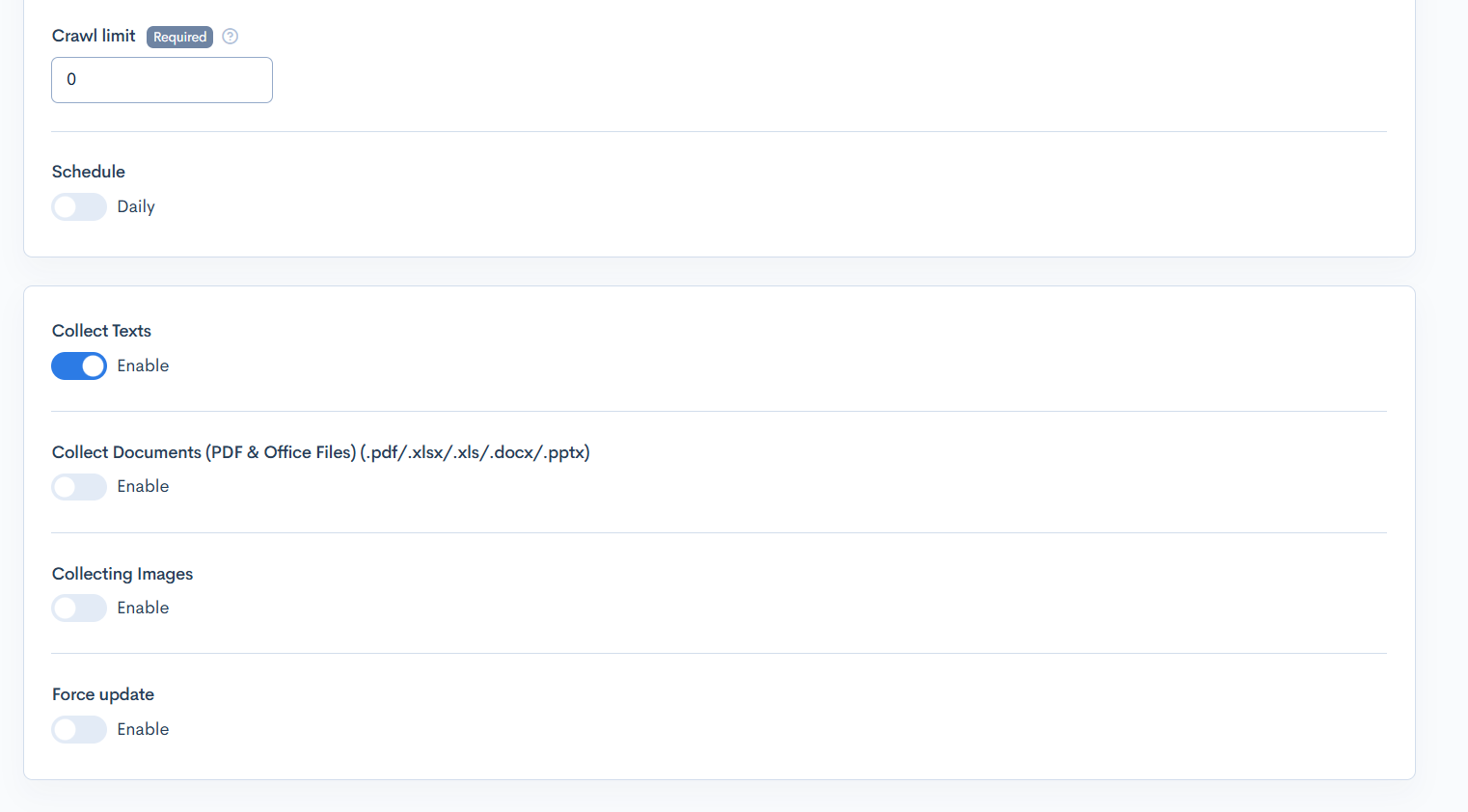
| Item | Description |
|---|---|
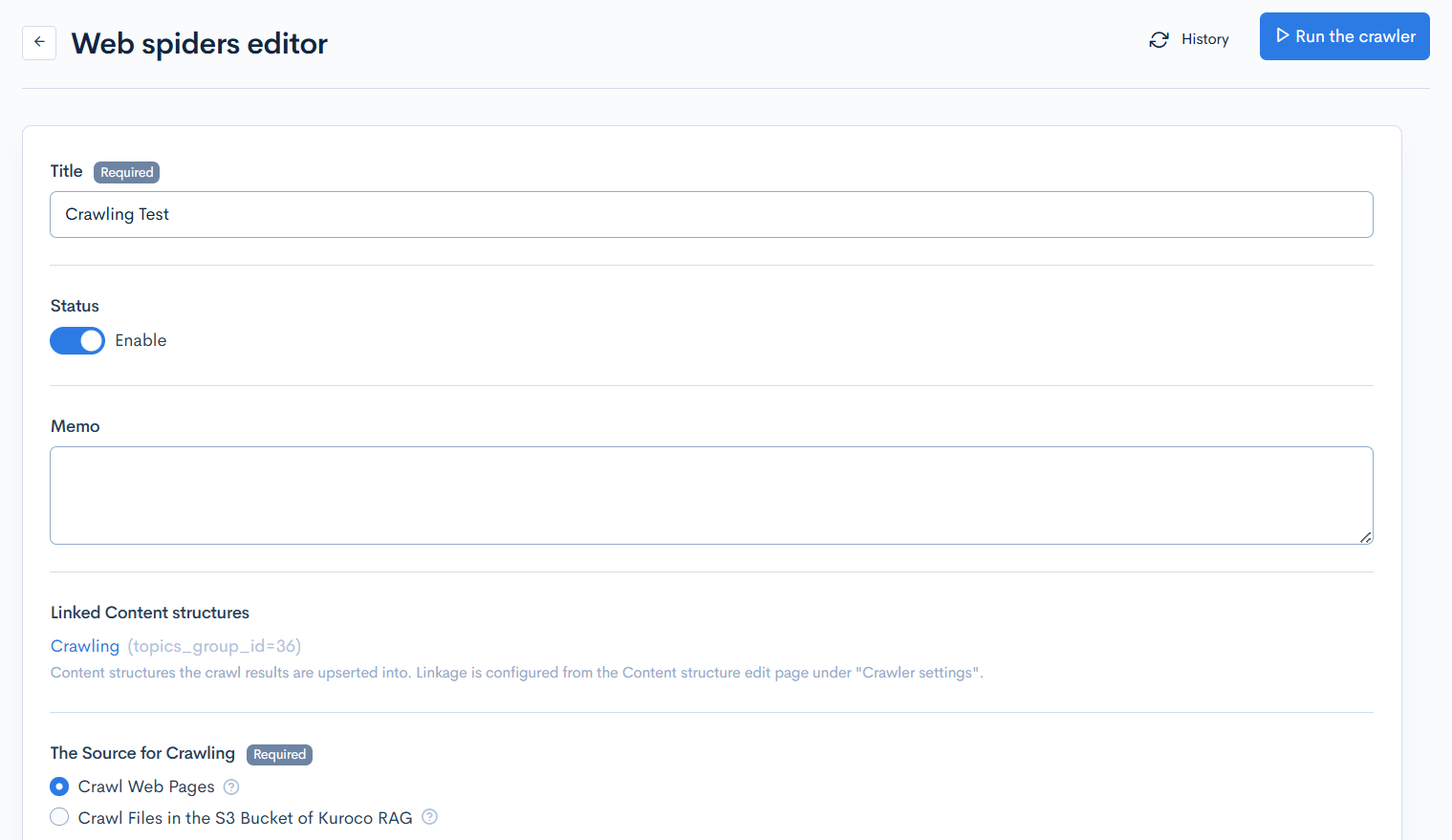
| Title | Set the title of the web spider. |
| Status | Toggle the enabled status of the web spider. |
| Memo | Enter a memo. |
| Linked Content structures | Displays the list of content structures linked to this crawler (shown only when editing an existing web spider). Linkage is configured from the content structure edit page under "Crawler settings". |
| The Source for Crawling | Select the target for crawling. Currently supported targets:
|
| Target directory of S3 bucket | Displayed when the crawl target is an S3 folder. Enter the target directory within the S3 bucket. |
| Crawl Limit | Set the crawl limit. Specify 0 for unlimited. |
| Schedule | Configure scheduled crawl execution. When "Daily" is enabled, the crawl runs automatically at the specified time. If no time is specified, 03:00 is set as the default. |
| Collect Texts | Enable to collect text data. Displayed when the crawl target is "Crawl Web Pages". |
| Collect Documents (PDF & Office Files) | Enable to collect PDF and Office files (.pdf/.xlsx/.xls/.docx/.pptx). Displayed when the crawl target is "Crawl Web Pages". |
| Collecting Images | Enable if you want to collect images. |
| Force Update | Enable for force update. |
Website crawling settings
Displayed when the crawl target is "Crawl Web Pages".
General
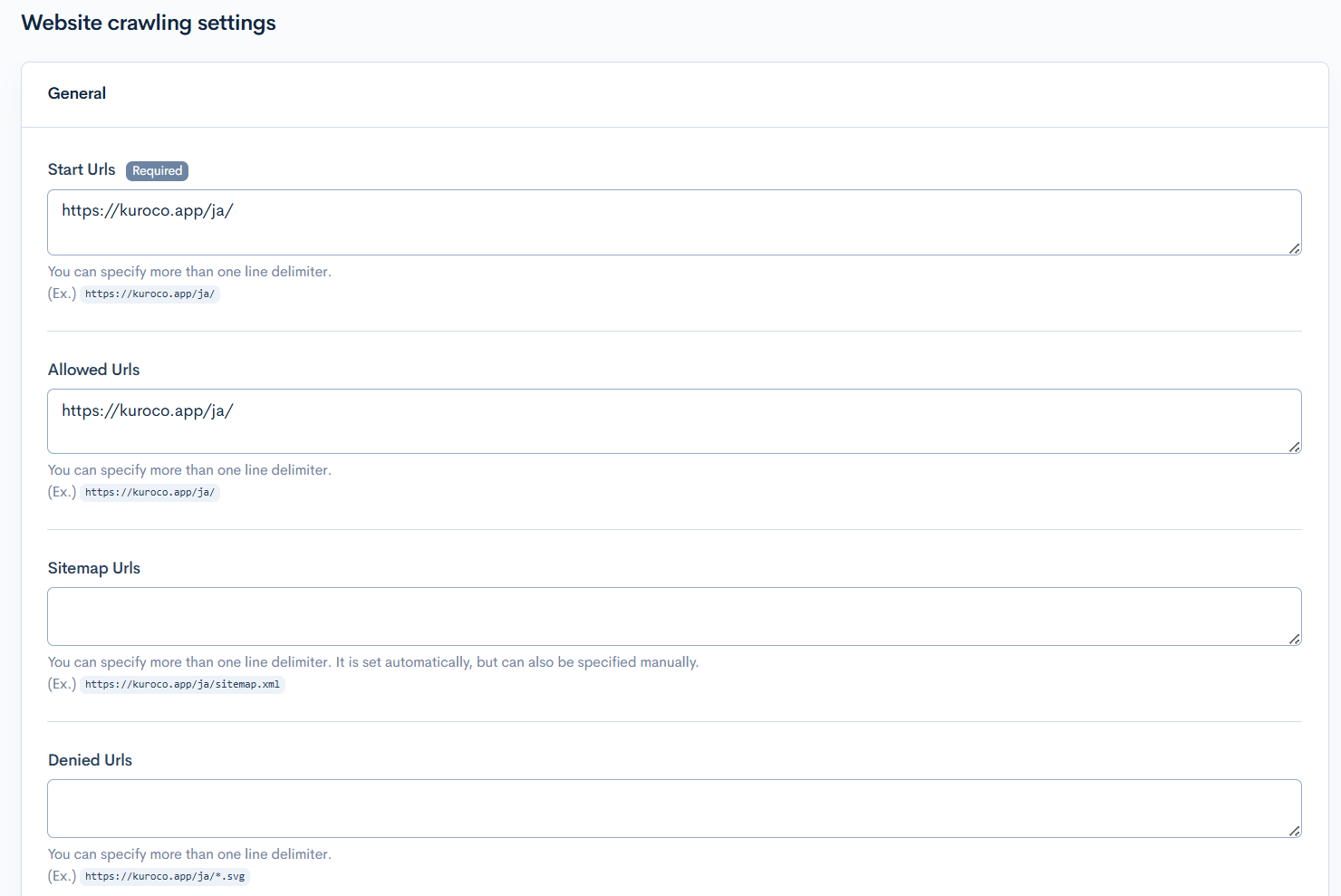
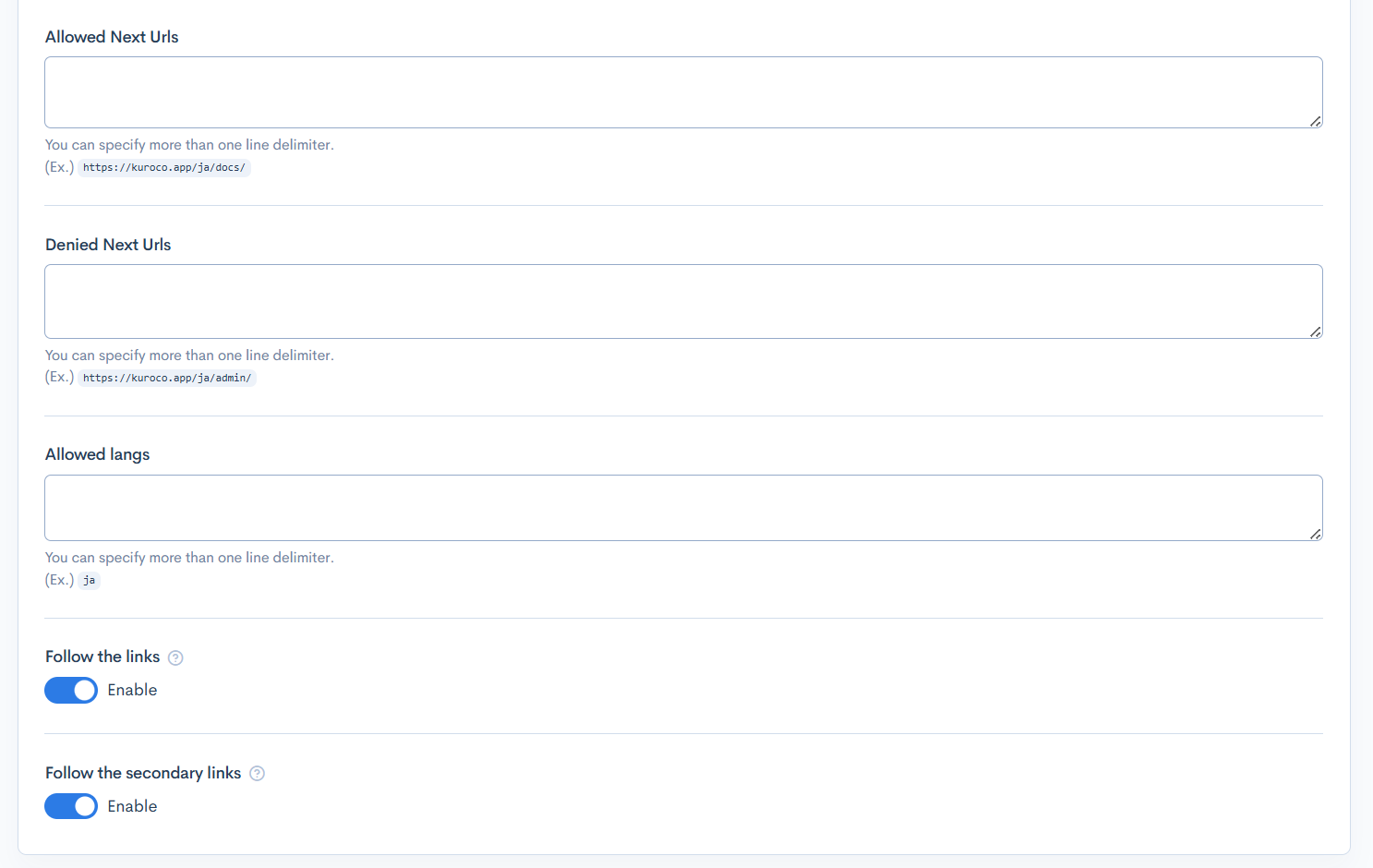
| Item | Description |
|---|---|
| Start Urls | Enter the URL to start crawling. Multiple entries can be made separated by line breaks. |
| Allowed Urls | Enter the URLs to allow crawling. Multiple entries can be made separated by line breaks. |
| Sitemap Urls | Enter the sitemap URL. |
| Denied Urls | Enter the URLs to deny crawling. Multiple entries can be made separated by line breaks. |
| Allowed Next Urls | Enter the URLs to allow for secondary link following. Multiple entries can be made separated by line breaks. |
| Denied Next Urls | Enter the URLs to deny for secondary link following. Multiple entries can be made separated by line breaks. |
| Allowed langs | Enter the languages to allow if there are multiple languages. |
| Follow the links | Enable to crawl by following HTML links. |
| Follow the secondary links | Enable to follow secondary links from the allowed URLs. |
Data transformation and import settings
This section contains settings related to HTML crawling. In the admin panel, it is displayed as a collapsible section with an "HTML" badge.
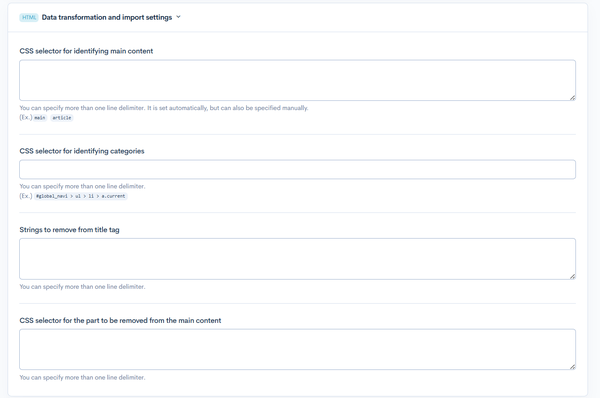
| Item | Description |
|---|---|
| CSS selector for identifying main content | Enter the CSS selector to identify as main content. |
| CSS selector for identifying categories | Enter the CSS selector to identify categories. |
| Strings to remove from title tag | Enter the strings to remove from the title tag. |
| CSS selector for the part to be removed from the main content | Enter the CSS selector to remove from the main content. |
Content Structure Required for Saving Crawl Data
To save crawl results as content, the following content structure must be included.
| Item Name (Optional) | Repetition | Item Setting | Slug | Annotation (Optional) |
|---|---|---|---|---|
| Date | Date picker Also include seconds (hh:mm:ss): Enabled | ymd | The updated date will be set. | |
| Contents | 1 | HTML Allow all tags: Enabled | data | Contains content converted to markdown format. |
| URL | 1 | Single-line text | url | |
| Hash Value | 1 | Single-line text | etag | Used to check for updates to the content. |
| Language | 1 | Single-line text | lang | |
| Main Content CSS Selector | 1 | Single-line text | selector | Specifies the content to extract from the page. |
| Response Status | 1 | Number | response_status | |
| Content Size | 1 | Number | content-length | |
| Content Type | 1 | Single-line text | content-type | |
| Manual Adjustment Flag | 1 | Single choice 0: Disabled (Default) 1: Enabled | manual_override_flag | When enabled, the crawler will not overwrite. |
| Domain | 1 | Single-line text | domain | |
| Description | 1 | Single-line text | description | |
| Icon URL | 1 | Single-line text | icon_url | |
| OGP Image URL | 1 | Single-line text | ogp_image_url | |
| Images | 20 | Grouping of the 3 Items Below | images | |
| - Image URL | File (from File manager) | image_url | ||
| - Image src | Single-line text | image_src | ||
| - Alt Tag | Single-line text | alt | ||
| Last Modified | 1 | Date picker Also include time (hh:mm): Enabled | last-modified |
Run the crawler History
Accessing the screen
Click on [Channels] -> [WEB] -> [Web Spiders].
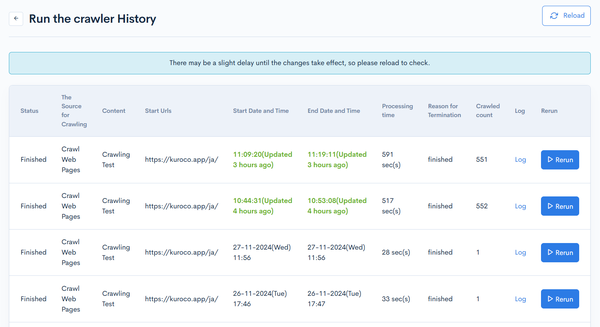
Click on the [History] of the web spider you want to view from the Web Spiders list page.
Item Description
| Item | Description |
|---|---|
| Status | Displays the current state of the crawl. |
| The Source for Crawling | Displays the target of the crawl. |
| Content | Displays the content definition name where the crawled pages are registered. |
| Start Urls | Displays the URL where the crawl started. |
| Start Date and Time | Displays the date and time when the crawl was started. |
| End Date and Time | Displays the date and time when the crawl ended. |
| Processing time | Displays the processing time of the crawl. |
| Reason for Termination | Displays the reason for the crawl ending. |
| Crawled count | Displays the number of pages processed during the crawl. |
| Log | Click to view logs related to the crawl. |
| Rerun | Click to rerun the crawl. |
Related documents
Support
If you have any other questions, please contact us or check out Our Slack Community.