SCIM SP
The SCIM SP screen allows you to view, add, and update the SCIM SP settings for your site.
SCIM SP list
Accessing the screen
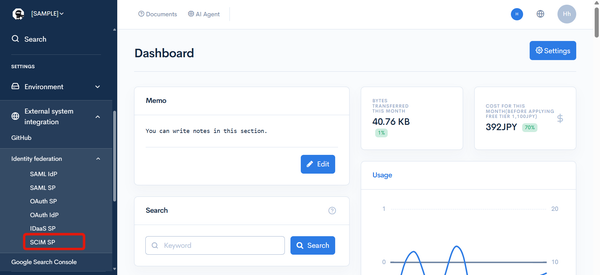
In the left sidebar menu, under "SETTINGS", click [External system integration] -> [Identity federation] -> [SCIM SP].
Field descriptions
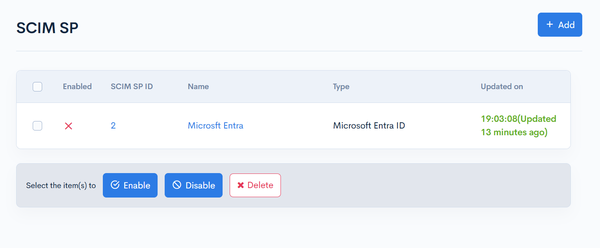
| Field | Description |
|---|---|
| Enabled | Status of the SCIM SP. : Enabled : Enabled : Disabled : Disabled |
| SCIM SP ID | ID of the SCIM SP. |
| Name | Name of the SCIM SP. |
| Type | Type of SCIM SP. |
| Updated on | Date and time of last update to the SCIM SP. |
SCIM SP editor
Accessing the screen
In the left sidebar menu, under "SETTINGS", click [External system integration] -> [Identity federation] -> [SCIM SP].
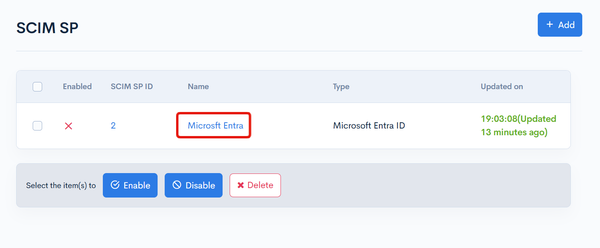
On the SCIM SP list screen, click the ID or name of the SCIM SP you want to edit.
Item descriptions
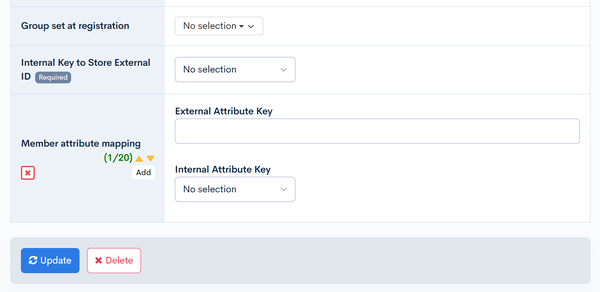
SCIM SP editor
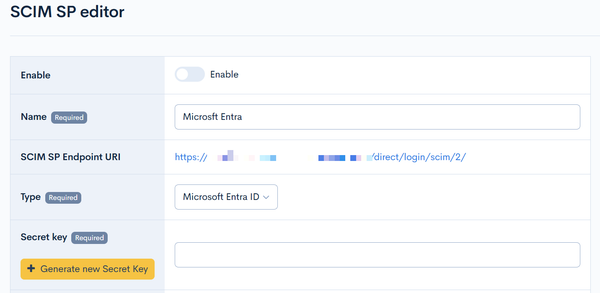
| Field | Description |
|---|---|
| Enable | When the checkbox is checked, the current settings will be enabled. Unchecking it will disable the settings. (Only one SCIM SP can be enabled at a time.) |
| Name | Enter the name of the SCIM SP. |
| SCIM SP Endpoint URI | External system endpoint URI to be configured in the SCIM IdP. |
| Type | The name of the service to be used with SCIM. Currently, only Microsoft Entra ID is supported. |
| Secret Key | Enter the secret key obtained from Microsoft. |
| Group Set During Registration | Set the group to which automatically registered members belong. If it includes a group with super-user privileges, a warning is displayed in the Kuroco admin panel, and member creation via SCIM returns an error (403). |
| Internal Key to Store External ID | The external system can have their own member id format and data. This extension column can be configured to store the external system's member identifier. (Only text fields can be used, including email and name1/name2/nickname for special usecase) |
| Member attribute mapping | This is the mapping of the member attributes to the external system. (More information shared in the section below.) |
| Update | Reflect the entered configuration. |
| Delete | Delete the SCIM SP settings. |
Member attribute mapping
Upto 20 member attributes can be mapped to the external system. For each row, you configure an External Attribute Key (the key that contains the data coming from the external system through the external API) and an Internal Attribute Key (the column where this value will be stored in Kuroco; currently only text fields can be used, including email and name1/name2/nickname for special usecase).
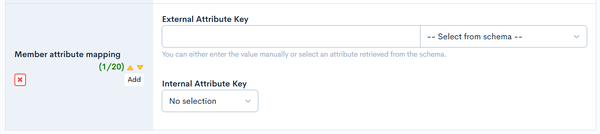
External Attribute Key
The external attribute key can be typed directly into the text box, or selected from the [-- Select from schema --] dropdown on the right. When you select an attribute in the dropdown, its attribute key is filled into the text box on the left.
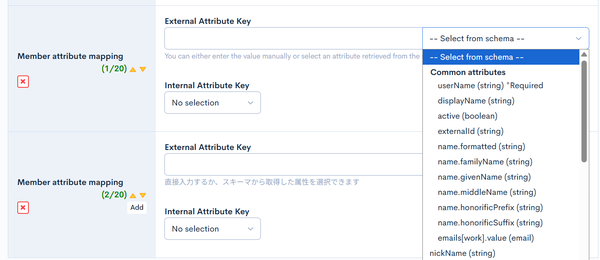
The dropdown shows the following groups.
| Group | Description |
|---|---|
| Common attributes | Shows the basic attributes defined in the SCIM schema of the service selected in [Type]. (userName, displayName, active, externalId, name.givenName, name.familyName, and so on)The email address is shown as emails[work].value, and selecting it fills in emails[type eq "work"].value. |
| Microsoft EntraID extension attributes | Shows the attributes of the enterprise extension schema. Selecting one fills in the key in the format urn:ietf:params:scim:schemas:extension:enterprise:2.0:User:<attribute name>. |
| Received attributes | Shows the external attribute keys that were included in the provisioning requests actually received from the IdP. |
[Common attributes] and [Microsoft EntraID extension attributes] are generated from the schema definition of the service selected in [Type], so they are not shown when [Type] is not selected. [Received attributes] is shown regardless of the [Type] selection, and it does not repeat an attribute key that is already shown under [Common attributes] or [Microsoft EntraID extension attributes].
About [Received attributes]
The attributes an IdP sends depend on the attribute mapping configured on the IdP side. Attributes that the IdP sends under its own extension schema URN, such as onPremisesExtensionAttributes (extensionAttribute1 to 15), are not shown under [Common attributes] or [Microsoft EntraID extension attributes]. With [Received attributes], you can select the attribute keys that were actually received, using the same notation as the external attribute key (for example, userName, name.givenName, or urn:ietf:params:scim:schemas:extension:CustomExtensionName:2.0:User:tag for an extension schema).
- Attribute keys are recorded when Kuroco receives a provisioning request (member creation or update) from the IdP. Therefore, nothing is shown before the first provisioning run.
schemas,meta,id,externalId,active, andpasswordare not recorded because they cannot be mapped.- Up to 100 attribute keys are recorded per SCIM SP setting. Keys beyond that limit are not recorded.
Related documents
Support
If you have any other questions, please contact us or check out Our Slack Community.