Backup
The backup screen enables you to create backup files of the data stored in Kuroco in two formats:
- Dump files for PostgreSQL
- Compressed files for images, JS, CSS, and other data types
You can use it to extract the necessary image files and export data for site migration and other processes. However, note that you cannot restore your Kuroco settings from the backup.
Accessing the screen
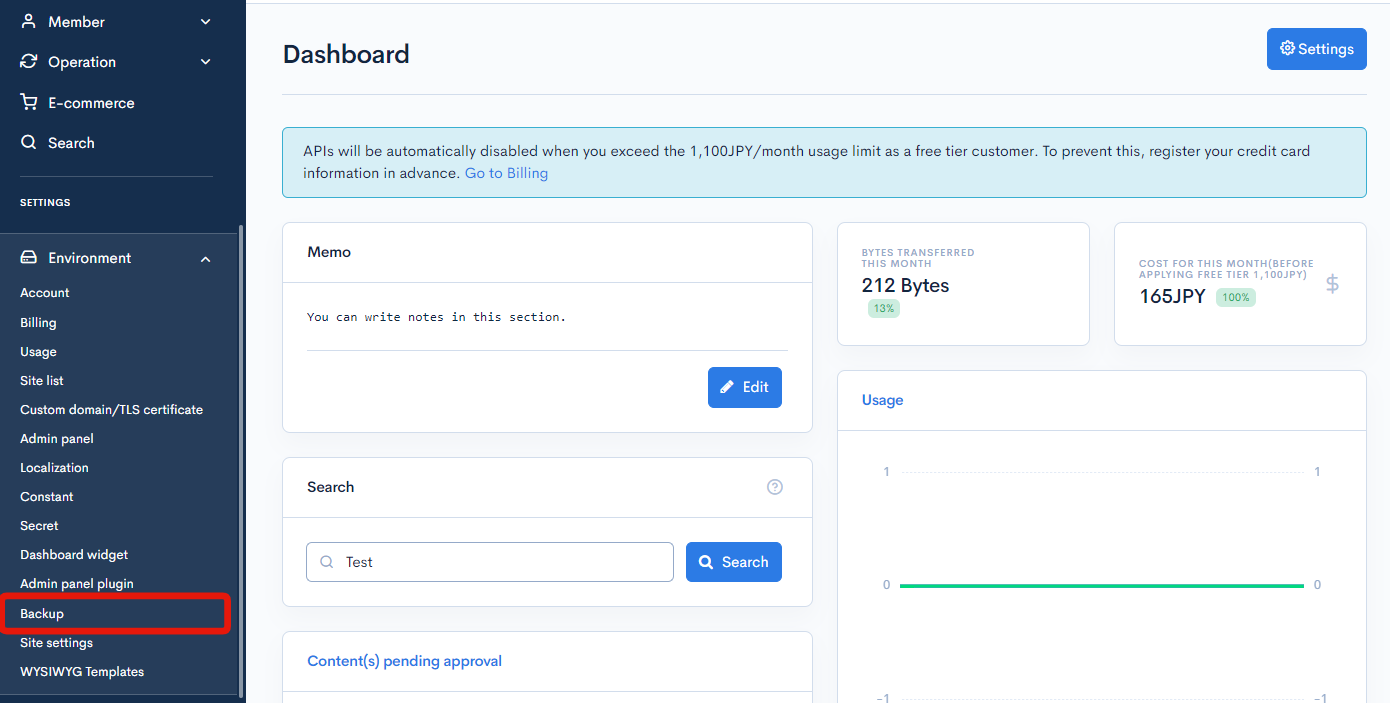
In the left sidebar menu, under "SETTINGS", select [Environment] -> [Backup].
Fields
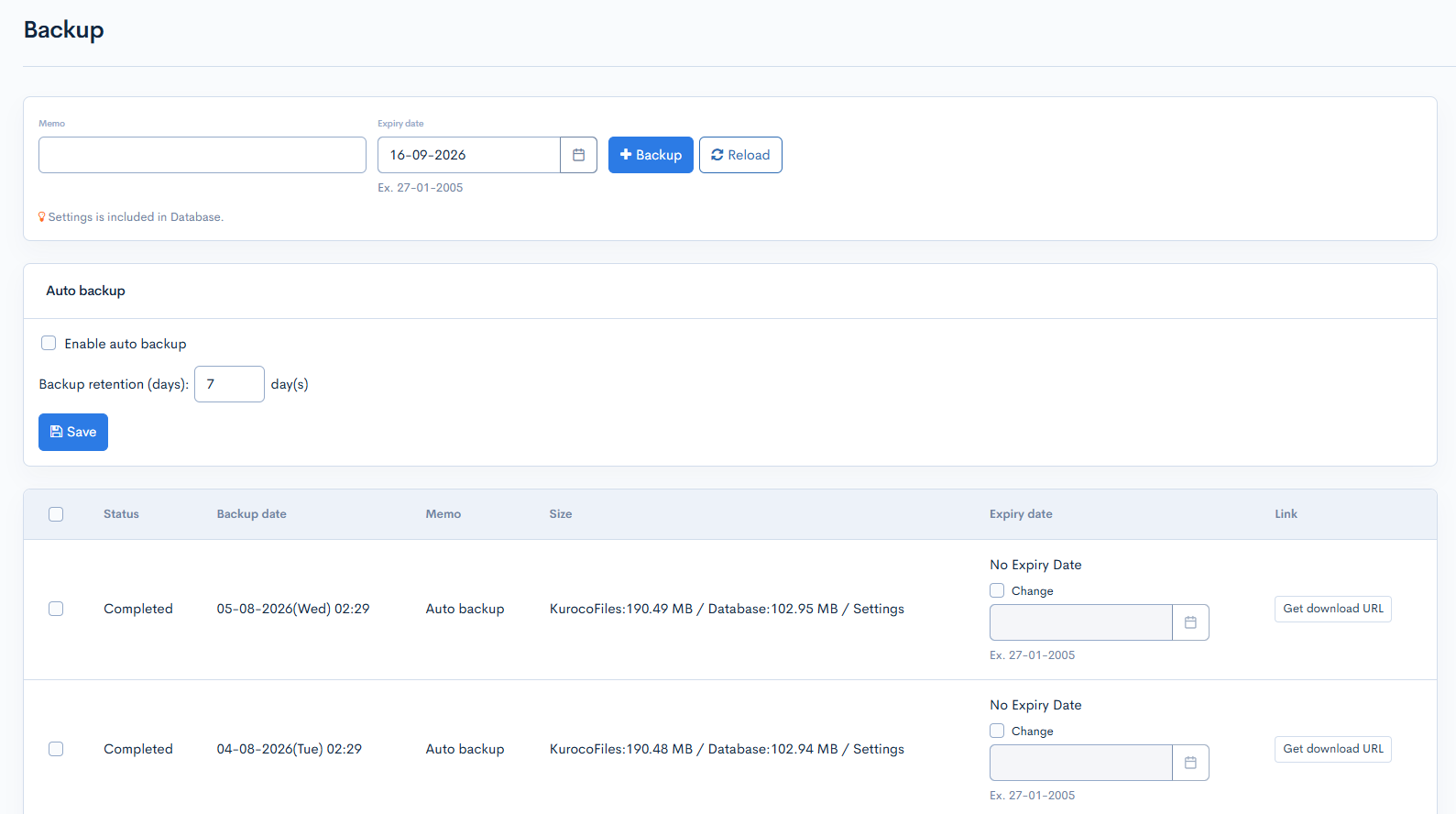
| Field/Button | Description |
|---|---|
| Memo | Enter a note or comment here about the backup. |
| Backup | Click to generate the backup files. |
| Reload | Click to refresh the screen and verify if the backup has been completed. Note that it takes some time after clicking the [Backup] button for the files to be generated. |
| Auto backup | Backups created automatically show "Auto backup" in the Memo column. See Auto backup for details. |
| Status | Status of the backup (in process or completed). |
| Backup date | Date and time of the backup. |
| Memo | Memo included with the backup. |
| Size | Size of the backup files and database. |
| Expiry date Release version: βversion | Expiry date of the backup. Backups without an expiry date show "No Expiry Date". Backups past their expiry date are no longer listed. See Changing the expiry date for how to change it. |
| Link | Click [Get download URL] to access the download links for the backup. (Note: All download links expire after 1 hour. When the active URLs have expired, the [Get download URL] link will reappear under this column.) |
Getting a download URL exports the whole site's data, and deleting a backup or moving its expiry date earlier discards a restore point, so only super users can perform these operations.Release version: βversion
For users who are not super users, the list checkboxes, [Get download URL], [Delete], and [Expiry date Save] are not shown.
Bulk operations
You can delete multiple backups or change their expiry dates in bulk.
Delete
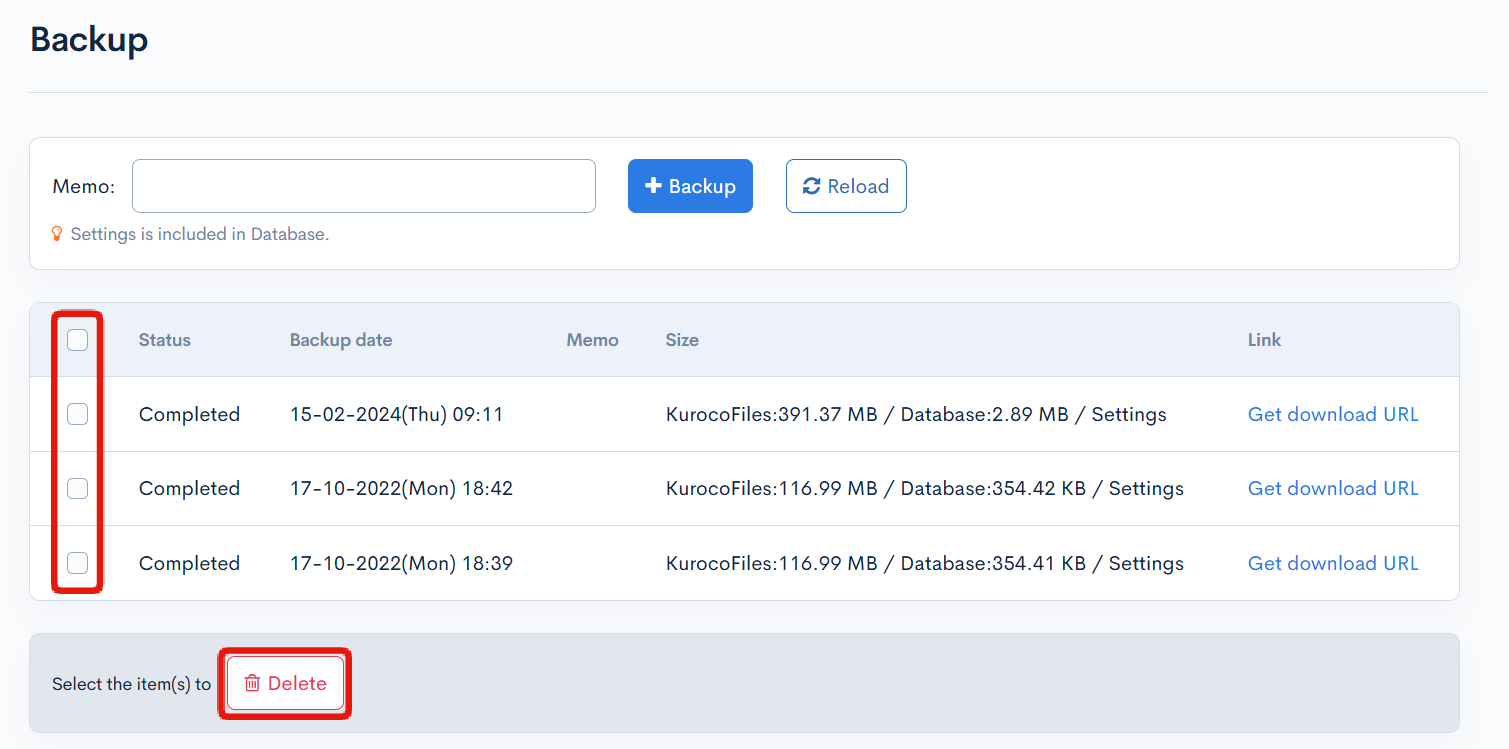
To delete multiple backup files, select them using the checkboxes in the left-most column and click [Delete].
Changing the expiry date Release version: βversion
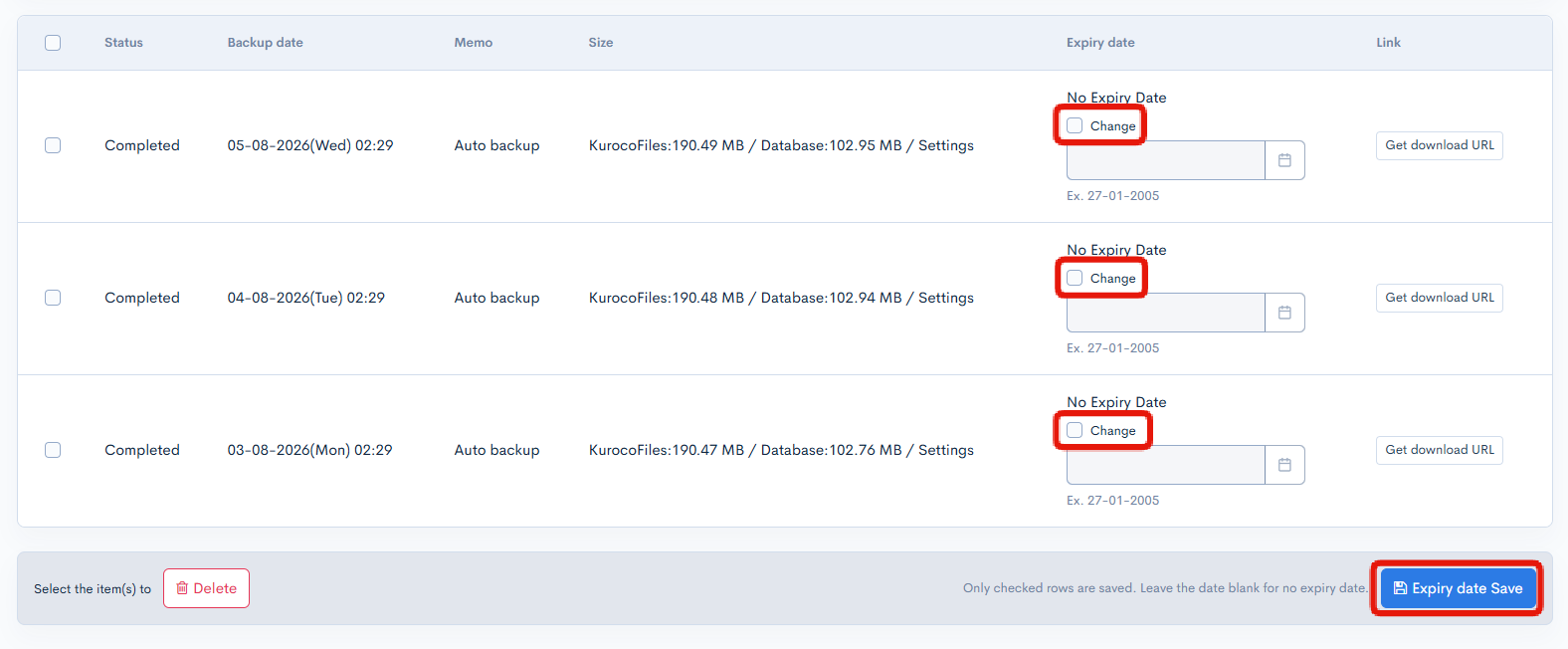
To change the expiry date of a backup:
- In the [Expiry date] column of the list, select [Change] for the backup you want to change. The date input is enabled once it is selected.
- Enter the date. To remove the expiry date, leave the date blank.
- Click [Expiry date Save] and click [OK] in the confirmation dialog.
- Only rows with [Change] selected are saved. Dates in rows that are not selected are left unchanged.
Auto backup
You can configure auto backup on the backup screen to create a backup automatically once a day. Auto backups older than the retention period you set are deleted automatically.

Settings
| Field/Button | Description |
|---|---|
| Enable auto backup | Select this checkbox to turn auto backup on. Clear it to turn auto backup off. |
| Backup retention (days) | The number of days to keep auto backups, from 1 to 365. |
| Save | Saves the auto backup settings. |
Behavior
- When auto backup is enabled, a backup is created automatically once a day at a time assigned to your site during the late-night hours (between 1:00 and 5:00). The execution time is assigned per site and stays fixed, to spread out server load.
- Auto backups appear in the same list as manual backups, with "Auto backup" shown in the Memo column, and can be downloaded just like manual backups.
- Auto backups older than the retention period are deleted on the next auto backup run. Manually created backups are not subject to the retention period and are never deleted by it.
Saving the auto backup settings requires the update permission for Environment settings.
Related documents
Support
If you have any other questions, please contact us or check out Our Slack Community.