Admin panel plugin
The Admin panel plugin screen enables you to insert custom plugins into the Kuroco Admin panel pages. Currently, Kuroco supports 2 types of plugins:
- Vue.js
- CSS
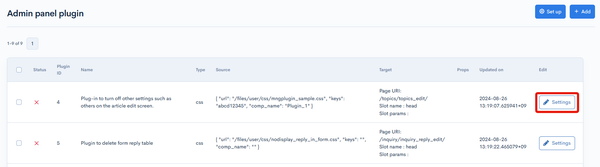
Plugin list
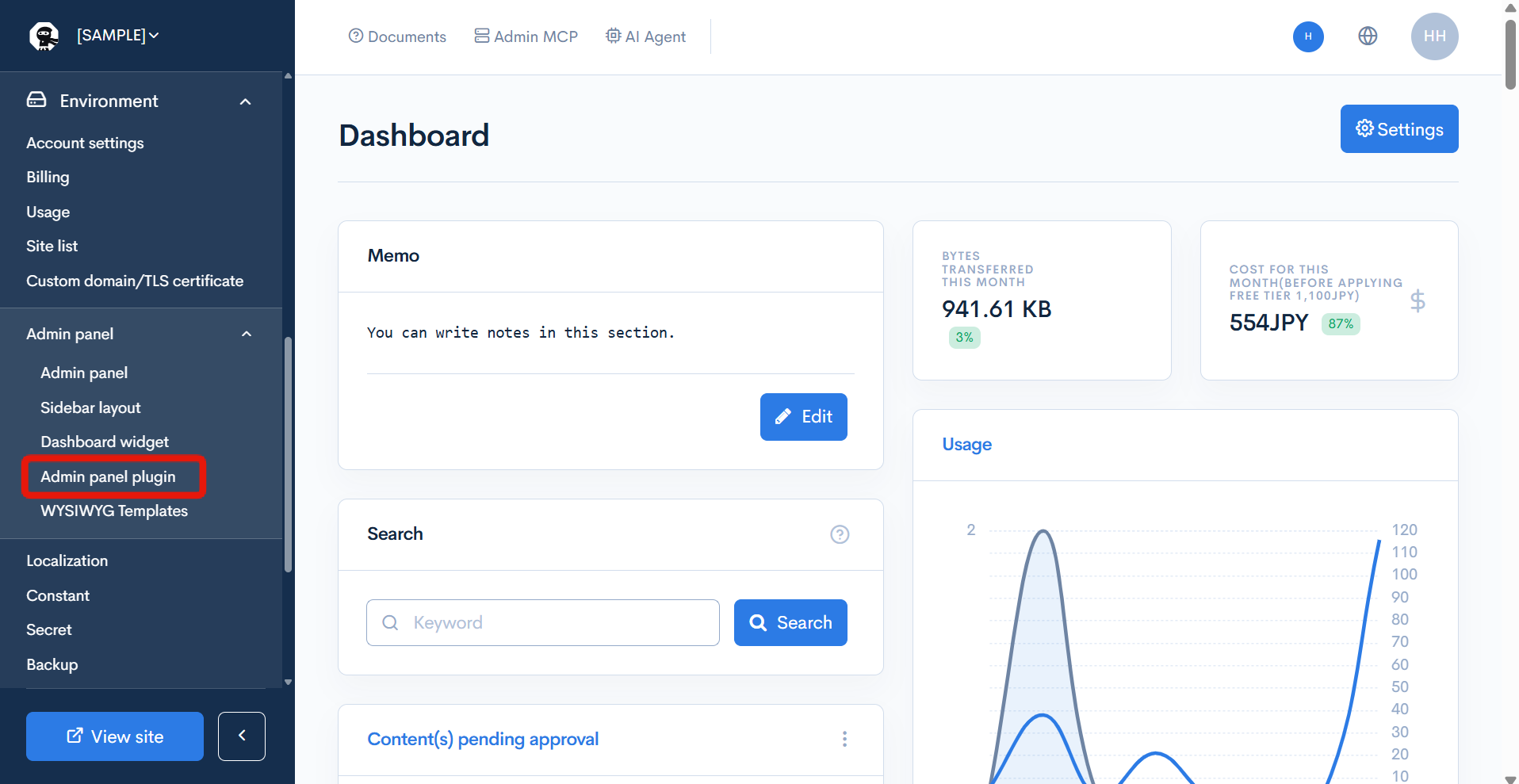
Accessing the screen
In the left sidebar menu, under "SETTINGS", click [Environment] -> [Admin panel] -> [Admin panel plugin].
Item descriptions
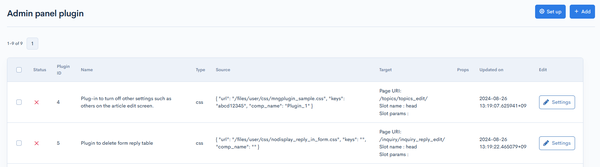
| Item/Button | Description |
|---|---|
| Status | Status of the plugin. |
| Plugin ID | ID of the plugin. |
| Name | Name of the plugin. |
| Type | Type of plugin (CSS or Vue.js). |
| Source | Location information for the plugin. |
| Target | Admin panel screen and slot for loading the plugin. |
| Props | You can insert a JSON object with initial props to be read by Vue.js plugins. Certain pages and slots use additional props. |
| Updated on | Date and time the plugin was last updated. |
| Edit | Click [Settings] to open the configuration dialog. |
| Delete | Click to remove the plugin. |
Batch actions

To delete selected plugins in bulk, check the checkboxes on the left side of the list and click [Delete].
Adding and editing Admin panel plugins
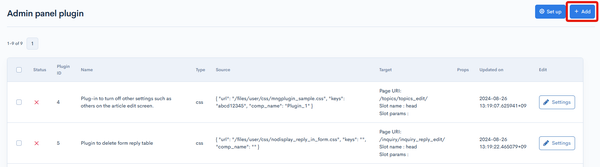
To add a new plugin
Click [Add] in the upper right corner of the screen.
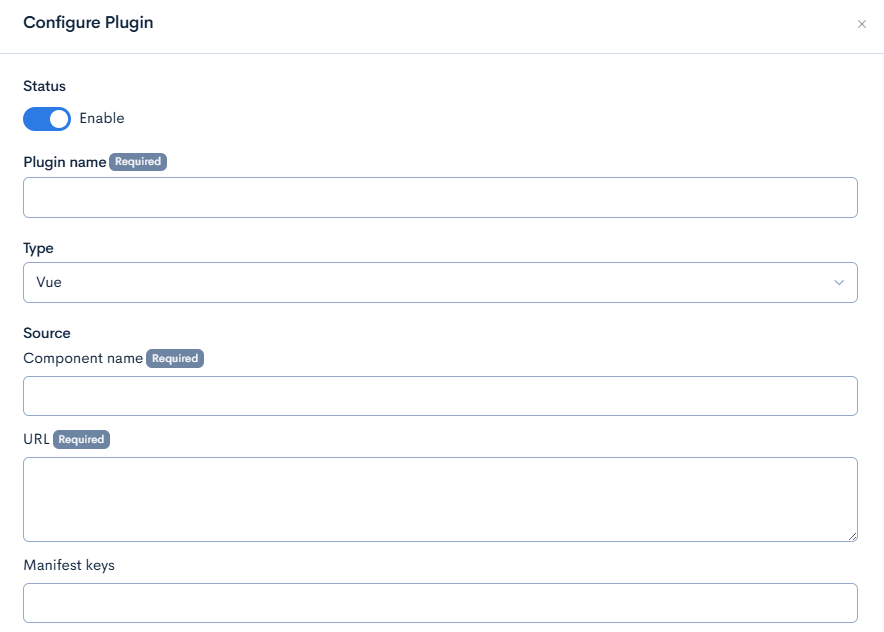
After entering the content, click [Add] to apply the changes.
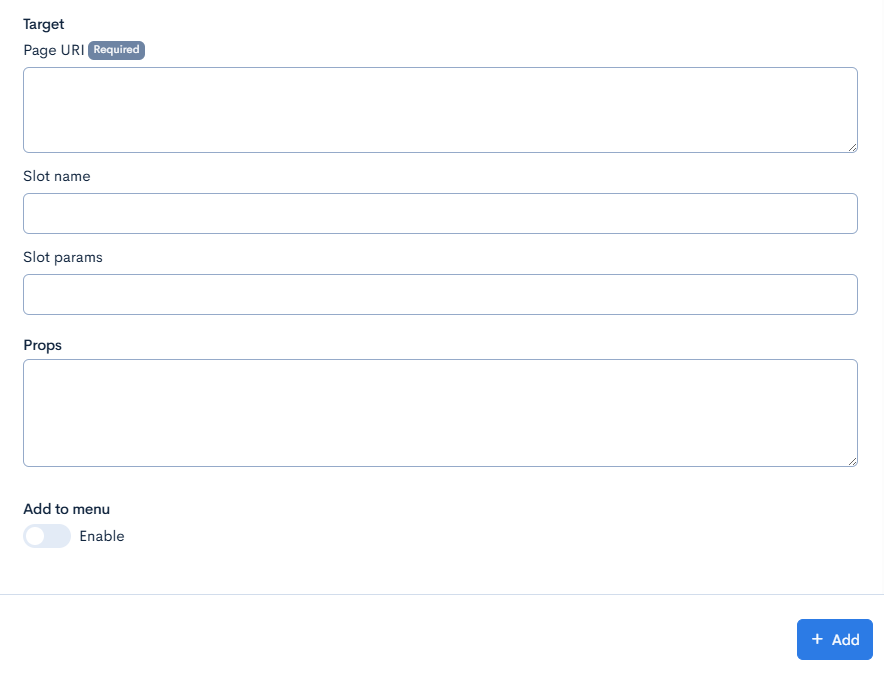
To edit an existing plugin
Click [Settings] under the "Edit" column.
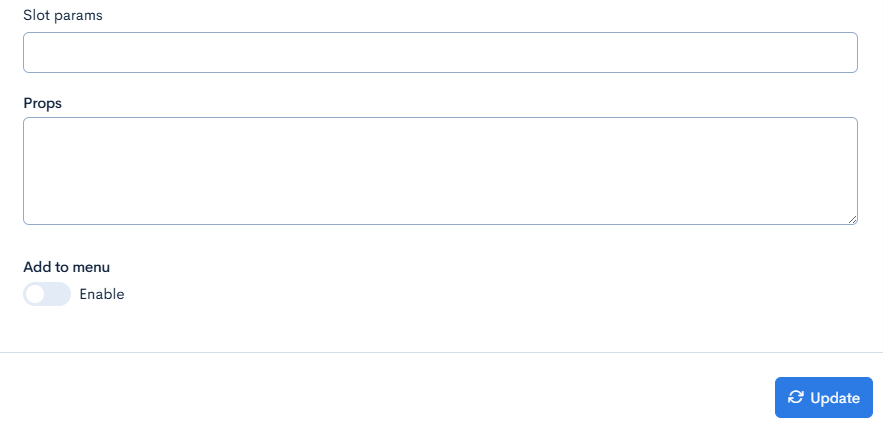
After updating the content, click [Update] to apply the changes.
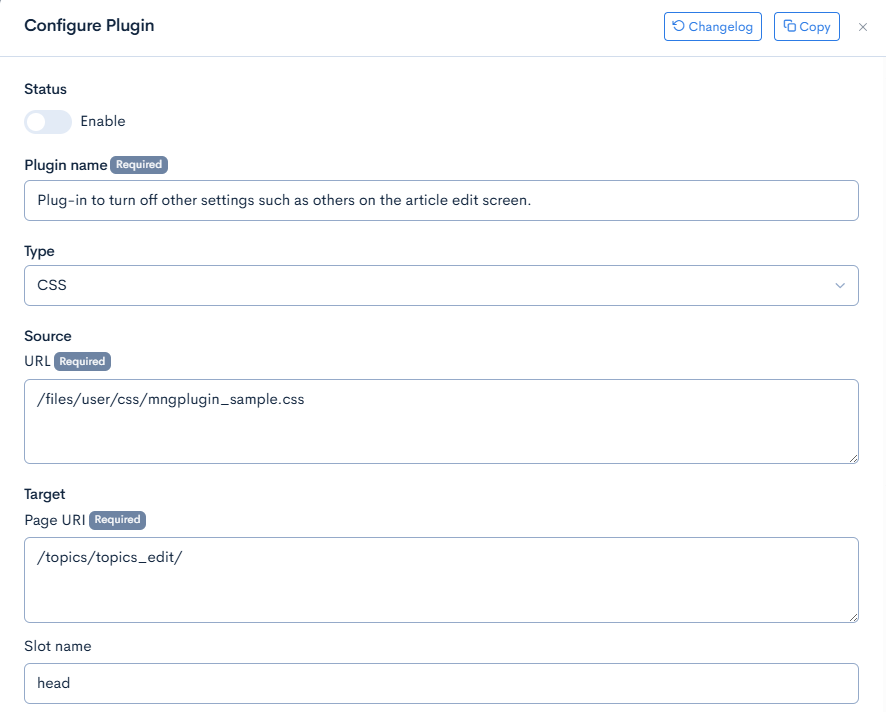
Item Description
| Item | Description |
|---|---|
| Status | Option to activate the plugin settings. |
| Plugin name | Name of the plugin. |
| Type | Type of plugin (CSS or Vue.js). |
| Source Component name | For Vue.js plugins, Kuroco supports MPAs (multi-page applications). Enter the component name of your MPA entry point here (e.g., MyEntryPoint). |
| Source URL | Upload location of the plugin. This can be any domain. |
| Manifest keys | For Vue.js plugins, enter the list of Webpack manifest keys for the app components in the order of loading, separated by semicolons (e.g., MyEntryPoint.js;vendors.*). Values are based on your Webpack code splitting/chunking configurations. |
| Target Page URI | Relative URI of the Kuroco admin panel page that will load your plugin. Omit the /management prefix. You can also specify any custom page, in which case the page will be accessible as exclusive content for the plugin. |
| Slot name | Slot that loads the plugin. Plugins can be loaded in various locations depending on their values. For Vue.js plugins, leaving it blank loads the plugin directly below the page header of the target page without replacing any element. (See:Slots available for admin panel plugins) |
| Slot params | Some pages allow slot params that configure specific conditions for loading the plugins. For example, the content editor page may load a plugin only for specific user groups. |
| Props | To pass configurable props to your plugin, enter them here as JSON objects: e.g., {"my_prop": "my_prop_value"}. |
| Update | Applies the edits made to the admin panel plugin. |
| Copy | Copies the currently existing admin panel plugin to create a new admin panel plugin. |
Update History
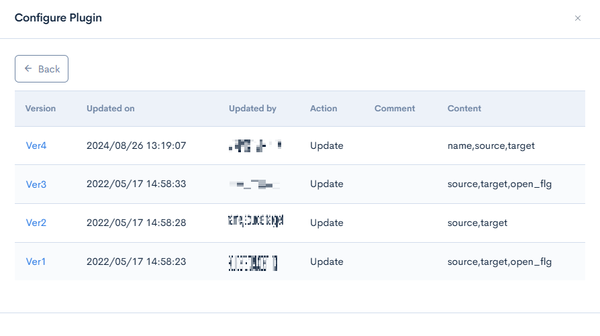
| Item | Description |
|---|---|
| Version | Displays the version. Click to check the status of the selected version. |
| Updated on | Displays the date and time when the content was updated. |
| Updated by | Displays the name of the member who updated the content. |
| Action | Displays the type of action taken. There are six types of actions:
|
| Comment | Displays comments left at the time of the update. |
| Content | Displays the updated content. |
Related documents
Support
If you have any other questions, please contact us or check out Our Slack Community.