Sales summary
In Sales summary, you can view the list of orders for which sales and delivery have been processed on the Sales/delivery management screen.
Accessing the screen
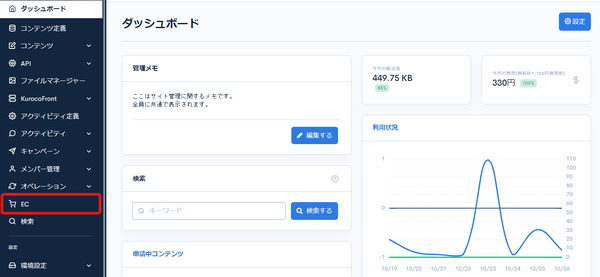
Click [EC].
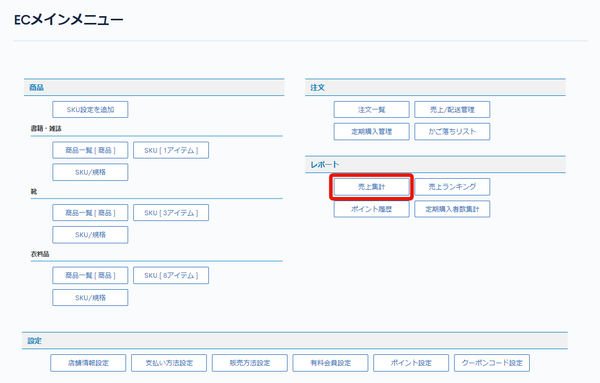
 In the E-commerce main menu, click [Sales summary].
Field descriptions
| Field | Description |
|---|---|
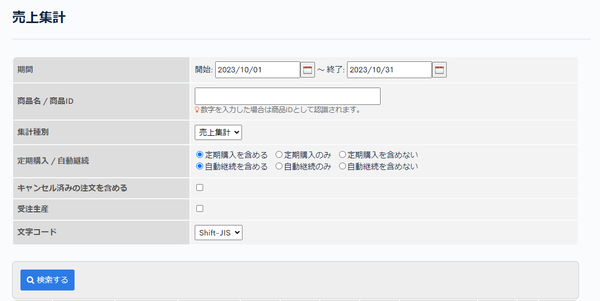
| Period | Set the period. |
| Product name/Product ID | Enter the product name or product ID. |
| Research type | Specify the type of aggregation. Option: "Sales summary" (fixed value) |
| Recurring orders/Automatic renewal | Set the condition for recurring orders or automatic renewal. |
| Include cancelled order | Check this to include cancelled orders. |
| Made-to-order | Check this to search for orders of products for which [Made-to-order] is set on the Product settings screen. |
| Search | Searches sales with the configured conditions. |
Sales list
| Field | Description |
|---|---|
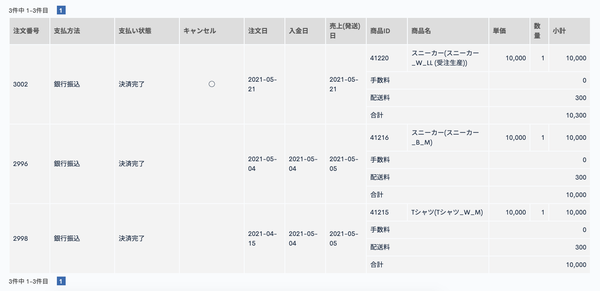
| Order ID | Displays the order ID. |
| Payment method | Displays the payment method of the order. |
| Payment status | Displays the payment status of the order. |
| Cancel | Displays "○" for cancelled orders. |
| Order date | Displays the order date. |
| Paid date | Displays the payment date. |
| Sales (shipping) date | Displays the sales date or the shipping date of the product. |
| Product ID | Displays the ID of the ordered product. |
| Product name | Displays the name of the ordered product. |
| Unit price | Displays the unit price of the ordered product. |
| Amount | Displays the quantity of the ordered product. |
| Subtotal | Displays the subtotal of the order. |
| Fee | Displays the fee of the order. |
| Delivery fee | Displays the delivery fee of the order. |
| Total | Displays the total amount of the order. |
Related documents
Support
If you have any other questions, please contact us or check out Our Slack Community.