Shop information settings
In Shop information settings, you can configure the shop information, e-commerce email addresses, purchase rules, payment service, and more.
Accessing the screen
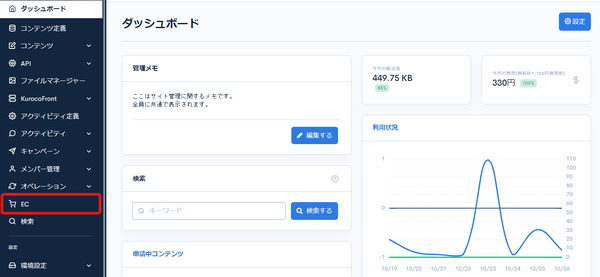
Click [EC].
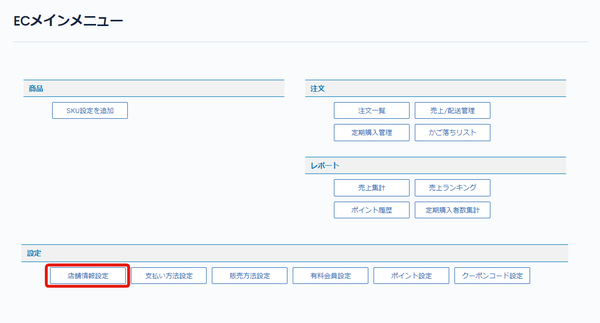
 In the E-commerce main menu, click [Shop information settings].
Field descriptions
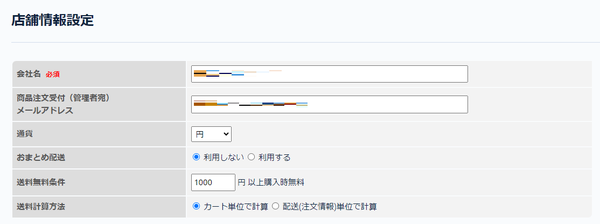
| Field | Description |
|---|---|
| Company name | Enter the company name. |
| Order notification (to administrator) email address | Set the email address to which notifications are sent to the administrator when an order is placed. |
| Currency | Set the currency. |
| Bulk delivery | Set whether to use bulk delivery. With bulk delivery, purchases of regular delivery products are combined into a single order even if the products have different sales methods. |
| Free shipping condition | Set the condition for free shipping. |
| Delivery fee calculation | Select how the delivery fee is calculated. |
Payment service settings

| Field | Description |
|---|---|
| Payment service | Select the payment service to use. For the available services and payment methods, see About payment services. |
Update button

| Field | Description |
|---|---|
| Update | Click to apply the changes to the shop information. |
About payment services
No payment service used
Select this if you process payments only by bank transfer or similar methods without using a payment service.
Available payment services
- No payment
- Bank transfer
- Deferred payment
- Cash on delivery
- Manual payment
Paygent
Select this to process payments using Paygent.
Selecting "Paygent (for development)" connects to the test environment provided in the Paygent test environment connection kit. If your production site and staging site are separate, you can run tests by selecting this option on the staging site.
Available payment services
- No payment
- Credit card
- Convenience store payment
- Monthly credit card
- Bank transfer
- Deferred payment
- Cash on delivery
- Manual payment
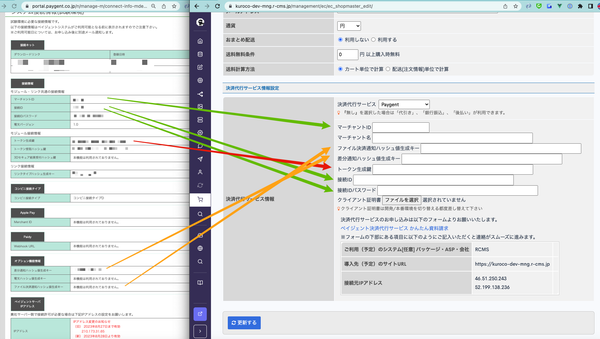
Paygent setting example
| Field | Description |
|---|---|
| Merchant ID | Enter your Paygent merchant ID. |
| Merchant name | Enter any merchant name (full-width characters). |
| File payment notification hash value generation key | *Required only when using file payment. Enter your Paygent file payment notification hash value generation key. |
| Differential notification hash value generation key | Enter your Paygent differential notification hash value generation key. |
| Token generation key | Enter your Paygent token generation key. |
| Token receipt hash key | Used as needed to check for tampering when generating credit card tokens. For details, see the Paygent manual 02_PG外部インターフェース仕様説明書(トークン決済).pdf. |
| Connection ID | Enter your Paygent connection ID. |
| Connection ID password | Enter your Paygent connection ID password. |
| Client certificate | Upload the pem file of the server client certificate included in Paygent's production environment connection kit or test environment connection kit. |
Related documents
Support
If you have any other questions, please contact us or check out Our Slack Community.