LINE
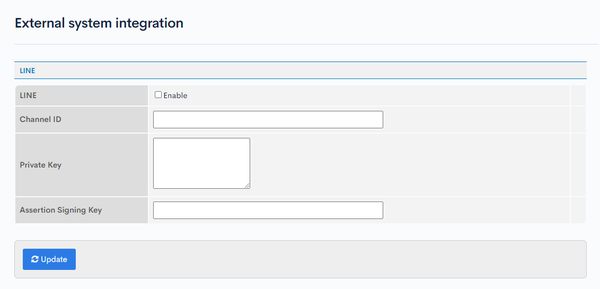
Setting up for LINE integration.
Accessing the screen
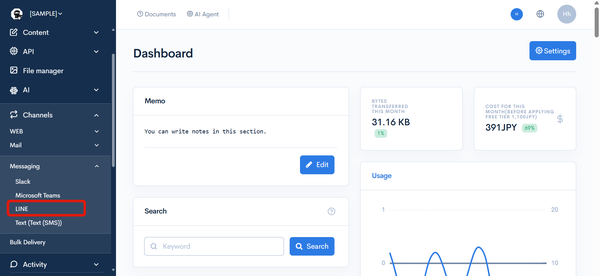
Under "SETTINGS", select [Channels] -> [Messaging] -> [LINE].
Field descriptions
| Item | Description |
|---|---|
| Enable | Check this box to enable LINE integration. |
| Channel ID | Enter the Channel ID obtained from the LINE management screen. |
| Secret Key | Enter the secret key generated in the browser. |
| Assertion Signing Key | Enter the Assertion Signing Key (kid) obtained from the LINE management screen. |
Test send
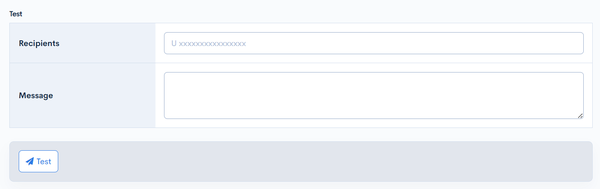
The test send form is displayed when LINE integration is enabled and the Channel ID and Assertion Signing Key (kid) are configured. Using the saved settings, you can send an actual message to a LINE user to verify that the integration is configured correctly.
caution
Sending a test will send a real message to the specified LINE user.
| Field | Description |
|---|---|
| Recipients | Enter the destination LINE user ID. |
| Message | Enter the text to send. |
| Test | Click [Test] to send the entered message to LINE. If the send succeeds, "LINE message was sent successfully." is displayed; if it fails, "Failed to send LINE message." is displayed. |
Related documents
Support
If you have any other questions, please contact us or check out Our Slack Community.