X
The X screen in Kuroco allows you to configure the X (formerly Twitter) integration function.
Accessing the screen
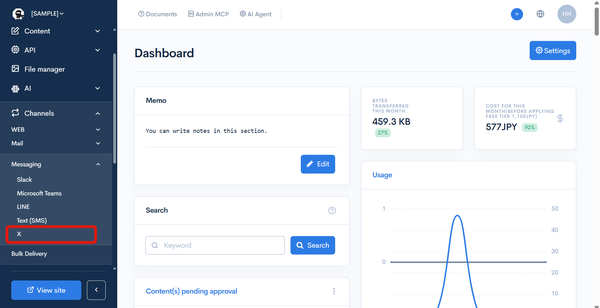
Under "SETTINGS", select [Channels] -> [Messaging] -> [X].
Field descriptions
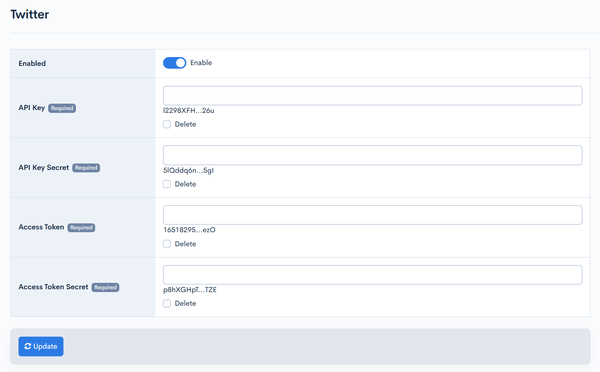
| Kuroco admin panel field | X Developer Console label | Description |
|---|---|---|
| Enable | — | Check the box to enable X integration. |
| API key | Consumer Key | Enter the "Consumer Key" from the X Developer Console. |
| API key secret | Consumer Secret | Enter the "Consumer Secret" from the X Developer Console. |
| Access token | Access Token | Enter the "Access Token" from the X Developer Console. |
| Access token secret | Access Token Secret | Enter the "Access Token Secret" from the X Developer Console. |
Test post
The test post form is displayed when X integration is enabled and the API Key is configured.
caution
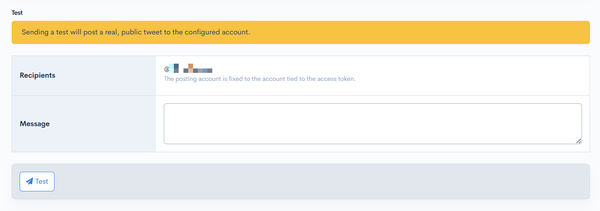
Sending a test will post a real, public tweet to the configured account.
| Field | Description |
|---|---|
| Recipients | The X account tied to the configured access token is automatically displayed. The posting account is fixed to the account tied to the access token. |
| Message | Enter the text to post. |
| Test | Click [Test] to post the entered message to X. If the post succeeds, "Sent successfully" is displayed. |
Related documents
Support
If you have any other questions, please contact us or check out Our Slack Community.