Text (SMS)
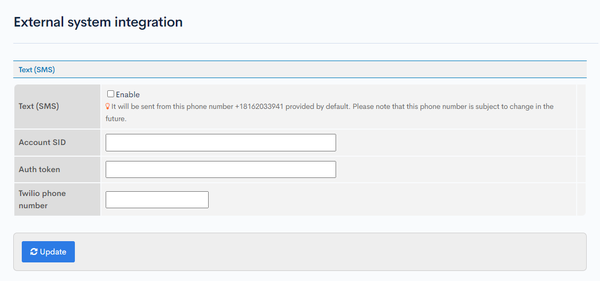
The text (SMS) screen enables you to configure settings for integrating Twilio into your website.
Accessing the screen
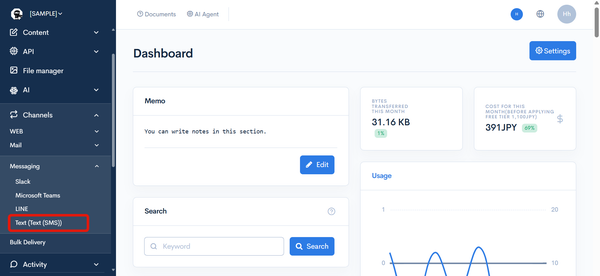
In the left sidebar menu, under "SETTINGS", click [Channels] -> [Messaging] -> [Text (SMS)].
Item descriptions
| Item/Button | Description |
|---|---|
| Text (SMS) | Option to enable the text message (SMS) function. |
| Account SID | Your Twilio account SID. |
| Account token | Your Twilio account token. |
| Twilio phone number | Your Twilio phone number. |
| Update | Click to apply the changes you made on this screen. |
Test send
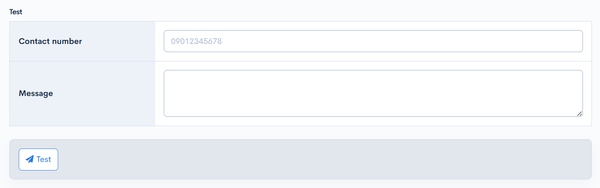
The test send form is displayed when the text (SMS) function is enabled and the Account SID and Twilio phone number are configured. Using the saved settings, you can send an actual SMS to verify that the integration is configured correctly.
Sending a test will send a real SMS to the specified phone number.
| Field | Description |
|---|---|
| Contact number | Enter the destination phone number (e.g. 09012345678). |
| Message | Enter the text to send. |
| Test | Click [Test] to send the entered message as an SMS. If the send succeeds, "Has been sent." is displayed; if it fails, "Message send failure." is displayed. |
Sample usage
After configuring the text (SMS) settings, copy the following code into the batch process or original process to send text messages.
{sendmail var=result to="(phone number)@twilio.r-cms.jp" subject="Test" contents="This is a test"}
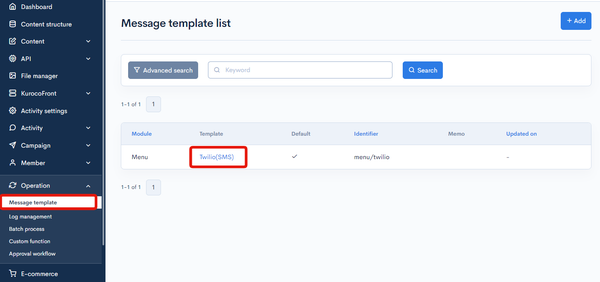
Use the Twilio(SMS) template in [Operation] -> [Message template].
Related documents
Support
If you have any other questions, please contact us or check out Our Slack Community.