Point edit
In Point edit, you can edit the conditions for granting points.
info
If no point grant conditions are set, points are not granted automatically (for product purchase, login, or member registration). To grant points of the type "Purchase products", you also need to link a point setting to the target products in "Point rate" in Product settings.
Accessing the screen
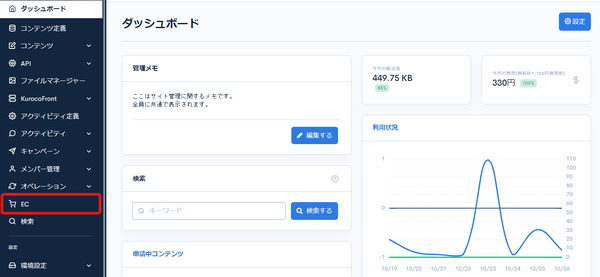
Click [EC].
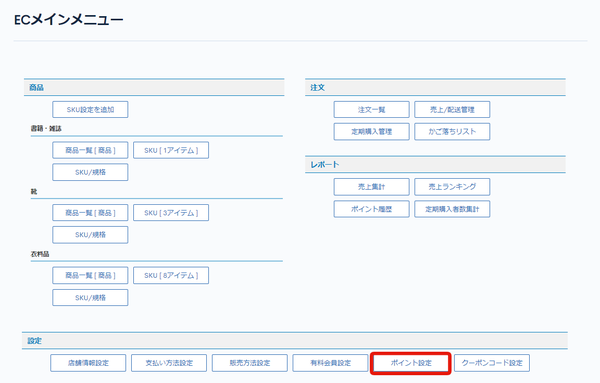
 In the E-commerce main menu, click [Point settings].
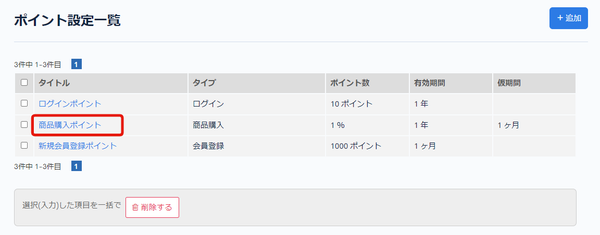
 On the point list page, click the [Title] of the point you want to edit.
Field descriptions
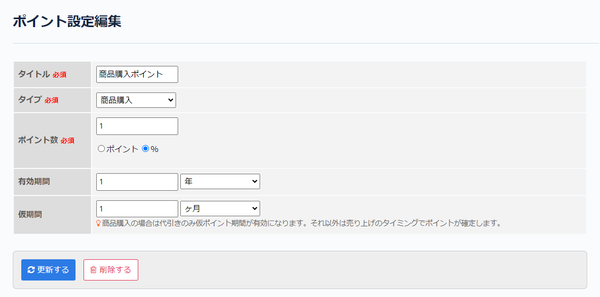
| Field | Description |
|---|---|
| Title | Enter the title of the point grant condition. |
| Type | Set the action for which points are granted. Purchase products: Points are granted when a product is purchased. Login: Points are granted at login. Member registration: Points are granted when member registration is completed. |
| Point value | Enter the points to grant as a number or a percentage. Points: Specify the number of points to grant. %: Specify the percentage of the purchase amount to grant as points. This can be set only when the type "Purchase products" is selected. |
| Validity period | Enter the validity period of the points. You can specify it in years, months, weeks, or days. |
| Trial period | Enter the trial period of the points. You can specify it in years, months, weeks, or days. For the type "Purchase products", points are granted as temporary points. The trial period applies only to cash on delivery; the points are fixed when the trial period has elapsed after sales processing. For payment methods other than cash on delivery, the trial period does not apply, and the points are fixed at the time of the sale. For the types "Login" and "Member registration", if a trial period is set, points are granted as temporary points and fixed after the trial period has elapsed. If no trial period is set, points are granted immediately as fixed points. For details, see Operations that create temporary points and when they are fixed. |
Update and Delete buttons
| Field | Description |
|---|---|
| Update | Click to apply the changes to the point grant condition. |
| Delete | Click to delete the displayed point grant condition. |
Related documents
Support
If you have any other questions, please contact us or check out Our Slack Community.